

Filter Image Using Blur
SUMMARY
Filter Image Using Blur applies a simple box blur to an image.
Box blur replaces each pixel with the unweighted average of its neighborhood — the fastest smoothing operation available, but it blurs edges along with noise because it doesn't distinguish between the two. Use filter_image_using_bilateral instead if edges need to stay sharp.
Use this Skill when you want to smooth an image quickly and edge preservation is not a concern.
The Skill
from telekinesis import pupil

blurred_image = pupil.filter_image_using_blur(
    image=image,
    kernel_size=7,
    border_type="default",
)Example
Input Image
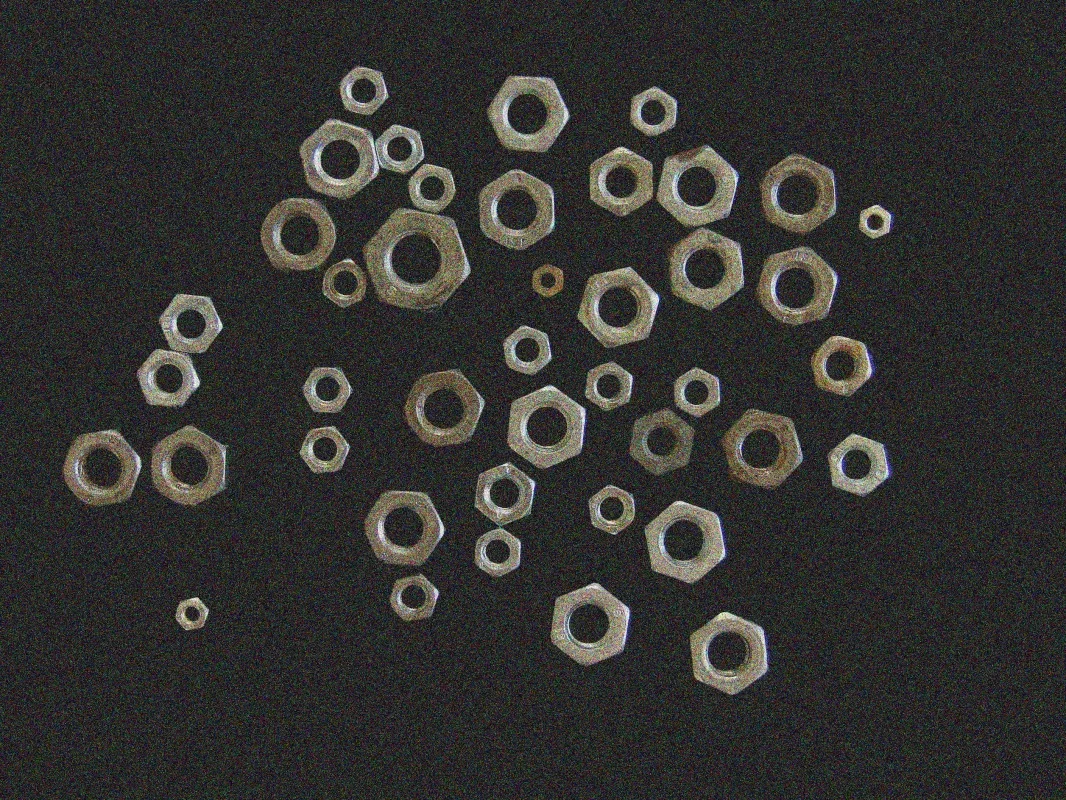
Original noisy image of scattered nuts
Filtered Image
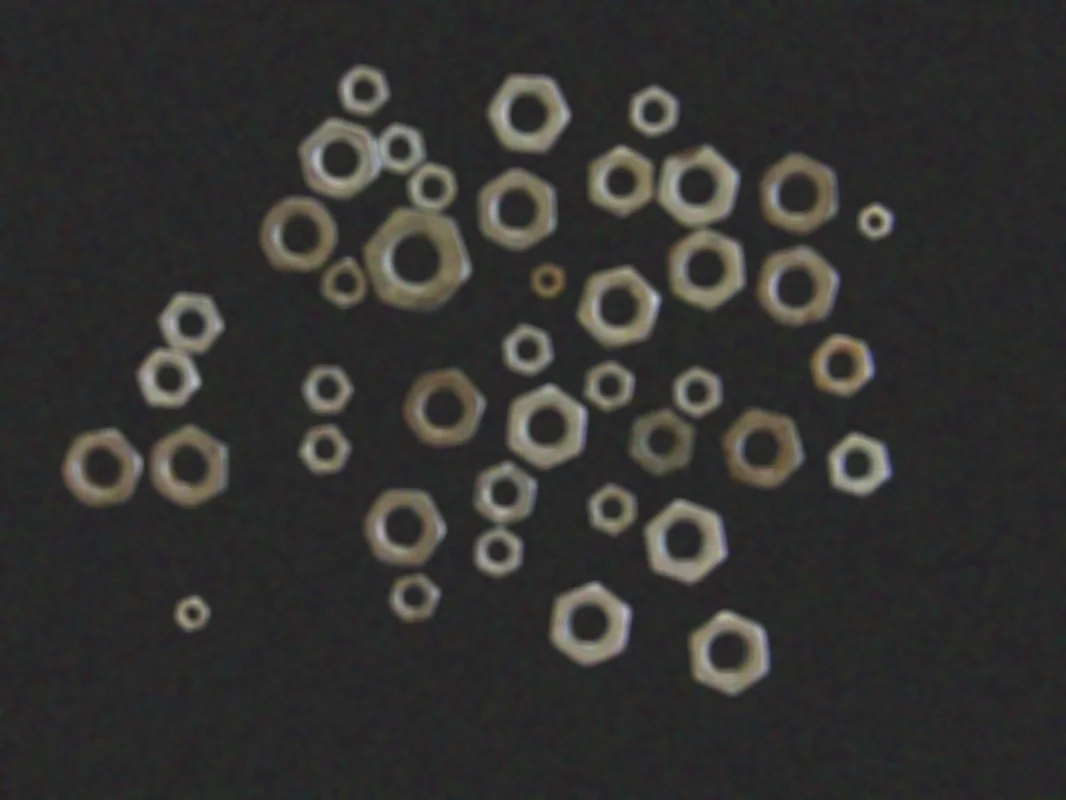
Blurred image (kernel_size=7) — smoothed uniformly, including edges
The Code
"""Demonstrates filter_image_using_blur operation."""

from loguru import logger
import rerun as rr

from telekinesis import pupil, datatypes


def filter_image_using_blur_example():
    """Applies filter_image_using_blur operation."""
    # ===================== Load Image ==========================================
    image_url = "https://assets.telekinesis.ai/examples/v1/images/nuts_scattered_noised.jpg"
    image = datatypes.Image.from_url(image_url)

    # ===================== Run Skill ==========================================
    filtered_image = pupil.filter_image_using_blur(
        image=image,
        kernel_size=7,
        border_type="default",
    )

    # ===================== Log ================================================
    logger.success(f"Applied filter_image_using_blur on {image}")
    logger.success(f"Result: {filtered_image}")

    # ===================== Visualization  (Optional) ======================
    rr.init("filter_image_using_blur_example", spawn=True)
    datatypes.visualize(image, entity_path="1-Original")
    datatypes.visualize(filtered_image, entity_path="2-Filtered")

if __name__ == "__main__":
    filter_image_using_blur_example()
Runnable examples are available in the Telekinesis examples repository.
Follow the README in that repository to set up the environment, run this specific example with:
cd telekinesis-examples
python examples/image_processing/filter_image_using_blur.py
Parameter Configuration
| Parameter | Type | Default | Description |
|---|---|---|---|
image | datatypes.Image | np.ndarray | required | The input image to filter, shape (H, W) or (H, W, C) |
kernel_size | datatypes.Int | int | 3 | Size of the blur kernel, in pixels. Must be odd |
border_type | datatypes.String | str | "default" | Border handling mode: "default", "constant", "replicate", "reflect", or "reflect 101" |
Returns
| Type | Description |
|---|---|
datatypes.Image | Same shape as image, blurred. |
Raises
| Exception | Condition |
|---|---|
TypeError | A parameter's value does not match its expected type (see the Parameter Configuration table above) |
ValueError | kernel_size is not odd, or border_type is not one of the supported border modes |
ConfigurationError | The TELEKINESIS_API_KEY environment variable is not set |
SerializationError | The request input failed to serialize, the response was not returned as an Arrow stream, or the response failed to deserialize |
RequestTimeoutError | The request to the Pupil service timed out |
TransportError | A network failure occurred before a response was received |
ClientError | The Pupil service rejected the request due to invalid or malformed input (HTTP 400/422), an unrecognized endpoint (HTTP 404), or another unexpected 4xx response |
AuthenticationError | The API key was rejected as invalid or expired (HTTP 401) |
AuthenticationServiceError | The authentication service returned an invalid response, was temporarily unavailable, or timed out (HTTP 502/503/504) |
ServerError | The Pupil service returned a 5xx or otherwise unexpected error response |
How to Tune the Parameters
The filter_image_using_blur Skill exposes two parameters that control blur strength and border handling.
kernel_size
- Controls: The size of the averaging window applied at each pixel.
- Units: Pixels
- Default:
3 - Increase → more blur, softer image, slower
- Decrease → less blur, faster
- Typical range: 3-31. Use 3-7 for light blur, 7-15 for moderate, 15-31 for heavy blur.
border_type
- Controls: How pixels beyond the image boundary are synthesized when the kernel extends past the edge.
- Default:
"default" - Options:
default– same asreflect 101; suitable for most casesconstant– pads with a fixed value; use for a known black/white borderreplicate– repeats the edge pixelreflect– mirrors the image without repeating the edge pixelreflect 101– mirrors with the edge pixel repeated; avoids dark border artifacts
TIP
Best practice: Start with kernel_size=3 for light smoothing and increase only as needed — larger kernels are slower and remove more real detail along with noise.
Where to Use the Skill
Common pipelines include:
- Fast preprocessing – Quick, low-cost smoothing before another operation that is sensitive to pixel-level noise
- Background estimation – Blur out fine detail to approximate a background/illumination field
- Downsampling preparation – Smooth an image before reducing its resolution, to reduce aliasing
Alternative Skills
| Skill | vs. Filter Image Using Blur |
|---|---|
| filter_image_using_gaussian_blur | Gaussian-weighted averaging produces smoother, more natural results than a uniform box average, at similar speed. |
| filter_image_using_bilateral | Preserves edges while smoothing, at the cost of speed. Use when uniform smoothing would destroy important boundaries. |
| filter_image_using_median_blur | Better suited to removing salt-and-pepper (impulse) noise; box blur is a better fit for general low-level noise. |
When Not to Use the Skill
Do not use Filter Image Using Blur when:
- Edges need to be preserved (use
filter_image_using_bilateral, orfilter_image_using_gaussian_blurfor a smoother uniform blur) - The noise is salt-and-pepper (impulse) noise (use
filter_image_using_median_blur, which targets this noise type specifically) - You need natural-looking, smoother blur than a box average provides (use
filter_image_using_gaussian_blur) - You are about to run edge detection (blurring removes the fine gradients edge detectors rely on — skip it or use minimal Gaussian smoothing instead)