

Translate Image
SUMMARY
Translate Image shifts an image by dx and dy pixels.
The output has the same dimensions as the input: content shifted out of frame is discarded, and the newly-exposed area on the opposite side is filled according to border_type (and border_value for a constant fill).
Use this Skill when you want to shift an image by a fixed pixel offset.
The Skill
from telekinesis import pupil

filtered_image = pupil.translate_image(
    image=image,
    dx=100,
    dy=50,
    border_type="constant",
    border_value=0,
    interpolation_method="linear",
)Example
Input Image
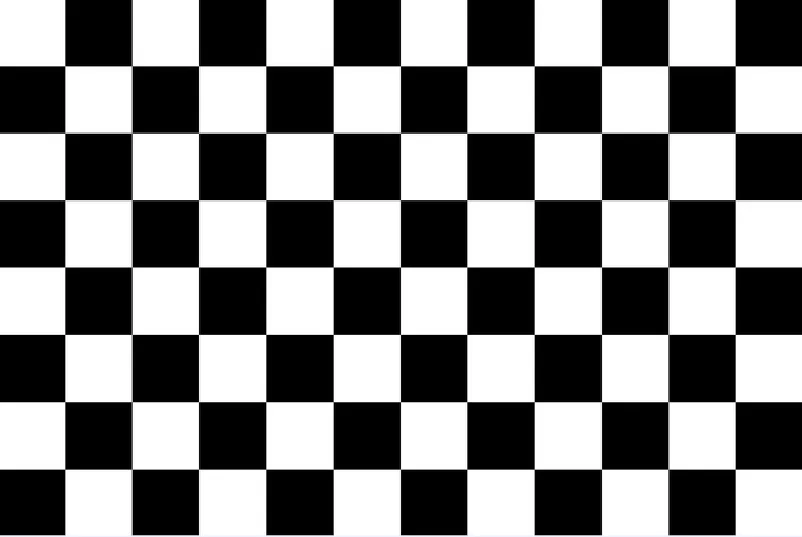
Original image
Translated Image
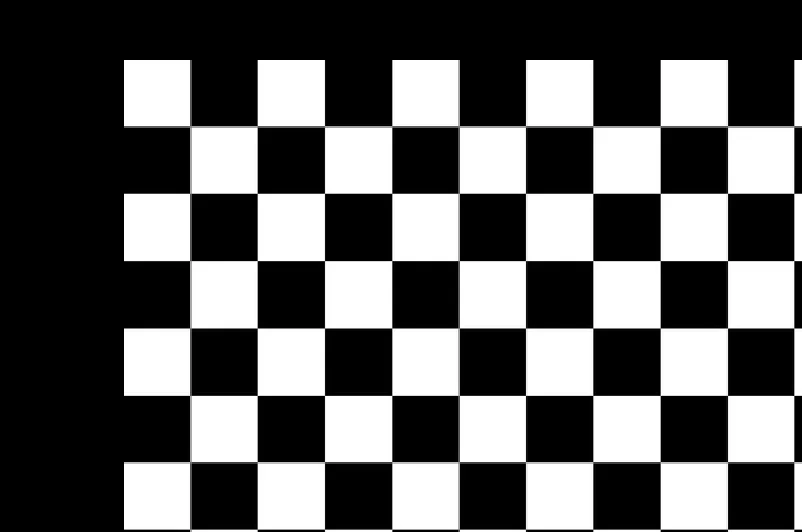
Shifted by dx=100, dy=50 with constant black border fill
The Code
"""Demonstrates translate_image operation."""

from loguru import logger
import rerun as rr

from telekinesis import pupil, datatypes


def translate_image_example():
    """Applies translate_image operation."""
    # ===================== Load Image ==========================================
    image_url = "https://assets.telekinesis.ai/examples/v1/images/checkerboard.jpg"
    image = datatypes.Image.from_url(image_url)

    # ===================== Run Skill ==========================================
    filtered_image = pupil.translate_image(
        image=image,
        dx=100,
        dy=50,
        border_type="constant",
        border_value=0,
        interpolation_method="linear",
    )

    # ===================== Log ================================================
    logger.success(f"Applied translate_image on {image}")
    logger.success(f"Result: {filtered_image}")

    # ===================== Visualization  (Optional) ======================
    rr.init("translate_image_example", spawn=True)
    datatypes.visualize(image, entity_path="1-Original")
    datatypes.visualize(filtered_image, entity_path="2-Translated")

if __name__ == "__main__":
    translate_image_example()
Runnable examples are available in the Telekinesis examples repository.
Follow the README in that repository to set up the environment, run this specific example with:
cd telekinesis-examples
python examples/image_processing/translate_image.py
Parameter Configuration
| Parameter | Type | Default | Description |
|---|---|---|---|
image | datatypes.Image | np.ndarray | required | The input image to shift, shape (H, W) or (H, W, C) |
dx | datatypes.Float | float | int | required | Horizontal shift in pixels; positive shifts right |
dy | datatypes.Float | float | int | required | Vertical shift in pixels; positive shifts down |
border_type | datatypes.String | str | "constant" | Border handling for the area exposed by the shift: default, constant, replicate, reflect, or reflect 101 |
border_value | datatypes.Float | float | int | 0.0 | Fill value used only when border_type is "constant"; applied as a single scalar across all channels |
interpolation_method | datatypes.String | str | "linear" | Interpolation method: nearest, linear, cubic, area, lanczos4, linear exact, or nearest exact |
Returns
| Type | Description |
|---|---|
datatypes.Image | Same shape as image, shifted by (dx, dy) with the exposed border filled per border_type |
Raises
| Exception | Condition |
|---|---|
TypeError | A parameter's value does not match its expected type (see the Parameter Configuration table above) |
ValueError | border_type or interpolation_method is not one of the supported options |
ConfigurationError | The TELEKINESIS_API_KEY environment variable is not set |
SerializationError | The request input failed to serialize, the response was not returned as an Arrow stream, or the response failed to deserialize |
RequestTimeoutError | The request to the Pupil service timed out |
TransportError | A network failure occurred before a response was received |
ClientError | The Pupil service rejected the request due to invalid or malformed input (HTTP 400/422), an unrecognized endpoint (HTTP 404), or another unexpected 4xx response |
AuthenticationError | The API key was rejected as invalid or expired (HTTP 401) |
AuthenticationServiceError | The authentication service returned an invalid response, was temporarily unavailable, or timed out (HTTP 502/503/504) |
ServerError | The Pupil service returned a 5xx or otherwise unexpected error response |
How to Tune the Parameters
The translate_image Skill exposes the shift amount, how the newly-exposed border is filled, and the resampling method.
dx / dy
- Controls: The horizontal and vertical pixel offset applied to the image.
- Units: Pixels
- Default: required, no default
- Typical range: bounded by image width/height — shifts beyond that push the entire original content out of frame
border_type
- Controls: How the region exposed on the opposite side of the shift is filled.
- Default:
"constant" - Options:
constant– fills withborder_value; use for a known, uniform fill colorreplicate– extends the edge pixel; avoids a hard color seam when the border color would otherwise stand outreflect/reflect 101– mirrors the image at the edge; use for seamless-looking bordersdefault– same asreflect 101
border_value
- Controls: The fill value used when
border_typeis"constant". - Default:
0.0 - Options: Any scalar, e.g.
0for black,255for white
interpolation_method
- Controls: How pixel values are resampled at the shifted positions.
- Default:
"linear" - Options:
nearest/nearest exact– fastest, blocky; use for masks/labelslinear– good quality/speed trade-off for small shiftscubic– sharper, slowerarea– best when combined with shrinkinglanczos4– highest quality, slower
TIP
Best practice: Use border_type="constant" with border_value=0 for data augmentation where the padded region should be visually distinct from real content. Use "replicate" or "reflect" when the border should blend in, e.g. before further filtering that would otherwise pick up a hard edge artifact at the border.
Where to Use the Skill
Common pipelines include:
- Data augmentation – Apply random pixel shifts to generate training variation
- Alignment correction – Compensate for a known, small positional offset between two captures of the same scene
- Sliding-window preprocessing – Shift content into position before a fixed-window crop
Alternative Skills
| Skill | vs. Translate Image |
|---|---|
| rotate_image | Rotates around the center instead of shifting; combine both for full 2D augmentation. |
| pad_image | Adds padding on specific sides without shifting the existing content or discarding any pixels. |
| crop_image_center | Use after translation to crop back to a fixed size if the shift changed what's centered. |
When Not to Use the Skill
Do not use Translate Image when:
- You need rotation, not a straight-line shift (use
rotate_image) - You need to add space around the image without discarding any original content (use
pad_image, which grows the canvas instead of shifting content within a fixed one) dxanddyare both 0 (no-op; skip the call)- The offset between two images is unknown (compute/estimate it first, e.g. via feature matching, before calling this Skill)