

Universal Robots
SUMMARY
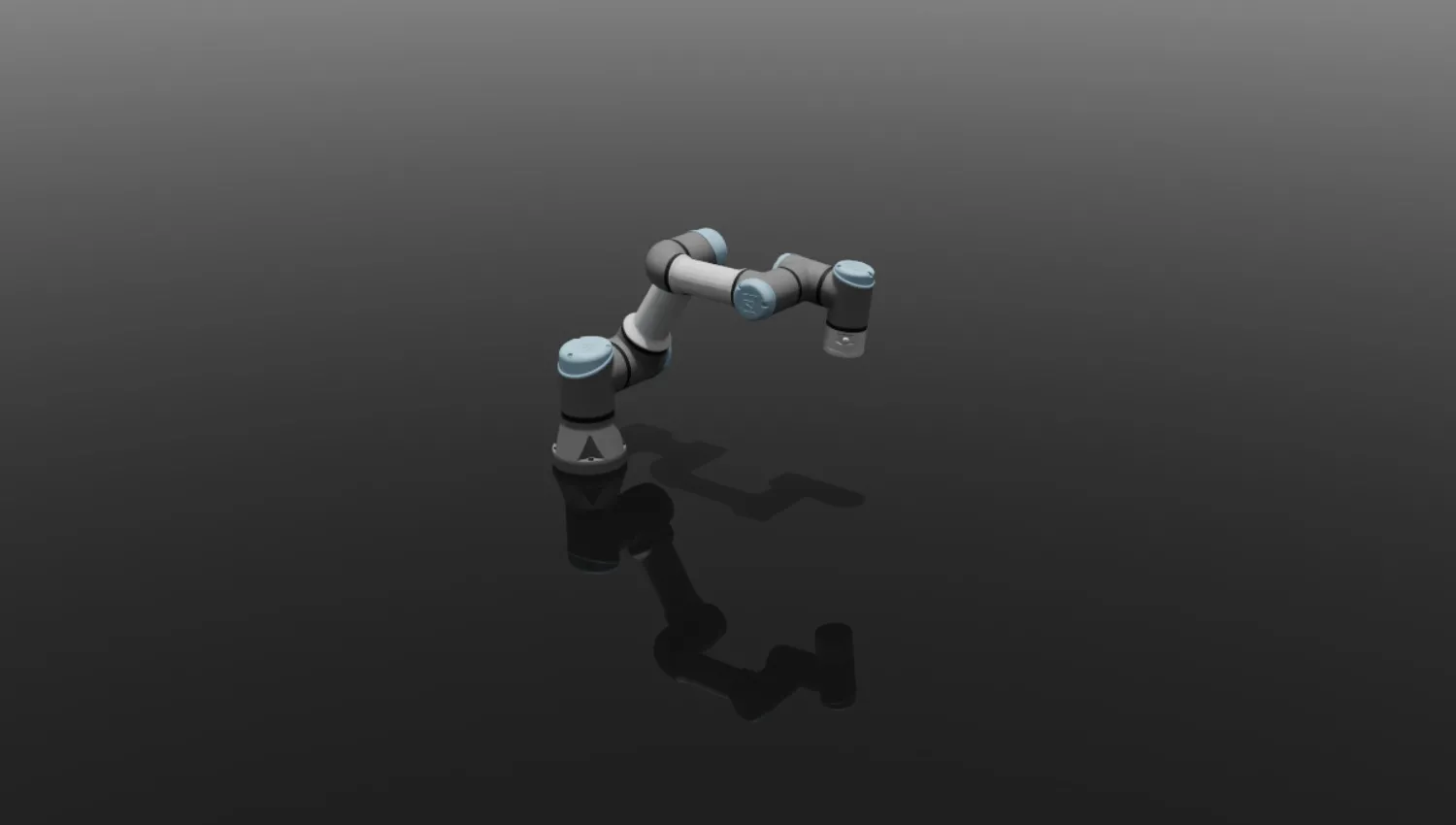
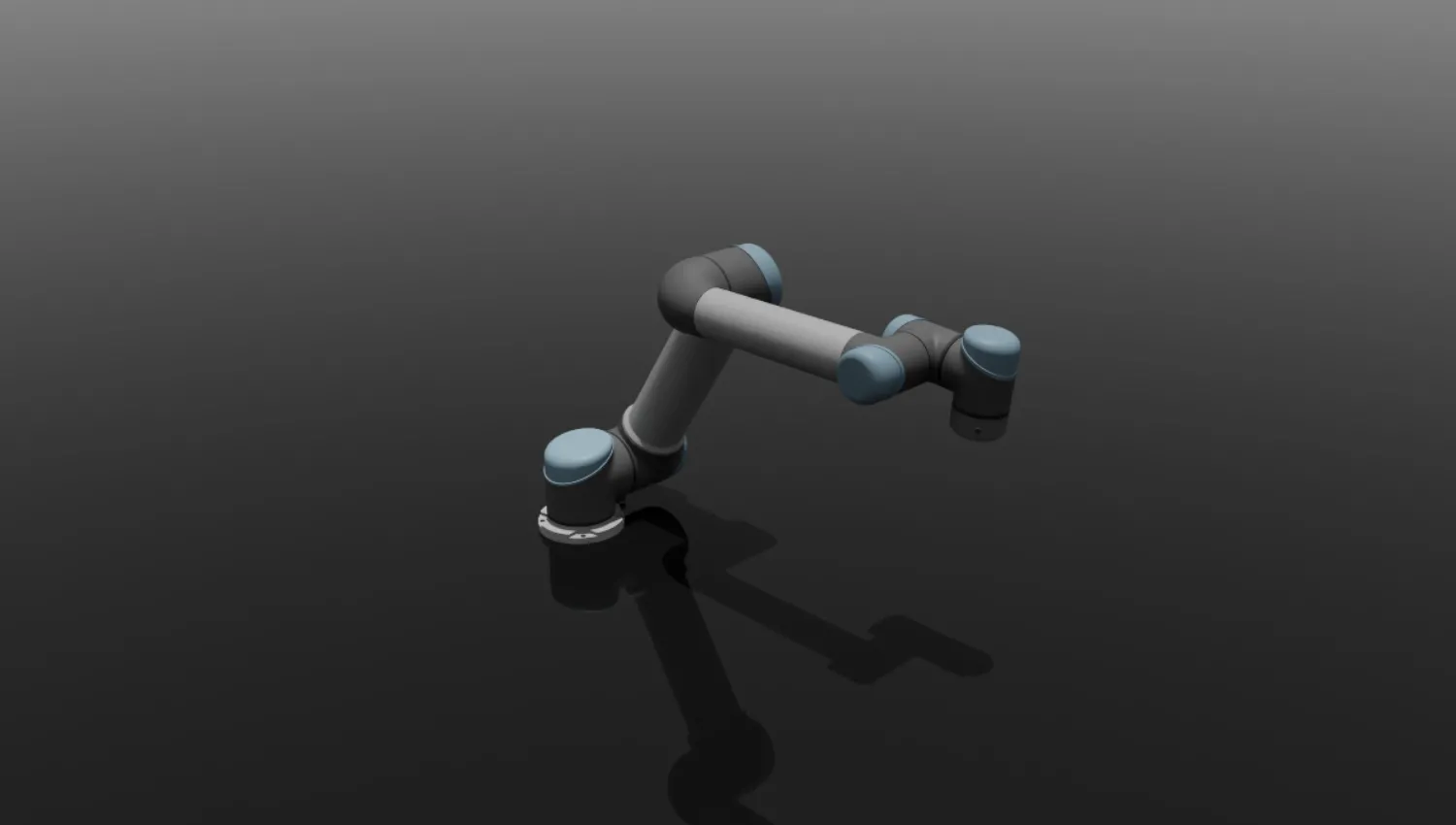
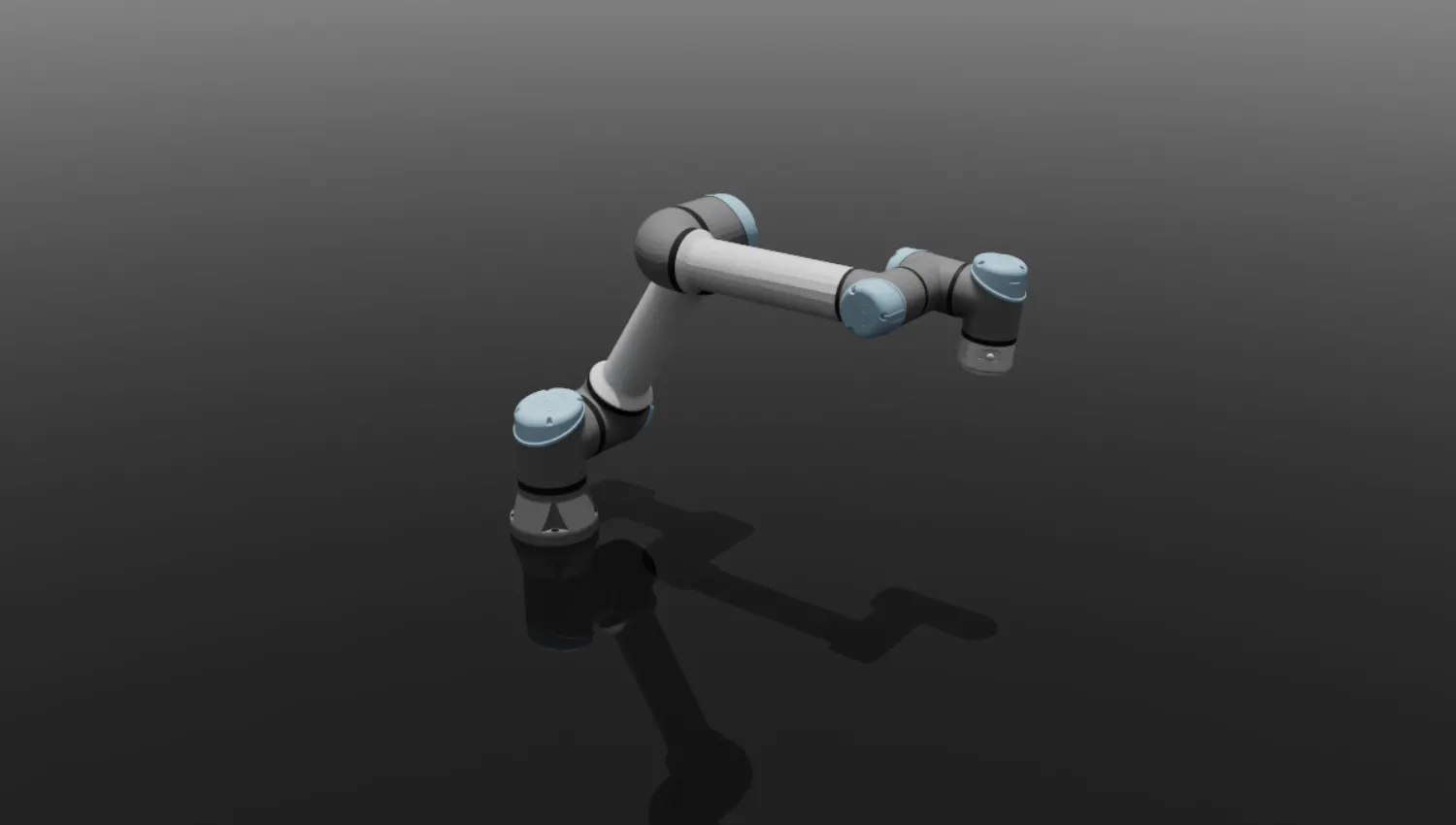
Synapse supports different Universal Robots collaborative arm models across the full UR product line, from the compact UR3 to the heavy-payload UR30. Universal Robots are widely used in collaborative manufacturing, assembly, and research applications.
CAPABILITY SCOPE
Universal Robots support the full Synapse skill set in both offline and live modes.
from synapse.robots.manipulators import universal_robots

robot = universal_robots.UniversalRobotsUR10E()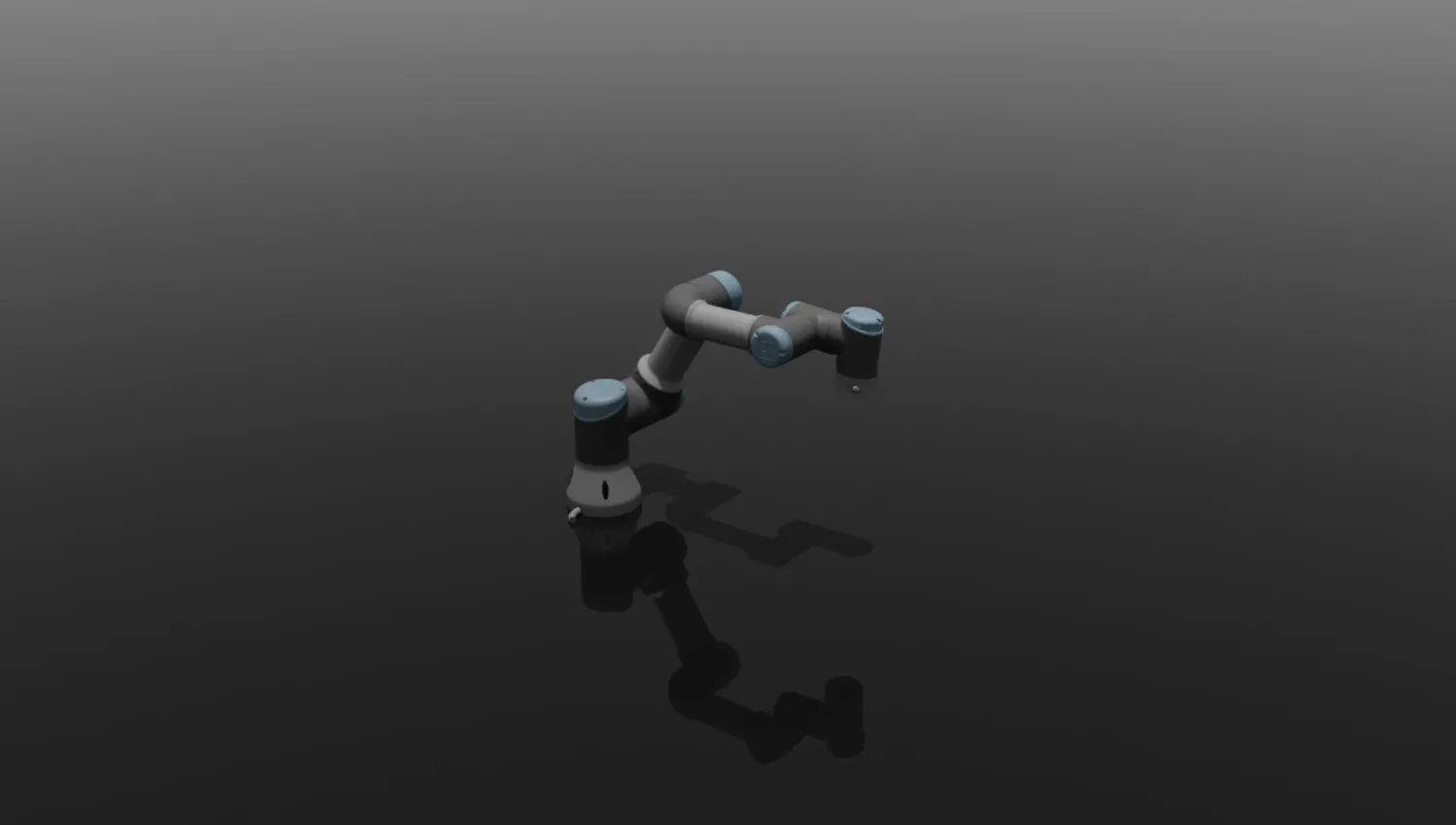
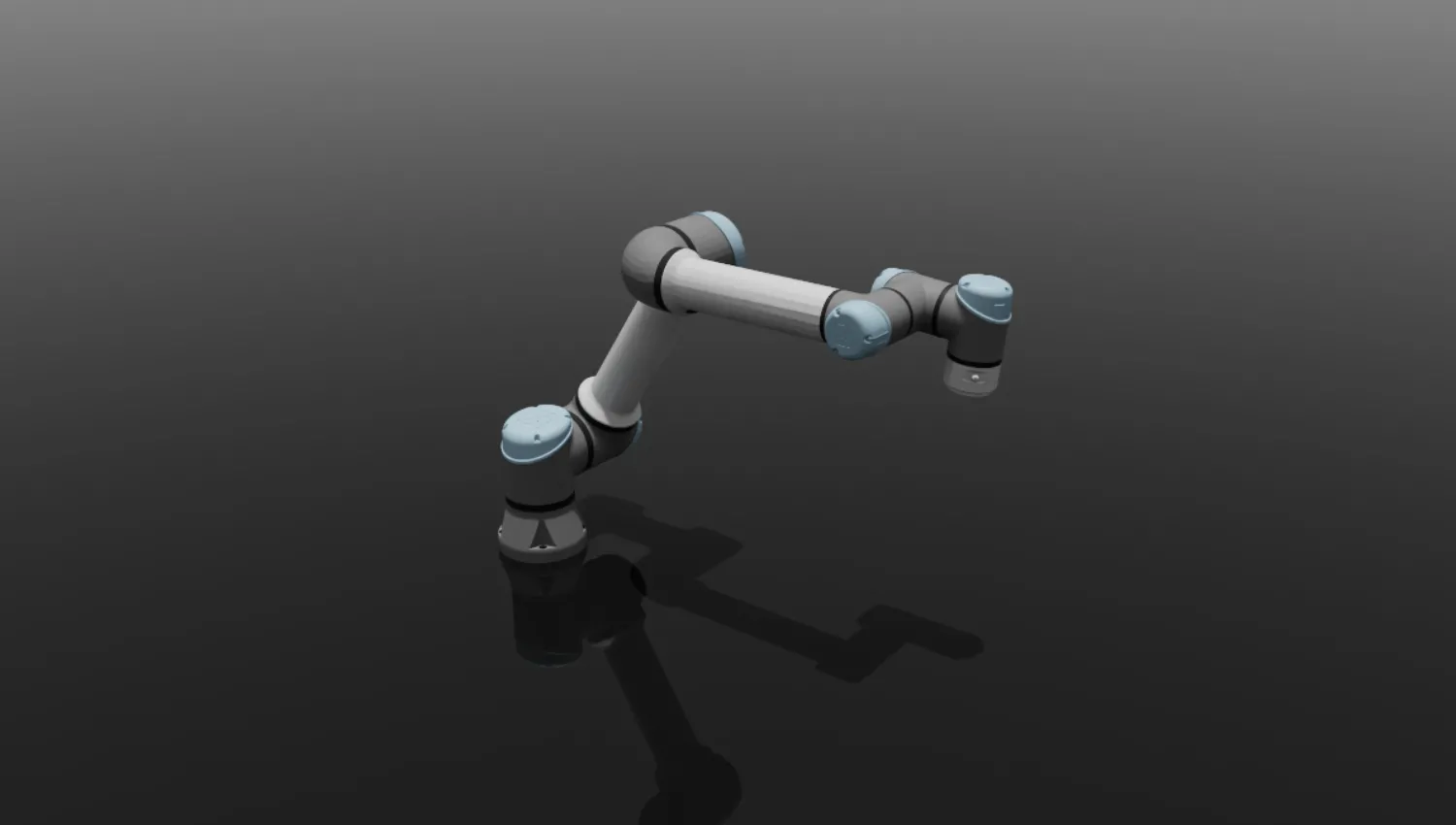
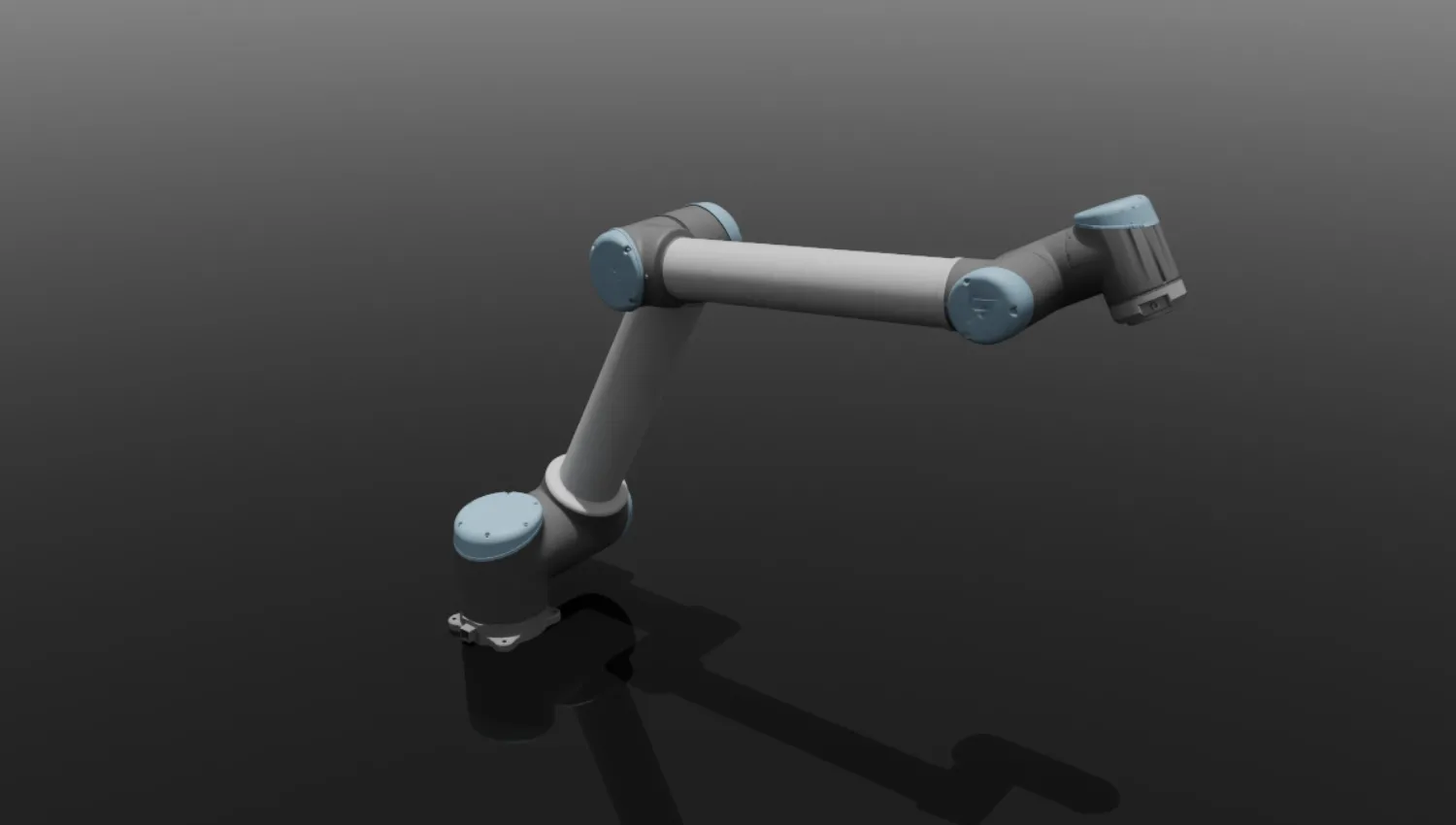
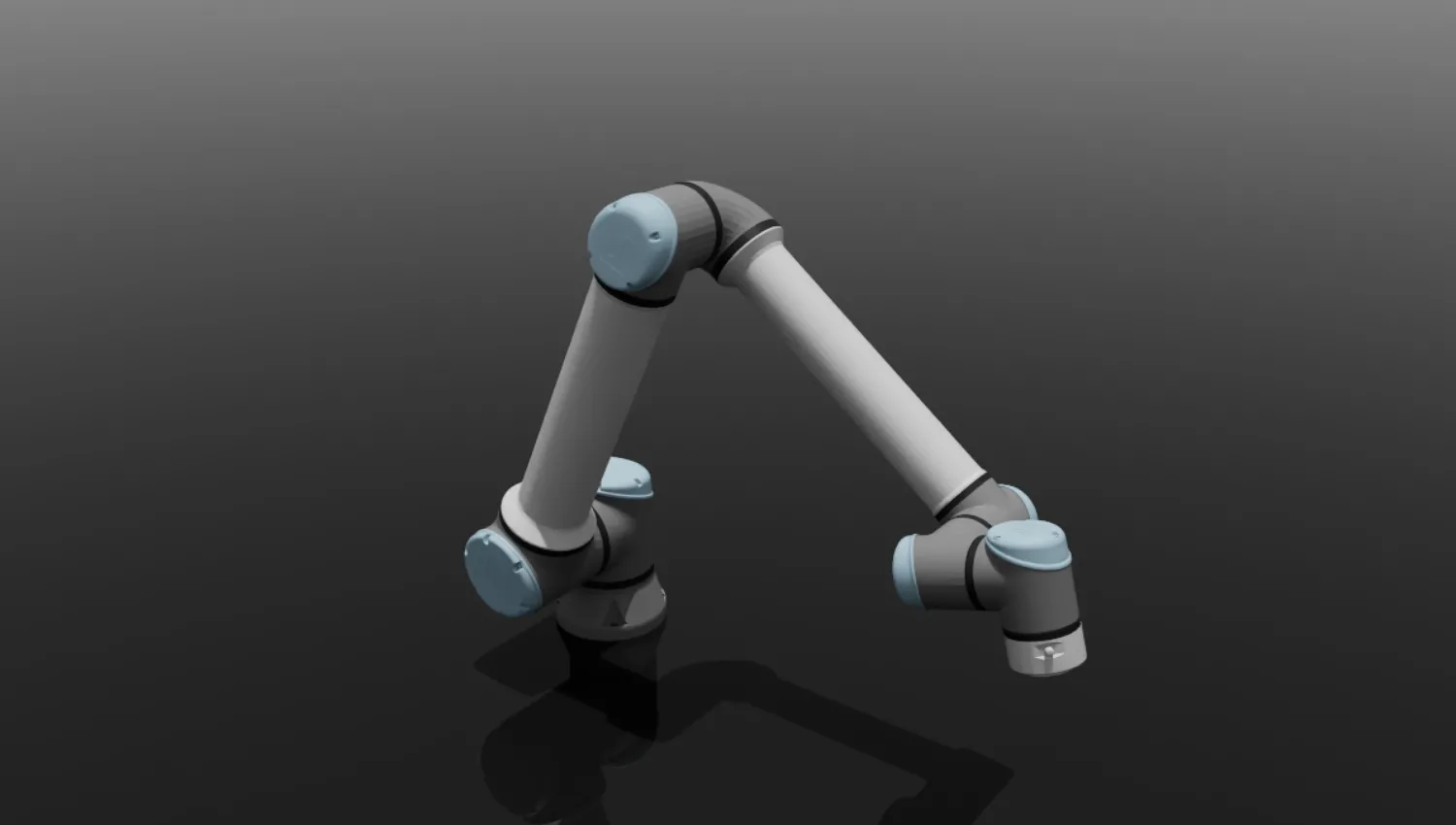
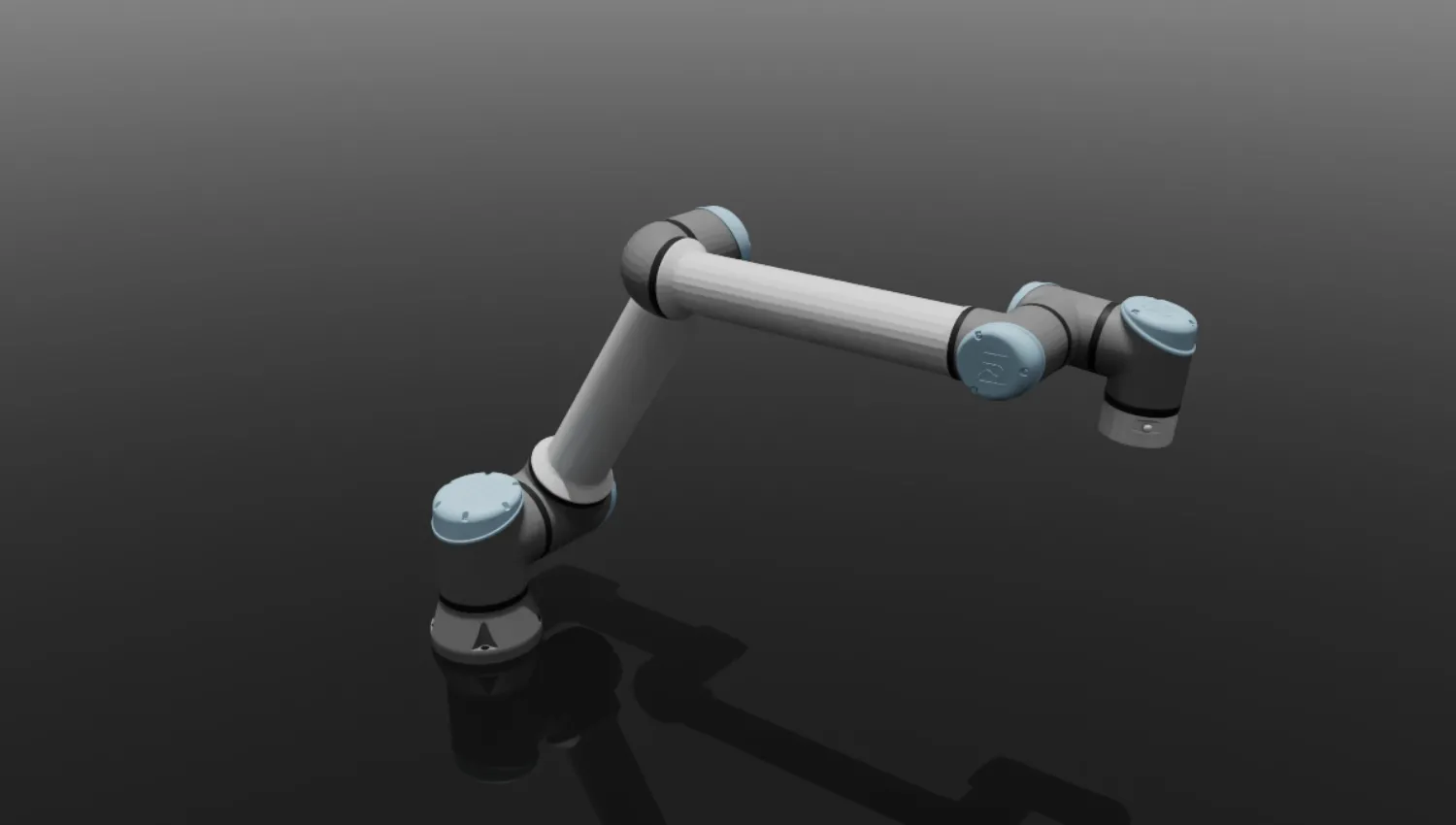
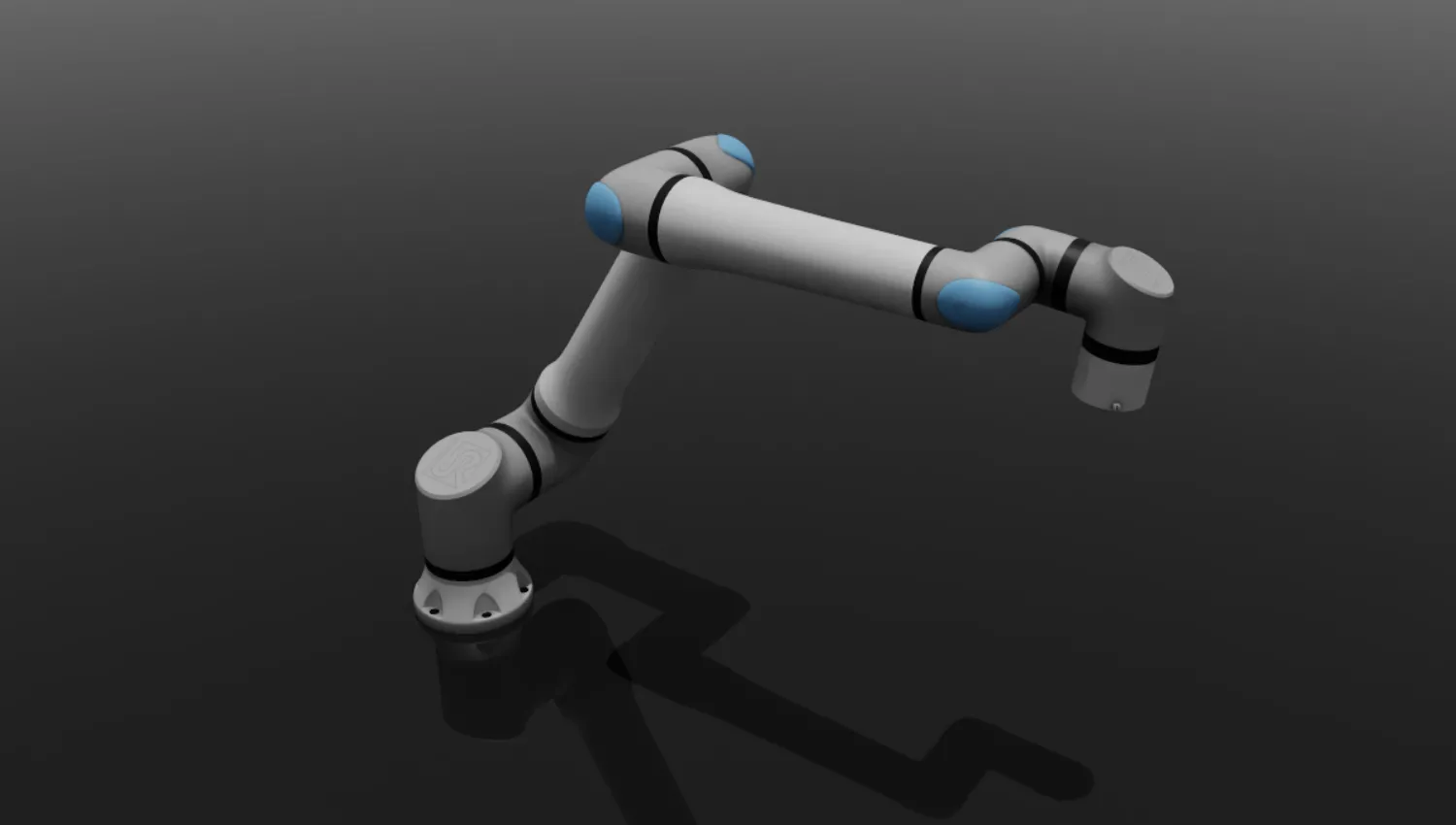
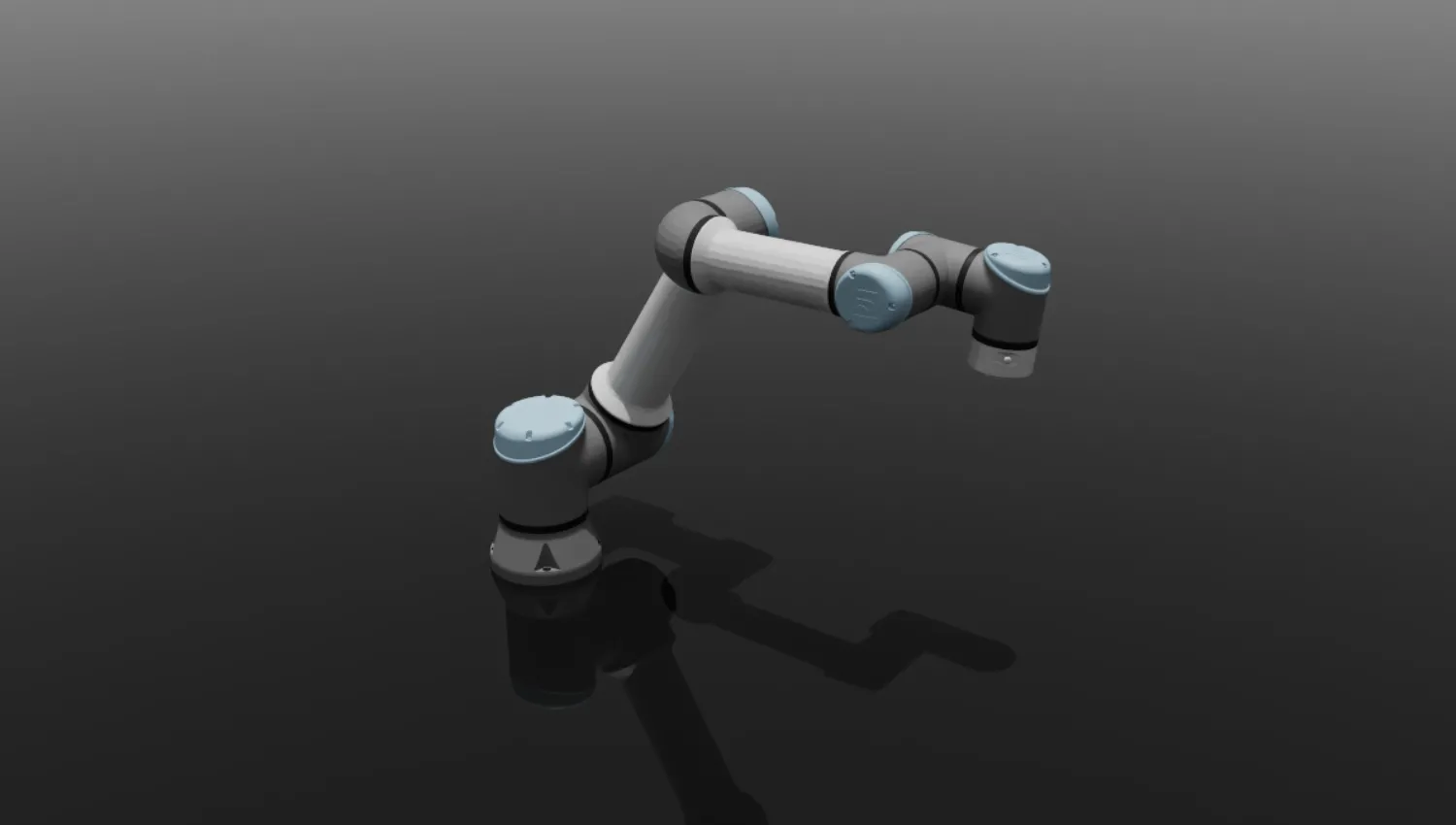
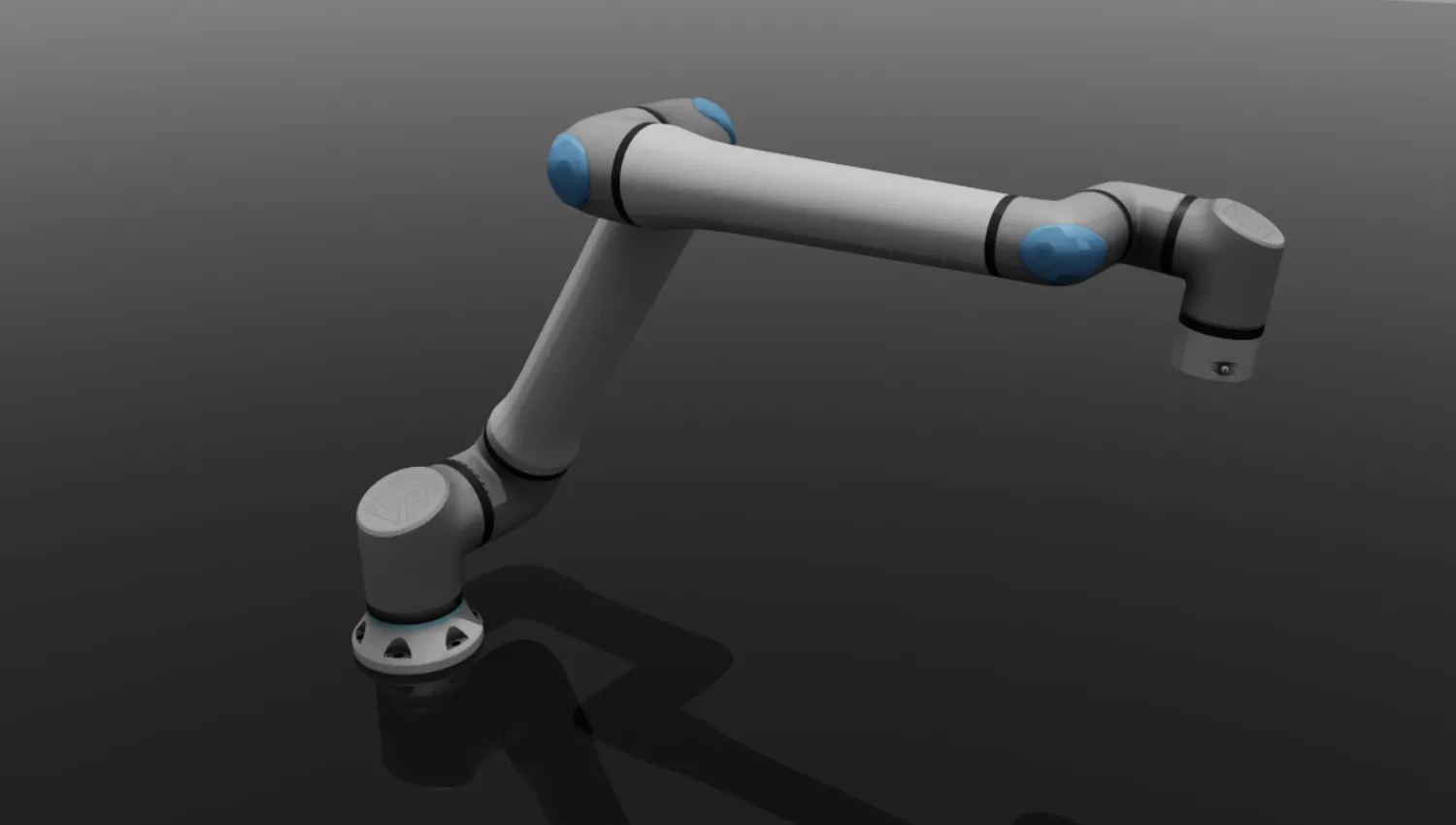
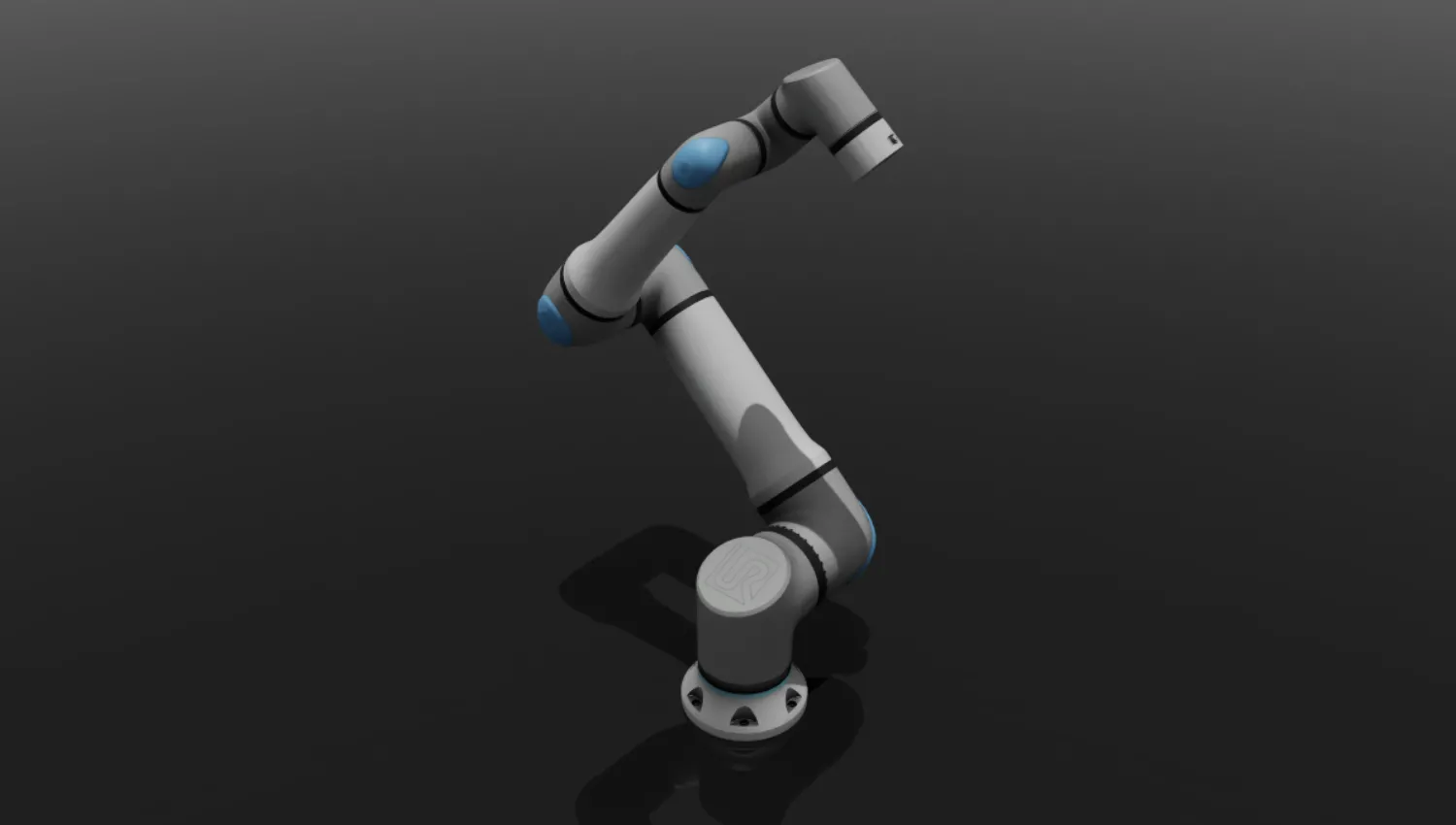
Supported Robots
| Model | Class | Payload (kg) | Reach (mm) | Accuracy (mm) |
|---|---|---|---|---|
| UR3 | UniversalRobotsUR3 | - | - | - |
| UR3e | UniversalRobotsUR3E | - | - | - |
| UR5 | UniversalRobotsUR5 | - | - | - |
| UR5e | UniversalRobotsUR5E | - | - | - |
| UR7e | UniversalRobotsUR7E | - | - | - |
| UR10 | UniversalRobotsUR10 | - | - | - |
| UR10e | UniversalRobotsUR10E | - | - | - |
| UR12e | UniversalRobotsUR12E | - | - | - |
| UR15 | UniversalRobotsUR15 | - | - | - |
| UR16e | UniversalRobotsUR16E | - | - | - |
| UR20 | UniversalRobotsUR20 | - | - | - |
| UR30 | UniversalRobotsUR30 | - | - | - |
Hardware Setup
Four steps take you from boxed robot to a verified RTDE connection: wire up the network, ping the controller, flip the pendant into Remote Control, and connect from Python.
SAFETY FIRST
Once the controller is in Remote Control mode, Synapse can move the robot at any time. Clear the workspace, keep the E-Stop within reach, and be ready to disconnect before issuing any motion from your PC.
1. Configure your PC network
Put your PC on the same subnet as the controller with a direct Ethernet link.
- Connect an Ethernet cable from your PC to the UR controller. For cable / port specifics on your model, see the official Universal Robots support article.
- Read the robot's IP from the teach pendant (Settings → System → Network) — typically
192.168.1.x. - On your PC, set a static IPv4 in the same subnet — e.g. robot at
192.168.1.1→ PC at192.168.1.2, subnet mask255.255.255.0, no gateway.
2. Verify connectivity with ping
ping 192.168.1.1 # replace with your robot's IPYou should see successful replies. If the ping fails, work through these in order:
| Check | Action |
|---|---|
| Physical link | Confirm cable seated, LAN port LEDs lit on the controller |
| Subnet match | PC and robot IPs share the first three octets |
| Robot IP | Re-read Settings → System → Network on the pendant |
| Route hijacking | Disable VPNs and virtual network adapters on the PC |
3. Enable Remote Control on the teach pendant
Synapse drives the robot over RTDE, which requires the controller to be in Remote Control mode.
- On the teach pendant, open the hamburger menu (top-right) → Settings.
- Navigate to System → Remote Control and toggle it Enabled.
- From the header dropdown (top-right), switch from Local to Remote.
- Release the brakes and leave the controller idle — Synapse will load and run programs over RTDE.
4. Verify the connection from Python
telekinesis-ai and telekinesis-urdfs before running any robotics skill. Connect, hold for a second, then cleanly disconnect — a no-motion sanity check that RTDE is alive:
import time
from telekinesis.synapse.robots.manipulators import universal_robots

robot = universal_robots.UniversalRobotsUR10E()
robot.connect(ip="192.168.1.1")   # replace with your robot's IP
time.sleep(1)                      # hold the session briefly
robot.disconnect()
If connect succeeds without an exception, you are ready to run any Synapse skill against the real robot.