

Enhance Image Using Auto Gamma Correction
SUMMARY
Enhance Image Using Auto Gamma Correction automatically adjusts image brightness using an adaptively estimated gamma value.
The gamma value is computed from the image's own luminance statistics and applied as a non-linear brightness transform to normalize overall exposure — there is no manual gamma parameter to set. It corrects global brightness only; it does not address uneven illumination across different regions of the same image.
Use this Skill when you want to normalize brightness under dark or unknown lighting conditions without hand-tuning a gamma value.
The Skill
from telekinesis import pupil

corrected_image = pupil.enhance_image_using_auto_gamma_correction(
    image=image
)Example
Input Image

Original image captured under dark lighting
Enhanced Image
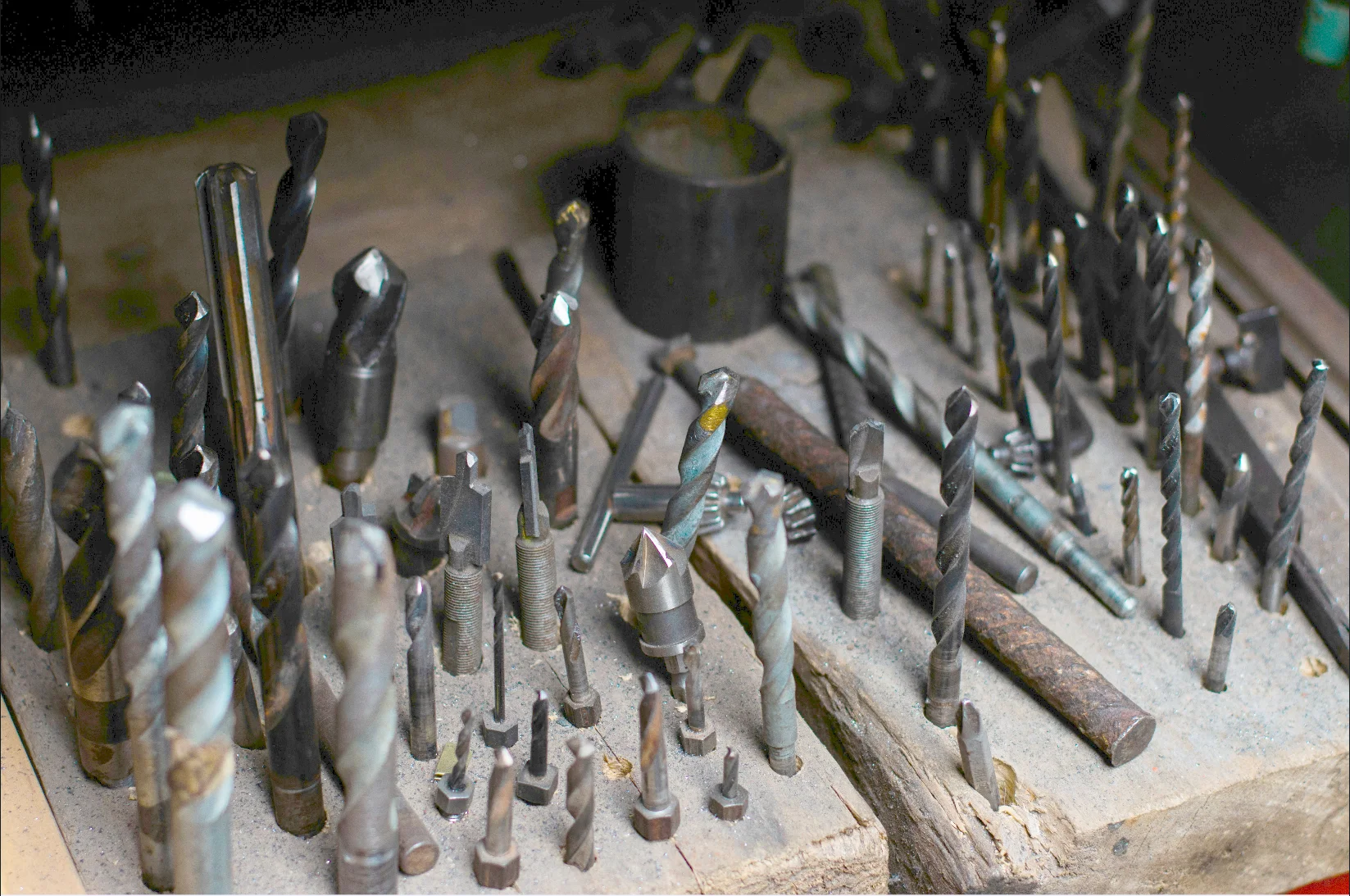
Gamma-corrected image with normalized brightness
The Code
"""Demonstrates enhance_image_using_auto_gamma_correction operation."""

from loguru import logger
import rerun as rr

from telekinesis import pupil, datatypes


def enhance_image_using_auto_gamma_correction_example():
    """Applies enhance_image_using_auto_gamma_correction operation."""
    # ===================== Load Image ==========================================
    image_url = "https://assets.telekinesis.ai/examples/v1/images/screws_in_dark_lighting.jpg"
    image = datatypes.Image.from_url(image_url)

    # ===================== Run Skill ==========================================
    filtered_image = pupil.enhance_image_using_auto_gamma_correction(
        image=image,
    )

    # ===================== Log ================================================
    logger.success(f"Applied enhance_image_using_auto_gamma_correction on {image}")
    logger.success(f"Result: {filtered_image}")

    # ===================== Visualization  (Optional) ======================
    rr.init("enhance_image_using_auto_gamma_correction_example", spawn=True)
    datatypes.visualize(image, entity_path="1-Original")
    datatypes.visualize(filtered_image, entity_path="2-Enhanced")

if __name__ == "__main__":
    enhance_image_using_auto_gamma_correction_example()
Runnable examples are available in the Telekinesis examples repository.
Follow the README in that repository to set up the environment, run this specific example with:
cd telekinesis-examples
python examples/image_processing/enhance_image_using_auto_gamma_correction.py
Parameter Configuration
| Parameter | Type | Default | Description |
|---|---|---|---|
image | datatypes.Image | np.ndarray | required | The input image to process, shape (H, W) or (H, W, C) |
Returns
| Type | Description |
|---|---|
datatypes.Image | Same shape as image, with brightness gamma-corrected using an automatically estimated gamma value. |
Raises
| Exception | Condition |
|---|---|
TypeError | image has an invalid type |
ConfigurationError | The TELEKINESIS_API_KEY environment variable is not set |
SerializationError | The request input failed to serialize, the response was not returned as an Arrow stream, or the response failed to deserialize |
RequestTimeoutError | The request to the Pupil service timed out |
TransportError | A network failure occurred before a response was received |
ClientError | The Pupil service rejected the request due to invalid or malformed input (HTTP 400/422), an unrecognized endpoint (HTTP 404), or another unexpected 4xx response |
AuthenticationError | The API key was rejected as invalid or expired (HTTP 401) |
AuthenticationServiceError | The authentication service returned an invalid response, was temporarily unavailable, or timed out (HTTP 502/503/504) |
ServerError | The Pupil service returned a 5xx or otherwise unexpected error response |
How to Tune the Parameters
enhance_image_using_auto_gamma_correction has no tunable parameters — the gamma value is derived automatically from the image's luminance statistics rather than passed in.
TIP
Best practice: Use this Skill for a quick, hands-off global brightness fix. If different regions of the same image are under- and over-exposed simultaneously, a single gamma value can't correct both — use enhance_image_using_clahe instead.
Where to Use the Skill
Common pipelines include:
- Exposure normalization – Normalize brightness for images captured under varying or unknown lighting before downstream processing
- Preprocessing for detection/segmentation – Improve the robustness of skills that are sensitive to low contrast or dark images
- Dataset normalization – Reduce brightness-related variance across a batch of images captured under inconsistent conditions
Alternative Skills
| Skill | vs. Enhance Image Using Auto Gamma Correction |
|---|---|
| enhance_image_using_clahe | Enhances local contrast per-region instead of applying a single global brightness transform. Use when illumination is uneven across the image. |
| enhance_image_using_white_balance | Corrects color temperature/color casts rather than brightness. Use when the issue is color, not exposure. |
| normalize_image_intensity | Rescales intensity values to a target range via a linear/explicit method instead of an estimated gamma curve. |
When Not to Use the Skill
Do not use Enhance Image Using Auto Gamma Correction when:
- Photometric accuracy is required (it alters intensity values heuristically, not based on a calibrated model)
- A specific, known gamma value is required (this Skill only supports automatic estimation; there is no manual gamma parameter)
- Illumination is uneven across the image (a single global gamma cannot fix both under- and over-exposed regions — use
enhance_image_using_claheinstead) - The image is already well-exposed (applying gamma correction risks overcorrection)