
Pad Image
SUMMARY
Pad Image adds padding to an image on the top, bottom, left, and right, independently per side.
Unlike crop_image_center, which pads only as a side effect of a too-small crop, this Skill enlarges the canvas directly — each side's padding amount is given explicitly in pixels, so asymmetric padding is supported. The padded region is filled per border_type: "constant" uses border_value, while "replicate"/"reflect"/"reflect 101"/"default" derive the fill from the image's own edge pixels.
Use this Skill when you want to enlarge an image's canvas with explicit, independently-sized padding on each side.
The Skill
from telekinesis import pupil

padded_image = pupil.pad_image(
    image=image,
    top=200,
    bottom=50,
    left=100,
    right=75,
    border_type="constant",
    border_value=0.0,
)Example
Input Image
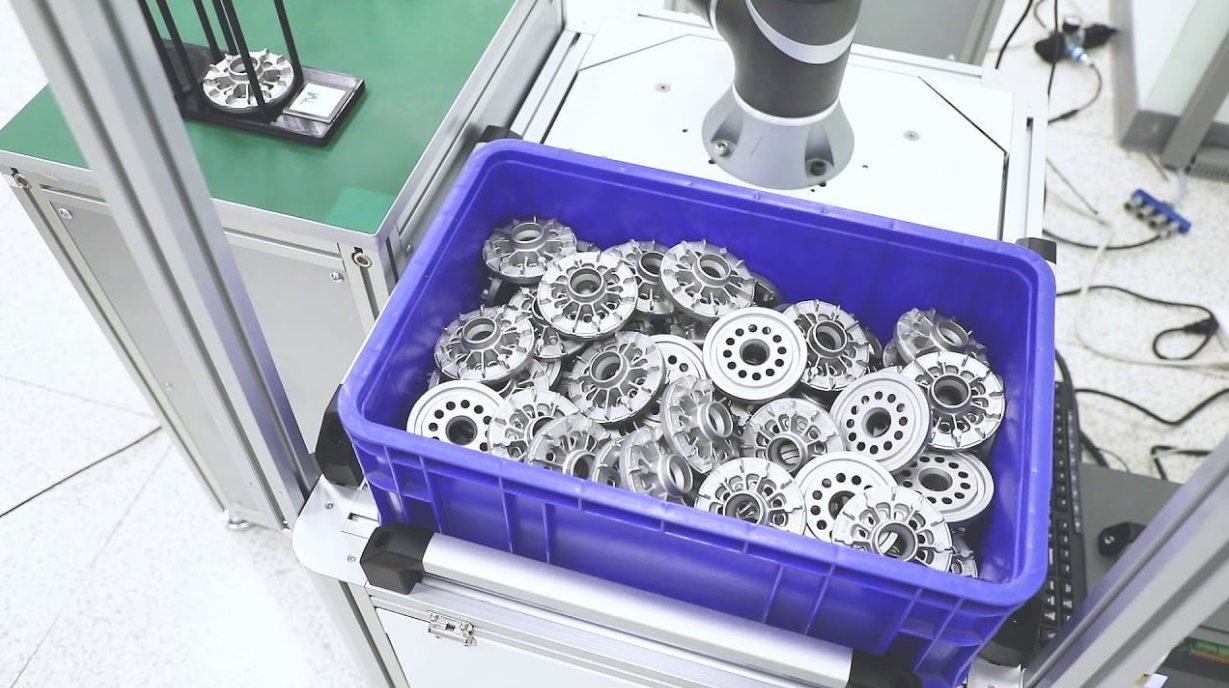
Original image
Padded Image
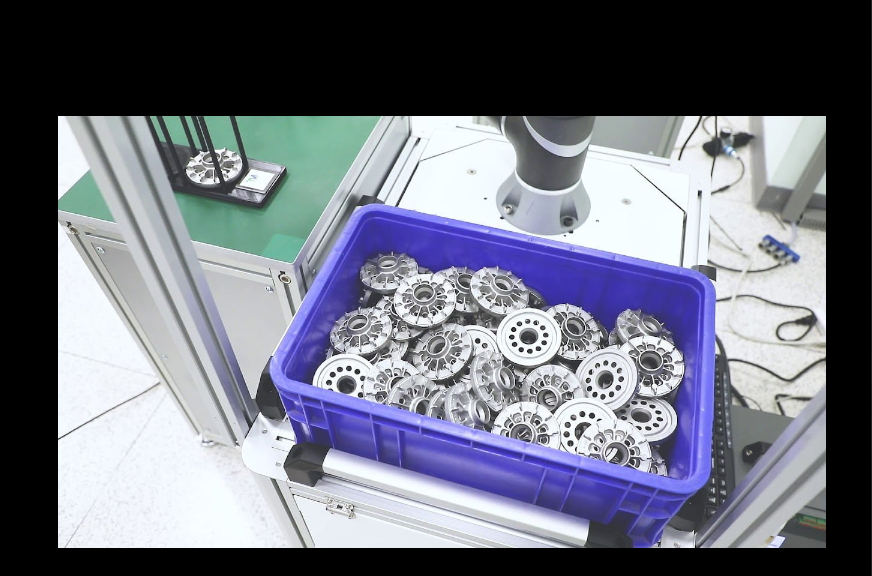
Asymmetric constant-color padding added to each side
The Code
"""Demonstrates pad_image operation."""

from loguru import logger
import rerun as rr

from telekinesis import pupil, datatypes


def pad_image_example():
    """Applies pad_image operation."""
    # ===================== Load Image ==========================================
    image_url = "https://assets.telekinesis.ai/examples/v1/images/bin_picking_metal_2.jpg"
    image = datatypes.Image.from_url(image_url)

    # ===================== Run Skill ==========================================
    filtered_image = pupil.pad_image(
        image=image,
        top=200,
        bottom=50,
        left=100,
        right=75,
        border_type="constant",
        border_value=0.0,
    )

    # ===================== Log ================================================
    logger.success(f"Applied pad_image on {image}")
    logger.success(f"Result: {filtered_image}")

    # ===================== Visualization  (Optional) ======================
    rr.init("pad_image_example", spawn=True)
    datatypes.visualize(image, entity_path="1-Original")
    datatypes.visualize(filtered_image, entity_path="2-Padded")

if __name__ == "__main__":
    pad_image_example()
Runnable examples are available in the Telekinesis examples repository.
Follow the README in that repository to set up the environment, run this specific example with:
cd telekinesis-examples
python examples/image_processing/pad_image.py
Parameter Configuration
| Parameter | Type | Default | Description |
|---|---|---|---|
image | datatypes.Image | np.ndarray | required | The input image, shape (H, W) or (H, W, C) |
top | datatypes.Int | int | required | Padding to add above the image, in pixels. Must be >= 0 |
bottom | datatypes.Int | int | required | Padding to add below the image, in pixels. Must be >= 0 |
left | datatypes.Int | int | required | Padding to add to the left of the image, in pixels. Must be >= 0 |
right | datatypes.Int | int | required | Padding to add to the right of the image, in pixels. Must be >= 0 |
border_type | datatypes.String | str | "constant" | Border handling mode: default, constant, replicate, reflect, reflect 101 |
border_value | datatypes.Float | float | int | 0.0 | Fill value used only when border_type is "constant", applied as a single scalar to all channels |
Returns
| Type | Description |
|---|---|
datatypes.Image | Shape (H + top + bottom, W + left + right), or with a matching channel dimension for (H, W, C) input |
Raises
| Exception | Condition |
|---|---|
TypeError | Any parameter has an invalid type |
ValueError | top, bottom, left, or right is negative, or border_type is not one of the supported border modes |
ConfigurationError | The TELEKINESIS_API_KEY environment variable is not set |
SerializationError | The request input failed to serialize, the response was not returned as an Arrow stream, or the response failed to deserialize |
RequestTimeoutError | The request to the Pupil service timed out |
TransportError | A network failure occurred before a response was received |
ClientError | The Pupil service rejected the request due to invalid or malformed input (HTTP 400/422), an unrecognized endpoint (HTTP 404), or another unexpected 4xx response |
AuthenticationError | The API key was rejected as invalid or expired (HTTP 401) |
AuthenticationServiceError | The authentication service returned an invalid response, was temporarily unavailable, or timed out (HTTP 502/503/504) |
ServerError | The Pupil service returned a 5xx or otherwise unexpected error response |
How to Tune the Parameters
The pad_image Skill exposes the padding amount per side plus how the padded region is filled.
top / bottom / left / right
- Controls: How many pixels of canvas are added above, below, to the left of, and to the right of the image, independently.
- Units: Pixels
- Default: required, no default
- Increase → more canvas added on that side
- Typical range:
0up to the image's own height/width, though larger values are allowed
border_type
- Controls: How the padded region is filled.
- Default:
"constant" - Options:
constant– fills withborder_value; use for a known, uniform fill (e.g. black or white borders)replicate– extends the edge pixel; produces natural-looking borders when the padding should look like the image boundaryreflect– mirrors the image without repeating the edge pixelreflect 101– mirrors with the edge pixel repeated; often avoids dark seams at the borderdefault– same asreflect 101
border_value
- Controls: The fill value used only when
border_typeis"constant". - Units: Intensity,
0–255for an 8-bit image - Default:
0.0 - Applied as a single scalar to every channel — use
0for black padding,255for white padding.
TIP
Best practice: Use "constant" with border_value=0 for most fixed-canvas or batching use cases. Switch to "replicate" or "reflect 101" when the padded border should blend visually with the image content instead of standing out.
Where to Use the Skill
Common pipelines include:
- Fixed-size batching – Pad variable-sized images to a common canvas size before batching
- Convolution boundary handling – Add margin before a filter so edge pixels aren't affected by out-of-bounds behavior
- Layout composition – Add asymmetric margins to position an image within a larger canvas
Alternative Skills
| Skill | vs. Pad Image |
|---|---|
| crop_image_center | Pads only as a side effect when the input is smaller than the requested crop size; use this Skill when you want padding directly and independently per side. |
| resize_image_with_aspect_fit | Resizes to fit target dimensions and pads any leftover space to avoid distortion; use this Skill when you don't need to resize, only add margin. |
| translate_image | Shifts existing image content within the same canvas size, using border handling for pixels that move out of view, instead of enlarging the canvas. |
When Not to Use the Skill
Do not use Pad Image when:
- You need to change the image's overall size (resize), not add margin (use
resize_imageorresize_image_with_aspect_fit) - The image is smaller than a target size and you want symmetric padding automatically (use
crop_image_center, which pads to center a too-small image) - All four padding values are
0(this Skill becomes a no-op — skip the call) - You need to shift existing content rather than add new canvas (use
translate_image)