

Crop Image Center
SUMMARY
Crop Image Center crops an image to a fixed crop_width x crop_height region centered on the image.
If image is smaller than the requested crop size in either dimension, the output is padded with pad_color instead of raising an error. This guarantees a constant output shape regardless of input size, which matters right before a step (e.g. a model) that expects a fixed input shape.
Use this Skill when you want to produce a fixed-size, centered crop of an image, padding as needed.
The Skill
from telekinesis import pupil

cropped_image = pupil.crop_image_center(
    image=image,
    crop_width=300,
    crop_height=300,
    pad_color=(0, 0, 0),
)Example
Input Image
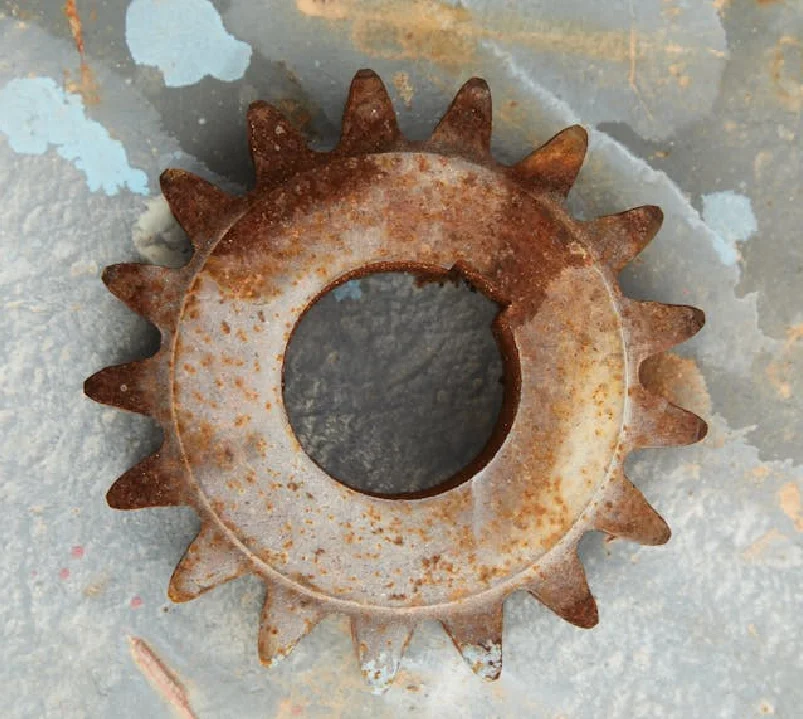
Original image
Cropped Image
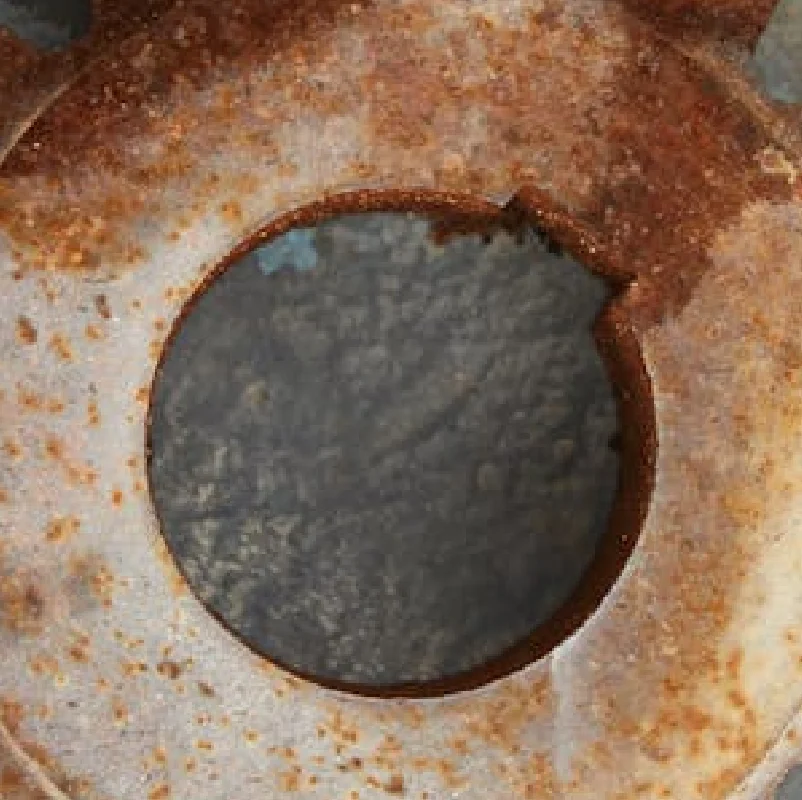
Centered 300x300 crop
The Code
"""Demonstrates crop_image_center operation."""

from loguru import logger
import rerun as rr

from telekinesis import pupil, datatypes


def crop_image_center_example():
    """Applies crop_image_center operation."""
    # ===================== Load Image ==========================================
    image_url = "https://assets.telekinesis.ai/examples/v1/images/rusted_metal_gear.jpg"
    image = datatypes.Image.from_url(image_url)

    # ===================== Run Skill ==========================================
    filtered_image = pupil.crop_image_center(
        image=image,
        crop_width=300,
        crop_height=300,
        pad_color=(0, 0, 0),
    )

    # ===================== Log ================================================
    logger.success(f"Applied crop_image_center on {image}")
    logger.success(f"Result: {filtered_image}")

    # ===================== Visualization  (Optional) ======================
    rr.init("crop_image_center_example", spawn=True)
    datatypes.visualize(image, entity_path="1-Original")
    datatypes.visualize(filtered_image, entity_path="2-Cropped")

if __name__ == "__main__":
    crop_image_center_example()
Runnable examples are available in the Telekinesis examples repository.
Follow the README in that repository to set up the environment, run this specific example with:
cd telekinesis-examples
python examples/image_processing/crop_image_center.py
Parameter Configuration
| Parameter | Type | Default | Description |
|---|---|---|---|
image | datatypes.Image | np.ndarray | required | The input image, shape (H, W) or (H, W, C) |
crop_width | datatypes.Int | int | required | Target width of the crop, in pixels. Must be > 0 |
crop_height | datatypes.Int | int | required | Target height of the crop, in pixels. Must be > 0 |
pad_color | datatypes.Array | np.ndarray | list | tuple | (128, 128, 128) | Fill color used only when image is smaller than (crop_width, crop_height). A single scalar applies to all channels, or one value per channel (e.g. [r, g, b]) applies per channel. For a grayscale image, only the first element is used |
Returns
| Type | Description |
|---|---|
datatypes.Image | The cropped (and padded, if needed) image, shape (crop_height, crop_width) or (crop_height, crop_width, C), centered on the original image |
Raises
| Exception | Condition |
|---|---|
TypeError | Any parameter has an invalid type |
ValueError | crop_width or crop_height is not > 0, or pad_color is empty or contains NaN/inf |
ConfigurationError | The TELEKINESIS_API_KEY environment variable is not set |
SerializationError | The request input failed to serialize, the response was not returned as an Arrow stream, or the response failed to deserialize |
RequestTimeoutError | The request to the Pupil service timed out |
TransportError | A network failure occurred before a response was received |
ClientError | The Pupil service rejected the request due to invalid or malformed input (HTTP 400/422), an unrecognized endpoint (HTTP 404), or another unexpected 4xx response |
AuthenticationError | The API key was rejected as invalid or expired (HTTP 401) |
AuthenticationServiceError | The authentication service returned an invalid response, was temporarily unavailable, or timed out (HTTP 502/503/504) |
ServerError | The Pupil service returned a 5xx or otherwise unexpected error response |
How to Tune the Parameters
The crop_image_center Skill exposes three parameters: the target crop size and the padding color used when the source is smaller than that size.
crop_width / crop_height
- Controls: The exact output dimensions of the crop.
- Units: Pixels
- Default: required, no default
- Increase → captures more of the surrounding image, or more padding if it exceeds the source size
- Decrease → captures a tighter region around the center
- Typical range: match whatever fixed input size a downstream model or Skill expects, e.g. 224/256/512
pad_color
- Controls: The fill color used only when
imageis smaller than the requested crop size. - Default:
(128, 128, 128)(mid-gray) - Options: any scalar or per-channel color, e.g.
(0, 0, 0)for black,(255, 255, 255)for white - Has no effect at all once
imageis already at leastcrop_widthxcrop_heightin both dimensions.
TIP
Best practice: Set crop_width/crop_height to match your downstream model's expected input size, and pick a pad_color that won't be confused with real image content (e.g. black for a bright scene) so padded regions are easy to identify or mask out later.
Where to Use the Skill
Common pipelines include:
- Fixed-size model input – Guarantee a constant shape before feeding a classifier or detector that requires one
- Thumbnail generation – Produce consistent, centered preview crops
- Dataset normalization – Bring variable-sized images to a uniform size before batching
Alternative Skills
| Skill | vs. Crop Image Center |
|---|---|
| crop_image_using_bounding_boxes | Crops one or more explicit, possibly off-center rectangular regions instead of a single centered one |
| crop_image_using_polygon | Crops an arbitrary, non-rectangular region instead of a centered rectangle |
| resize_image_with_aspect_fit | Resizes (rather than crops) to a target size while preserving aspect ratio — use instead when you need the whole image content, not just its center |
When Not to Use the Skill
Do not use Crop Image Center when:
- The region of interest isn't centered in the image (use
crop_image_using_bounding_boxesto target a specific region instead) - You need a non-rectangular region (use
crop_image_using_polygon) - You need multiple crops from one image (use
crop_image_using_bounding_boxeswith several boxes) - You want to keep the entire image content rather than discard the edges (use a resize Skill such as
resize_image_with_aspect_fitinstead of cropping)