

Resize Image
SUMMARY
Resize Image resizes an image by a scale factor or by explicit width and height.
Scales an image uniformly using a scale factor or to fixed dimensions. Useful for downsampling for faster processing, upsampling for display, or preparing images for fixed-size model inputs.
Use this Skill when you want to resize an image by scale factor or to specific dimensions.
The Skill
from telekinesis import pupil

resized_image = pupil.resize_image(
    image=image,
    scale_factor=0.5,
    interpolation_method="linear",
)Example
Input Image
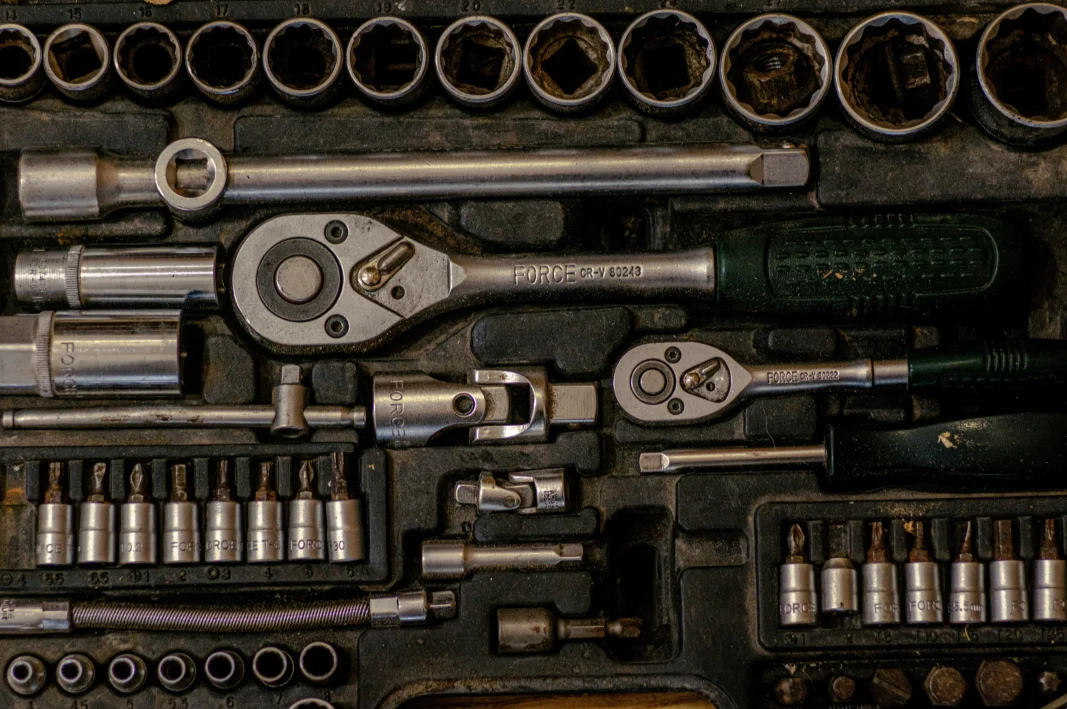
Original image
Resized Image
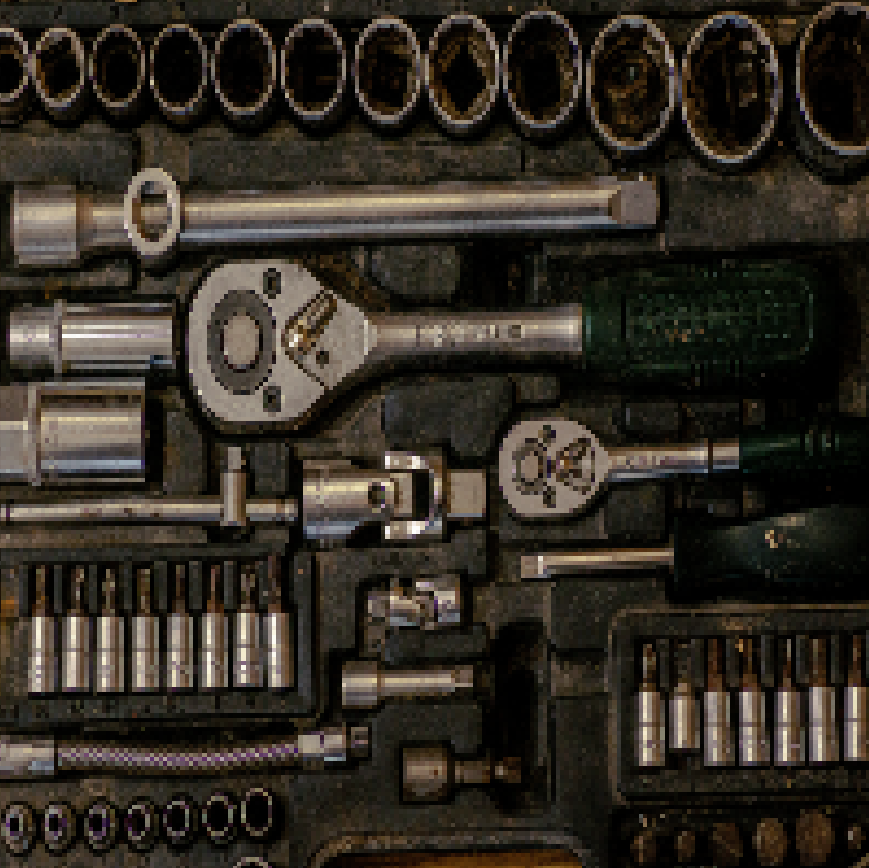
Resized image with 200x200 dimensions
The Code
from telekinesis import pupil
from datatypes import io
import pathlib
from loguru import logger

DATA_DIR = pathlib.Path("path/to/telekinesis-data")

# Example 1: Resize image by scale factor
filepath = str(DATA_DIR / "images" / "gearbox.png")
image = io.load_image(filepath=filepath)
logger.success(f"Loaded image from {filepath}")

resized_image = pupil.resize_image(
    image=image,
    scale_factor=0.5,
    interpolation_method="linear",
)

resized_image_np = resized_image.to_numpy()
logger.success("Resized image from input shape: {}, to output shape: {}", image.to_numpy().shape, resized_image_np.shape)

# Example 2: Resize image by width and height
filepath = str(DATA_DIR / "images" / "gearbox.png")
image = io.load_image(filepath=filepath)
logger.success(f"Loaded image from {filepath}")

resized_image = pupil.resize_image(
    image=image,
    resize_width=200,
    resize_height=200,
    interpolation_method="linear",
)

resized_image_np = resized_image.to_numpy()
logger.success("Resized image from input shape: {}, to output shape: {}", image.to_numpy().shape, resized_image_np.shape)
The Explanation of the Code
The code begins by importing the necessary modules: pupil for image processing operations, io for data handling, pathlib for path management, and loguru for logging.
from telekinesis import pupil
from datatypes import io
import pathlib
from loguru import logger
Next, an image is loaded from a .png file using the io.load_image function.
DATA_DIR = pathlib.Path("path/to/telekinesis-data")

filepath = str(DATA_DIR / "images" / "gearbox.png")
image = io.load_image(filepath=filepath)
The main operation uses the resize_image Skill from the pupil module. You can resize either by scale factor (uniform scaling) or by explicit width and height. Example 1 uses scale_factor=0.5 to halve each dimension; Example 2 uses resize_width=200 and resize_height=200 for fixed output dimensions.
# By scale factor
resized_image = pupil.resize_image(
    image=image,
    scale_factor=0.5,
    interpolation_method="linear",
)

# Or by width and height
resized_image = pupil.resize_image(
    image=image,
    resize_width=200,
    resize_height=200,
    interpolation_method="linear",
)
Finally, the resized image is converted to a NumPy array using to_numpy() for further processing, visualization, or downstream tasks.
resized_image_np = resized_image.to_numpy()
logger.success("Resized image from input shape: {}, to output shape: {}", image.to_numpy().shape, resized_image_np.shape)
This operation is particularly useful in robotics and vision pipelines for model input preparation, performance optimization, display resizing, and multi-scale processing, where uniform image scaling is required.
Running the Example
Runnable examples are available in the Telekinesis examples repository. Follow the README in that repository to set up the environment. Once set up, you can run this specific example with:
cd telekinesis-examples
python examples/pupil_examples.py --example resize_image
How to Tune the Parameters
The resize_image Skill supports two modes: scale factor or explicit dimensions. Use either scale_factor or resize_width/resize_height.
scale_factor (optional when width/height used): Controls the multiplier for width and height.
- Units: Dimensionless (multiplier)
- Increase to upsample (larger output)
- Decrease to downsample (smaller output)
- Typical range: 0.1–4.0 (min: 0.1, max: 4.0)
- Use 0.25–0.5 for downsampling, 1.0 for no change, 2.0–4.0 for upsampling
resize_width / resize_height (optional when scale_factor used): Specify exact output dimensions in pixels.
- Units: Pixels (integer)
- Use when you need fixed-size output (e.g., model input)
- Both must be provided together; cannot be used with
scale_factorin the same call
interpolation_method (default: "linear"): Controls the interpolation method for resampling.
- Options:
nearest- Fastest but blockylinear- Balances speed and quality (recommended for most cases)cubic- Highest quality but slower
- Use
nearestwhen speed matters;linearfor most cases;cubicfor high-quality upsampling
TIP
Best practice: Use "area" interpolation to shrink an image, whereas to enlarge an image, use "cubic" or "linear" as it faster.
Where to Use the Skill
Resize Image is commonly used in the following pipelines:
- Model input - Resize to fixed dimensions for neural networks
- Performance - Downsample for faster processing
- Display - Resize for thumbnails or UI
- Multi-scale - Build scale pyramids
Related skills to build such a pipeline:
resize_image_with_aspect_fit: Resize to target size with aspect ratio preservedtransform_image_using_pyramid_downsampling: Multi-scale downsampling with anti-aliasing
Alternative Skills
| Skill | vs. Resize Image |
|---|---|
| resize_image_with_aspect_fit | Use when you need specific target dimensions while preserving aspect ratio (with padding). |
| transform_image_using_pyramid_downsampling | Use for scale-space pyramids with anti-aliasing; always uses 0.5 factor. |
When Not to Use the Skill
Do not use Resize Image when:
- You need exact target dimensions (Use resize_image_with_aspect_fit)
- You need anti-aliased downsampling (Use transform_image_using_pyramid_downsampling)
- Aspect ratio must be preserved with padding (Use resize_image_with_aspect_fit)