

Filter Image Using Morphological Dilation
SUMMARY
Filter Image Using Morphological Dilation applies dilation to expand bright regions and fill holes.
Dilation adds pixels to object boundaries, useful for filling gaps and expanding objects. This morphological operation enlarges bright regions by replacing each pixel with the maximum value in its neighborhood. It's commonly used to join broken parts of objects, fill small holes, and enhance connectivity between regions.
Use this Skill when you want to expand objects and fill small gaps or holes.
The Skill
from telekinesis import pupil

filtered_image = pupil.filter_image_using_morphological_dilate(
    image=image,
    kernel_size=5,
    kernel_shape="ellipse",
    iterations=1,
    border_type="default",
)Example
Input Image
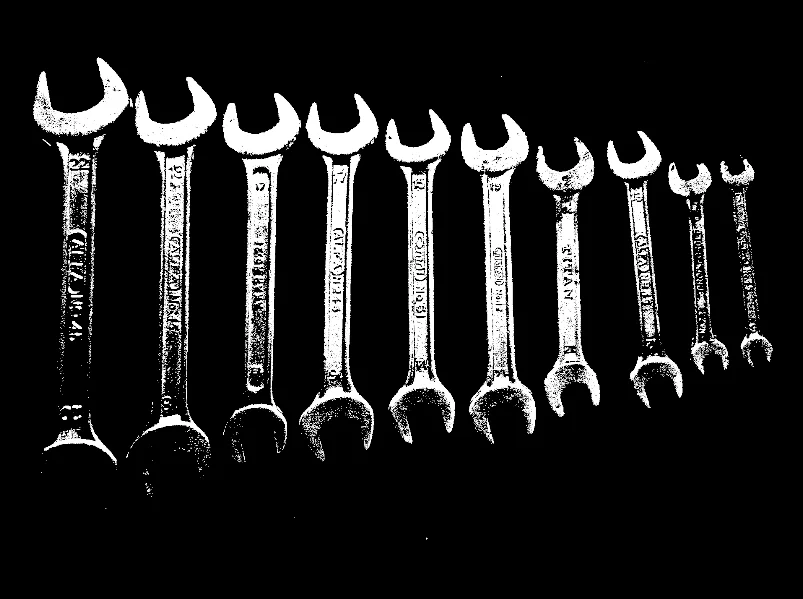
Original image with gaps and thin objects
Filtered Image
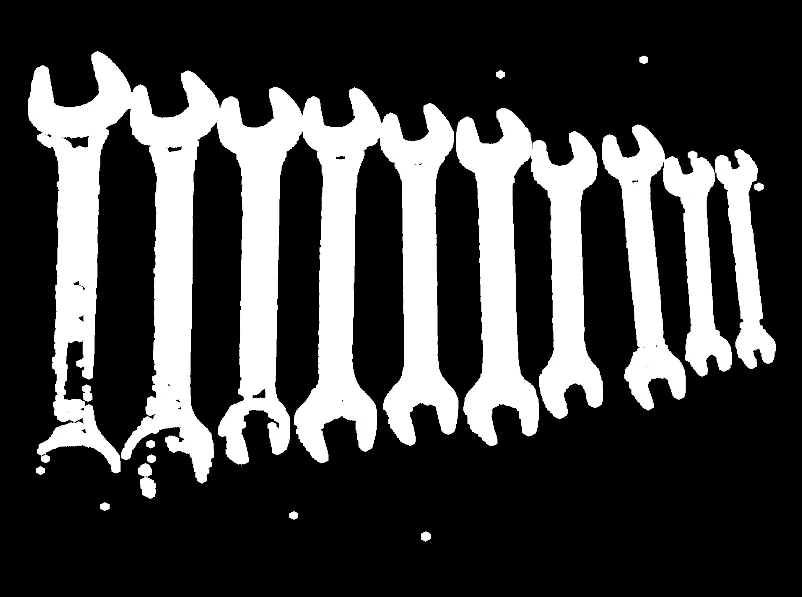
Dilated image with kernel_size=5 - gaps filled, objects expanded
The Code
from telekinesis import pupil
from datatypes import io
import pathlib
from loguru import logger

DATA_DIR = pathlib.Path("path/to/telekinesis-data")

# Load image
filepath = str(DATA_DIR / "images" / "spanners_arranged.jpg")
image = io.load_image(filepath=filepath, as_binary=True, binary_method='otsu')
logger.success(f"Loaded image from {filepath}")

# Apply dilation morphological operation
filtered_image = pupil.filter_image_using_morphological_dilate(
    image=image,
    kernel_size=5,
    kernel_shape="ellipse",
    iterations=5,
    border_type="constant",
    border_value=0
)

# Access results
filtered_image_np = filtered_image.to_numpy()
logger.success("Applied dilation morphological operation. Output image shape: {}", filtered_image_np.shape)
The Explanation of the Code
The code begins by importing the necessary modules: pupil for image processing operations, io for data handling, pathlib for path management, and loguru for logging.
from telekinesis import pupil
from datatypes import io
import pathlib
from loguru import logger
Next, an image is loaded from disk using the io.load_image function. The image is loaded as binary using as_binary=True, which is appropriate for morphological dilation operations.
DATA_DIR = pathlib.Path("path/to/telekinesis-data")

# Load image
filepath = str(DATA_DIR / "images" / "spanners_arranged.jpg")
image = io.load_image(filepath=filepath, as_binary=True, binary_method='otsu')
The main operation uses the filter_image_using_morphological_dilate Skill from the pupil module. This Skill expands bright regions by replacing each pixel with the maximum value in its neighborhood defined by the structuring element. The parameters can be tuned to control expansion strength, gap filling, and border handling depending on the characteristics of the input image.
filtered_image = pupil.filter_image_using_morphological_dilate(
    image=image,
    kernel_size=5,
    kernel_shape="ellipse",
    iterations=5,
    border_type="constant",
    border_value=0
)
logger.success("Applied dilation morphological operation. Output image shape: {}", filtered_image.to_numpy().shape)
Finally, the filtered image is converted to a NumPy array using to_numpy() for further processing, visualization, or downstream tasks.
filtered_image_np = filtered_image.to_numpy()
logger.success("Output image shape: {}", filtered_image_np.shape)
This operation is particularly useful in robotics and vision pipelines for gap filling, mask expansion, object connection, and hole filling, where expanding bright regions is required.
Running the Example
Runnable examples are available in the Telekinesis examples repository. Follow the README in that repository to set up the environment. Once set up, you can run this specific example with:
cd telekinesis-examples
python examples/pupil_examples.py --example filter_image_using_morphological_dilate
How to Tune the Parameters
The filter_image_using_morphological_dilate Skill has 4 parameters that control object expansion and gap filling:
kernel_size (default: 3): Controls the size of the structuring element used for dilation.
- Units: Pixels
- Increase to expand objects more and fill larger gaps; Decrease for less aggressive expansion
- Typical range: 3–15 (min: 3, max: 15)
- Use 3–5 for subtle expansion, 5–9 for moderate gaps, 9–15 for large holes
kernel_shape (default: ellipse): Defines the geometric shape of the structuring element used for dilation.
- Options:
ellipse- Produces smooth, isotropic dilation (recommended for most cases)rectangle- Dilation aligned with horizontal and vertical directionscross- Emphasizes orthogonal structuresdiamond- Approximates circular morphology with sharper diagonal influence
- Use
ellipsefor most cases
iterations (default: 1): Specifies how many times the dilation operation is applied sequentially.
- Units: Count
- Increase to expand objects more and fill larger gaps; Decrease for less expansion
- Typical range: 1–10 (min: 1, max: 10)
- Each iteration compounds the effect
border_type (default: "default"):
- The border handling mode for pixels near image edges
- Options: "default", "constant", "replicate", "reflect", "reflect 101"
- "default" uses reflect 101; "constant" pads with fixed value; "replicate" repeats edge pixel; "reflect" mirrors
- Use "default" or "reflect" for most cases
TIP
Best practice: Use dilation after erosion to restore object size while keeping noise removed. Match kernel_size and iterations with the preceding erosion operation.
Where to Use the Skill
Morphological Dilation is commonly used in the following pipelines:
- Gap filling - Connect broken line segments or object parts
- Mask expansion - Expand regions of interest
- Feature enhancement - Make thin features more visible
- Object connection - Join nearby objects
- Hole filling - Fill small holes in objects
Related skills to build such a pipeline:
filter_image_using_morphological_erode: Shrink objectsfilter_image_using_morphological_close: Combined dilation-erosionfilter_image_using_morphological_open: Remove noise while preserving size
Alternative Skills
| Skill | vs. Morphological Dilation |
|---|---|
| filter_image_using_morphological_close | Closing is dilation followed by erosion. Use closing to fill holes while maintaining object size, dilation when you want to expand objects. |
When Not to Use the Skill
Do not use Morphological Dilation when:
- You want to remove noise (Use erosion or opening instead)
- You need to preserve object boundaries (Dilation will expand them)
- You're working with already touching objects (Dilation will merge them)
- You need to maintain object sizes (Use closing instead)