

Enhance Image Using Auto Gamma Correction
SUMMARY
Enhance Image Using Auto Gamma Correction automatically adjusts image brightness using adaptive gamma estimation.
Enhance Image Using Auto Gamma Correction automatically adjusts image brightness using adaptive gamma estimation.
Auto gamma correction computes a gamma value from the image luminance statistics and applies a non-linear brightness transformation to normalize overall exposure. This is useful for handling images captured under unknown or varying lighting conditions, where a fixed gamma value would be difficult to tune manually.
Use this Skill when you want to automatically normalize brightness without manually selecting a gamma value.
The Skill
from telekinesis import pupil

corrected_image = pupil.enhance_image_using_auto_gamma_correction(
    image=image
)Example
Input Image
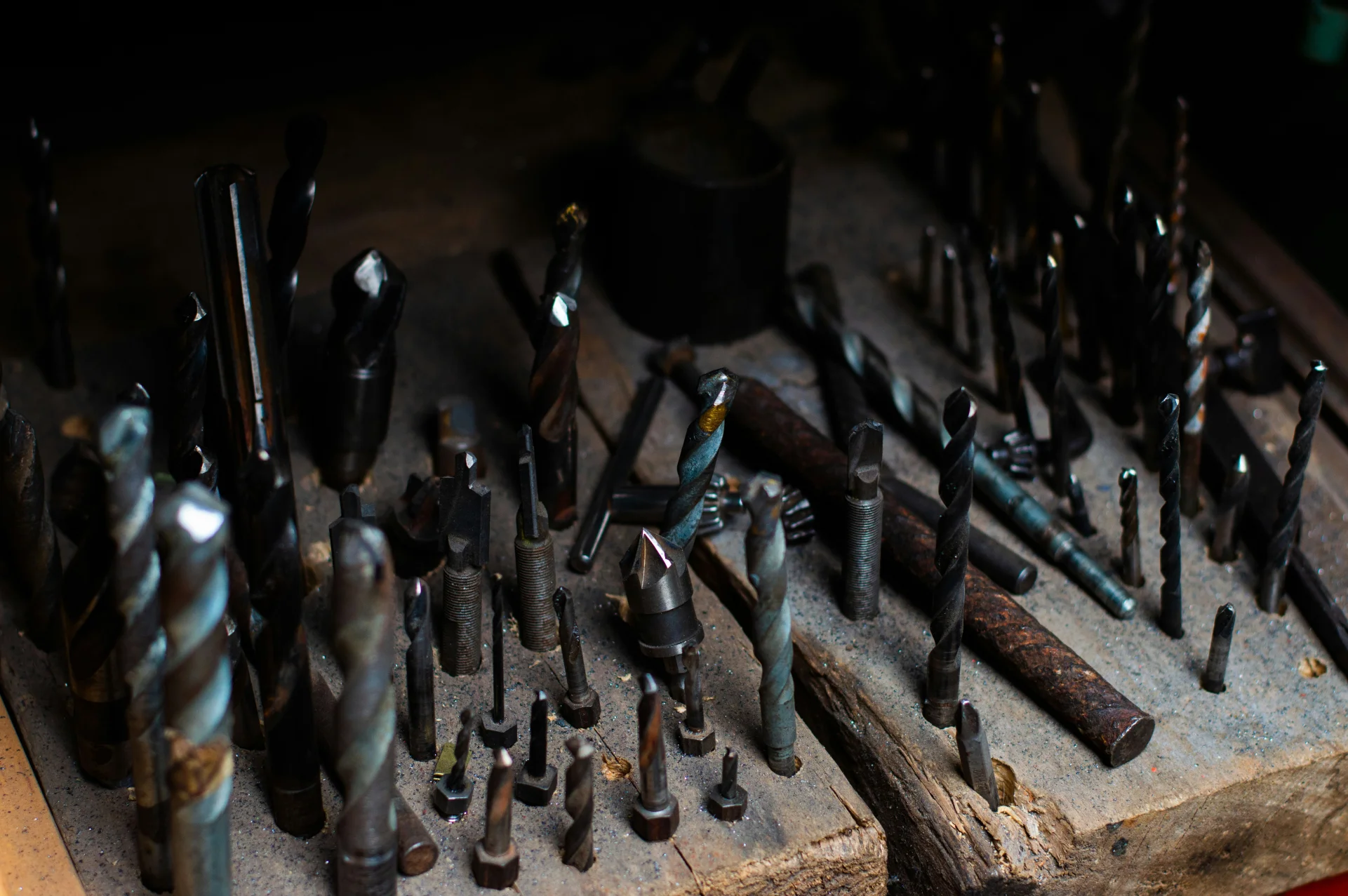
Original image
Enhanced Image
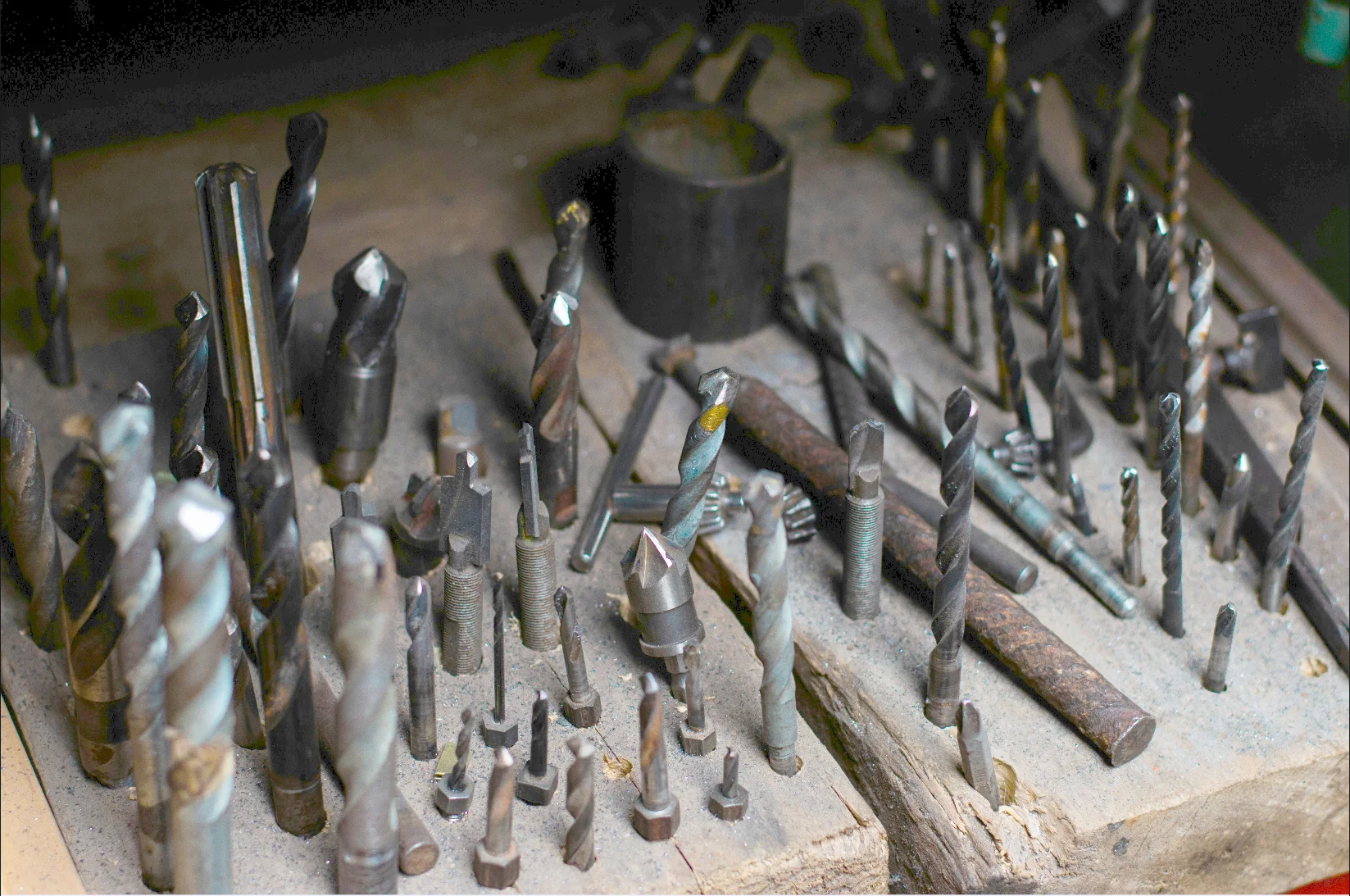
Gamma-corrected image
The Code
from telekinesis import pupil
from datatypes import io
import pathlib
from loguru import logger

DATA_DIR = pathlib.Path("path/to/telekinesis-data")

# Load image
filepath = str(DATA_DIR / "images" / "screws_in_dark_lighting.jpg")
image = io.load_image(filepath=filepath)
logger.success(f"Loaded image from {filepath}")

# Apply auto gamma correction for non-linear brightness adjustment
filtered_image = pupil.enhance_image_using_auto_gamma_correction(
    image=image,
)

# Access results
filtered_image_np = filtered_image.to_numpy()
logger.success("Applied Auto Gamma Correction. Enhanced output image shape: {}", filtered_image_np.shape)
The Explanation of the Code
The code begins by importing the necessary modules: pupil for image processing operations, io for data handling, pathlib for path management, and loguru for logging.
from telekinesis import pupil
from datatypes import io
import pathlib
from loguru import logger
Next, an image is loaded from a .jpg file using the io.load_image function. The input image may be either grayscale or color; auto gamma correction supports both formats.
DATA_DIR = pathlib.Path("path/to/telekinesis-data")

# Load image
filepath = str(DATA_DIR / "images" / "screws_in_dark_lighting.jpg")
image = io.load_image(filepath=filepath)
The main operation uses the enhance_image_using_auto_gamma_correction Skill from the pupil module. This Skill automatically adjusts image brightness using adaptive gamma estimation computed from luminance statistics, normalizing exposure across different lighting conditions.
filtered_image = pupil.enhance_image_using_auto_gamma_correction(image=image)Finally, the enhanced image is converted to a NumPy array using to_numpy() for further processing, visualization, or downstream tasks.
filtered_image_np = filtered_image.to_numpy()
logger.success(f"Output image shape: {filtered_image_np.shape}")
This operation is particularly useful in robotics and vision pipelines for brightness normalization, exposure correction, and handling varying lighting, where automatically normalizing brightness without manual gamma tuning is required.
Running the Example
Runnable examples are available in the Telekinesis examples repository. Follow the README in that repository to set up the environment. Once set up, you can run this specific example with:
cd telekinesis-examples
python examples/pupil_examples.py --example enhance_image_using_auto_gamma_correction
How to Tune the Parameters
The enhance_image_using_auto_gamma_correction Skill has no tunable parameters. Gamma is estimated automatically from the image luminance statistics.
TIP
Best practice: Use for automatic exposure normalization under varying lighting. The gamma is estimated from mean luminance—works best when the image has a reasonable dynamic range.
How the Auto Gamma Estimation Works
Auto gamma correction estimates gamma from the mean luminance of the image:
- The image is converted to grayscale
- The mean intensity is computed
- A gamma value is derived heuristically to push the average brightness toward a mid-range value
- A lookup table (LUT) is applied for efficient transformation
This approach provides a lightweight and fast method for brightness normalization in real-time or batch pipelines.
Where to Use the Skill
- Automatic exposure normalization – Normalize brightness under varying or unknown lighting
- Image preprocessing – Improve robustness of downstream vision algorithms
- Dataset normalization – Reduce brightness-related domain shift
- Visualization – Improve visibility of dark or washed-out images
When Not to Use the Skill
- Photometric accuracy required (Alters intensity values heuristically)
- Fixed gamma needed (Use manual gamma correction instead)
- Already normalized images (May cause overcorrection)
- Artistic processing (Removes intentional lighting effects)