

Filter Image Using Bilateral
SUMMARY
Filter Image Using Bilateral applies a bilateral filter to reduce noise while preserving edges.
Bilateral filtering is effective for noise reduction while maintaining edge sharpness. It considers both spatial proximity and color similarity, making it ideal for smoothing images without blurring important boundaries. This filter is commonly used in photography enhancement, medical imaging preprocessing, and computer vision pipelines where edge preservation is critical.
Use this Skill when you want to reduce noise while preserving sharp edges and fine details.
The Skill
from telekinesis import pupil

filtered_image = pupil.filter_image_using_bilateral(
    image=image,
    neighborhood_diameter=9,
    spatial_sigma=75.0,
    color_intensity_sigma=75.0,
    border_type="default",
)Example
Input Image
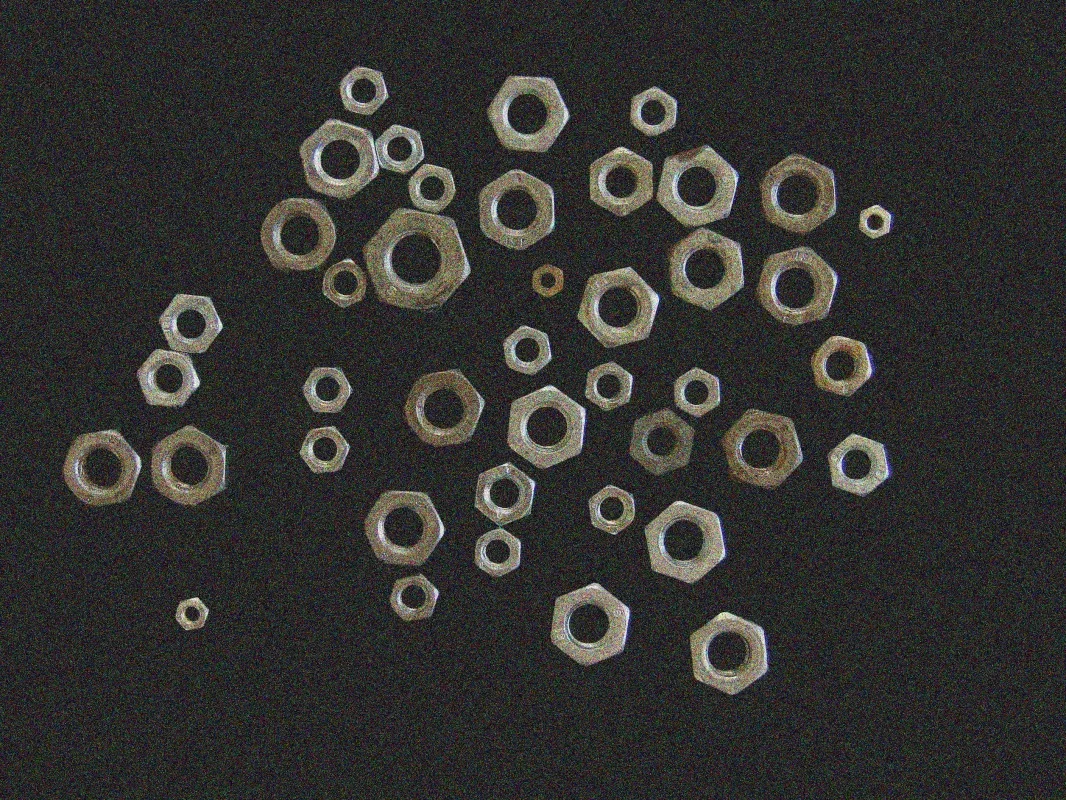
Original image with noise artifacts
Filtered Image
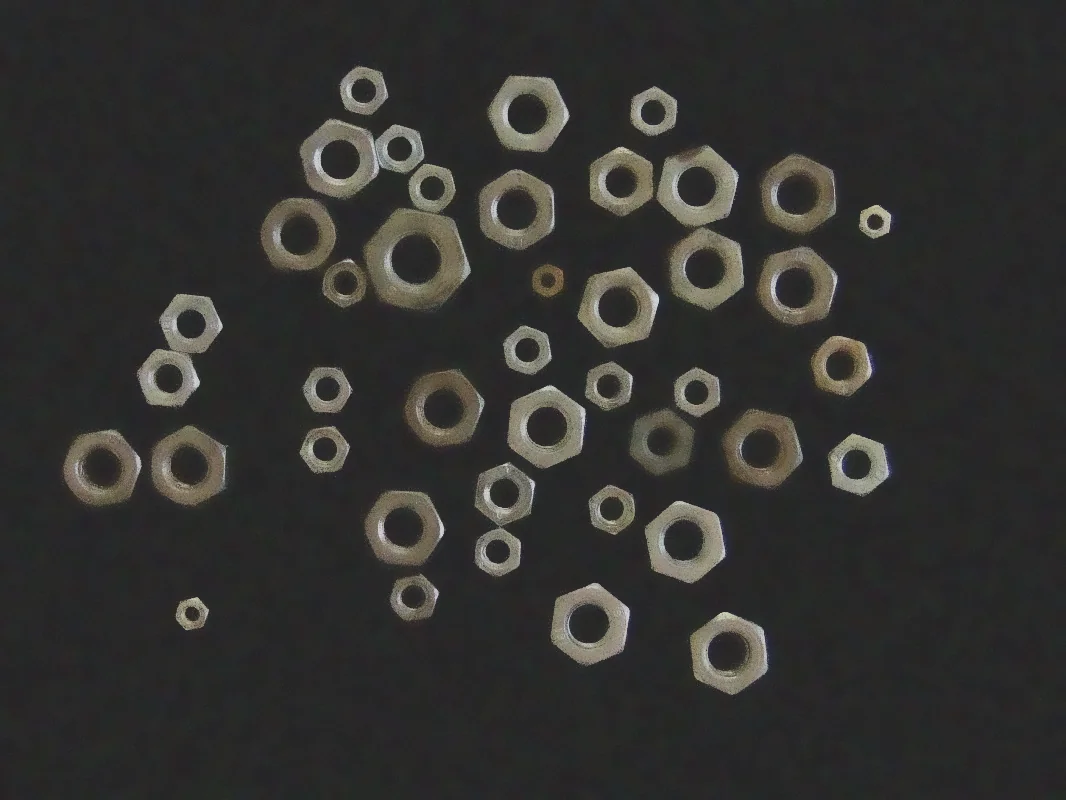
Filtered image with neighborhood_diameter=9, spatial_sigma=75.0, color_intensity_sigma=75.0 - noise removed while edges remain sharp
The Code
from telekinesis import pupil
from datatypes import io
import pathlib
from loguru import logger

DATA_DIR = pathlib.Path("path/to/telekinesis-data")

# Load image
filepath = str(DATA_DIR / "images" / "nuts_scattered_noised.jpg")
image = io.load_image(filepath=filepath)
logger.success(f"Loaded image from {filepath}")

# Apply bilateral filter for edge-preserving smoothing
filtered_image = pupil.filter_image_using_bilateral(
    image=image,
    neighborhood_diameter=5,
    spatial_sigma=75.0,
    color_intensity_sigma=100.0,
    border_type="default",
)

# Access results
filtered_image_np = filtered_image.to_numpy()
logger.success("Applied Bilateral filter. Filtered output image shape: {}", filtered_image_np.shape)
The Explanation of the Code
The code begins by importing the necessary modules: pupil for image processing operations, io for data handling, pathlib for path management, and loguru for logging.
from telekinesis import pupil
from datatypes import io
import pathlib
from loguru import logger
Next, an image is loaded from a .jpg file using the io.load_image function. The input image may be either grayscale or color; the bilateral filter supports both formats.
DATA_DIR = pathlib.Path("path/to/telekinesis-data")

# Load image
filepath = str(DATA_DIR / "images" / "nuts_scattered_noised.jpg")
image = io.load_image(filepath=filepath)
The main operation uses the filter_image_using_bilateral Skill from the pupil module. This Skill applies a bilateral filter that reduces noise while preserving edges by considering both spatial proximity and color similarity. The parameters can be tuned to control smoothing strength, spatial and color sensitivity, and border handling depending on the characteristics of the input image.
filtered_image = pupil.filter_image_using_bilateral(
    image=image,
    neighborhood_diameter=5,
    spatial_sigma=75.0,
    color_intensity_sigma=100.0,
    border_type="default",
)
Finally, the filtered image is converted to a NumPy array using to_numpy() for further processing, visualization, or downstream tasks.
filtered_image_np = filtered_image.to_numpy()
logger.success(f"Output image shape: {filtered_image_np.shape}")
This operation is particularly useful in robotics and vision pipelines for noise reduction with edge preservation, object detection preprocessing, image quality enhancement, and medical imaging, where smoothing without blurring important boundaries is required.
Running the Example
Runnable examples are available in the Telekinesis examples repository. Follow the README in that repository to set up the environment. Once set up, you can run this specific example with:
cd telekinesis-examples
python examples/pupil_examples.py --example filter_image_using_bilateral
How to Tune the Parameters
The filter_image_using_bilateral Skill has 4 parameters that control the noise reduction and edge preservation behavior:
neighborhood_diameter (default: 9): Controls the size of the kernel for spatial filtering. Must be odd.
- Units: Pixels
- Increase to expand the spatial smoothing area, creating more smoothing but slower processing
- Decrease for faster processing but less effective smoothing
- Typical range: 3–15 (min: 3, max: 15)
- Use 3–5 for small images or subtle smoothing, 5–9 for medium images with moderate noise, 9–15 for large images or heavy noise
spatial_sigma (default: 75.0): Defines the spatial standard deviation in pixels.
- Units: Pixels (standard deviation)
- Increase to make the filter consider pixels farther away, creating more smoothing across larger regions
- Decrease to focus smoothing on nearby pixels only, preserving more local detail
- Typical range: 10.0–150.0 (min: 10.0, max: 150.0)
- Use 10.0–50.0 for fine detail preservation, 50.0–100.0 for balanced smoothing, 100.0–150.0 for strong smoothing
color_intensity_sigma (default: 75.0): Specifies the color/intensity standard deviation.
- Units: Intensity levels (0–255 scale)
- Increase to allow larger color differences to be smoothed together, merging more regions
- Decrease to preserve more color boundaries and prevent blending across edges
- Typical range: 10.0–150.0 (min: 10.0, max: 150.0)
- Use 10.0–50.0 for strict color preservation and sharp edges, 50.0–100.0 for balanced edge preservation, 100.0–150.0 for more aggressive color blending
TIP
Best practice: Start with balanced parameters (neighborhood_diameter=9, spatial_sigma=75.0, color_intensity_sigma=75.0) and adjust based on results. If edges are being blurred, decrease color_intensity_sigma. If noise remains, increase spatial_sigma or neighborhood_diameter.
border_type (default: default): Determines how image borders are handled when the neighborhood extends beyond the image boundary.
- Options: "default", "constant", "replicate", "reflect", "reflect 101"
- "default" uses the library's default behavior
- "constant" pads with zeros, "replicate" repeats edge pixels, "reflect" mirrors the image, "reflect 101" reflects with edge repeated
- Use "default" or "reflect" for most cases, "constant" when you want black borders
Where to Use the Skill
Filter Using Bilateral is commonly used in the following pipelines:
- Preprocessing for object detection - Remove noise while preserving object boundaries
- Image quality enhancement - Improve visual quality for display or analysis
- Medical imaging - Denoise medical scans while maintaining diagnostic features
- Depth map refinement - Smooth depth data while preserving depth discontinuities at object boundaries
- Photography enhancement - Reduce noise in low-light photos while keeping details sharp
Related skills to build such a pipeline:
filter_image_using_gaussian_blur: Alternative smoothing filter when edge preservation is less criticalfilter_image_using_morphological_open: Remove small noise after filtering for cleaner segmentation
Alternative Skills
| Skill | vs. Filter Using Bilateral |
|---|---|
| filter_image_using_gaussian_blur | Gaussian blur is faster but doesn't preserve edges as well. Use bilateral when edges are important, gaussian for general smoothing or when speed is critical. |
| filter_image_using_median_blur | Median blur excels at removing salt-and-pepper noise but is slower and doesn't smooth as naturally. Use median for impulse noise, bilateral for general noise with edge preservation. |
| filter_image_using_box | Box filter is the fastest but creates blocky artifacts. Use box filter for quick smoothing when quality isn't critical, bilateral when quality matters. |
When Not to Use the Skill
Do not use Filter Using Bilateral when:
- You need real-time processing on large images (Use faster filters like Gaussian blur or box filter instead)
- You want to detect edges rather than preserve them (Use edge detection filters like Sobel, Scharr, or Laplacian)
- You're working with binary or heavily quantized images (Use morphological operations instead)
- You specifically need to remove salt-and-pepper noise (Use median blur which is more effective for this specific noise type)