

Crop Image Center
SUMMARY
Crop Image Center crops an image to specified dimensions, centered on the image.
Extracts a centered region of crop_width × crop_height. If the image is smaller than the target size, padding is applied to reach the desired dimensions. Useful for fixed-size model inputs, thumbnail generation, or normalizing variable-sized images.
Use this Skill when you want to extract a centered crop of fixed dimensions.
The Skill
from telekinesis import pupil

cropped_image = pupil.crop_image_center(
    image=image,
    crop_width=256,
    crop_height=256,
    pad_value=0,
)Example
Input Image
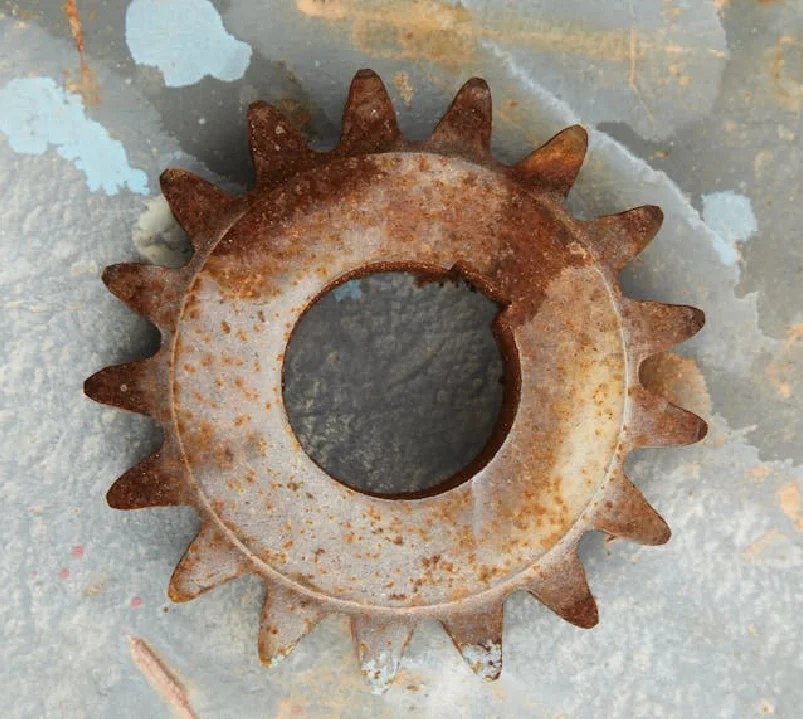
Original image
Cropped Image
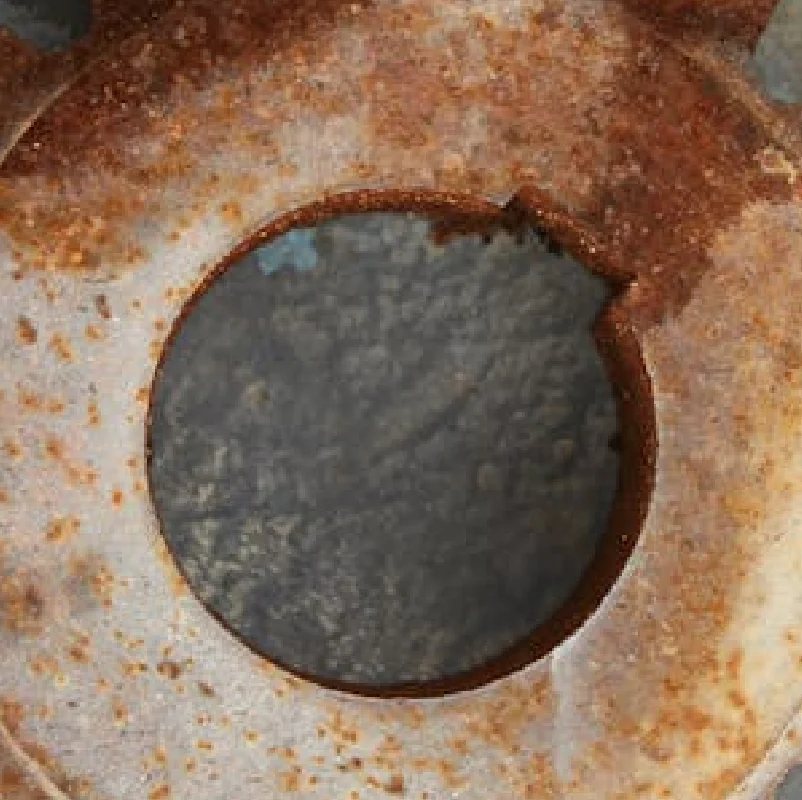
Center crop 256×256
The Code
from telekinesis import pupil
from datatypes import io
import pathlib
from loguru import logger

DATA_DIR = pathlib.Path("path/to/telekinesis-data")

# Load image
filepath = str(DATA_DIR / "images" / "rusted_metal_gear.jpg")
image = io.load_image(filepath=filepath)
logger.success(f"Loaded image from {filepath}")

# Center-crop image to specified dimensions
cropped_image = pupil.crop_image_center(
    image=image,
    crop_width=300,
    crop_height=300,
    pad_color=(0, 0, 0),
)

# Access results
cropped_image_np = cropped_image.to_numpy()
logger.success("Center-cropped image. Output shape: {}", cropped_image_np.shape)
The Explanation of the Code
The code begins by importing the necessary modules: pupil for image processing operations, io for data handling, pathlib for path management, and loguru for logging.
from telekinesis import pupil
from datatypes import io
import pathlib
from loguru import logger
Next, an image is loaded from a .jpg file using the io.load_image function.
DATA_DIR = pathlib.Path("path/to/telekinesis-data")

# Load image
filepath = str(DATA_DIR / "images" / "rusted_metal_gear.jpg")
image = io.load_image(filepath=filepath)
The main operation uses the crop_image_center Skill from the pupil module. This Skill crops an image to specified dimensions centered on the image, applying padding if the image is smaller than the target size. The parameters can be tuned to control output dimensions and pad value depending on the characteristics of the input image.
cropped_image = pupil.crop_image_center(
    image=image,
    crop_width=300,
    crop_height=300,
    pad_color=(0, 0, 0),
)
Finally, the cropped image is converted to a NumPy array using to_numpy() for further processing, visualization, or downstream tasks.
cropped_image_np = cropped_image.to_numpy()
logger.success(f"Output image shape: {cropped_image_np.shape}")
This operation is particularly useful in robotics and vision pipelines for fixed-size model inputs, thumbnail generation, and normalizing variable-sized images, where extracting a centered crop of fixed dimensions is required.
Running the Example
Runnable examples are available in the Telekinesis examples repository. Follow the README in that repository to set up the environment. Once set up, you can run this specific example with:
cd telekinesis-examples
python examples/pupil_examples.py --example crop_image_center
How to Tune the Parameters
The crop_image_center Skill has 3 parameters:
crop_width (no default—required):
- Target width of the output crop
- Units: Pixels
- Typical range: 1 to image_width (or larger if padding)
- Use model input size (e.g., 224, 256) for neural networks
crop_height (no default—required):
- Target height of the output crop
- Units: Pixels
- Typical range: 1 to image_height (or larger if padding)
- Use model input size (e.g., 224, 256) for neural networks
pad_color (default: (128, 128, 128)):
- Padding value when image is smaller than crop size. Scalar or [r, g, b]
- Units: Intensity (0–255 for uint8)
- If grayscale image, first element is used for padding
- Use (0, 0, 0) for black; (255, 255, 255) for white; (128, 128, 128) for gray
TIP
Best practice: Use crop_width and crop_height matching your model's expected input size. Use pad_color=(128, 128, 128) for neutral gray padding when images may be smaller than the crop.
Where to Use the Skill
Crop Image Center is commonly used in the following pipelines:
- Model input - Fixed-size crops for neural networks
- Thumbnails - Centered square crops for previews
- Normalization - Consistent dimensions from variable-sized inputs
Related skills to build such a pipeline:
resize_image: Resize before or after croppingresize_image_with_aspect_fit: Resize with aspect preservation before center croppad_image: Add padding before other operations
Alternative Skills
| Skill | vs. Crop Image Center |
|---|---|
| crop_image_using_bounding_boxes | Use when cropping multiple non-centered regions. |
| crop_image_using_polygon | Use when cropping with arbitrary polygon shapes. |
| resize_image_with_aspect_fit | Use when you need aspect-preserving resize to target size. |
When Not to Use the Skill
Do not use Crop Image Center when:
- You need non-centered crops (Use crop_image_using_bounding_boxes)
- You need non-rectangular crops (Use crop_image_using_polygon)
- You need multiple crops (Use crop_image_using_bounding_boxes)