

Filter Image Using Gaussian Blur
SUMMARY
Filter Image Using Gaussian Blur applies Gaussian blur for smooth noise reduction.
Gaussian blur uses a Gaussian kernel for weighted averaging, providing natural-looking blur with better edge preservation than simple blur. This is one of the most commonly used filters in computer vision, offering an excellent balance between smoothing effectiveness and visual quality. It's particularly effective for reducing Gaussian noise and preparing images for further processing.
Use this Skill when you want to smoothly reduce noise with natural-looking results.
The Skill
from telekinesis import pupil

blurred_image = pupil.filter_image_using_gaussian_blur(
    image=image,
    kernel_size=7,
    sigma_x=3.0,
    sigma_y=3.0,
    border_type="default",
)Example
Input Image
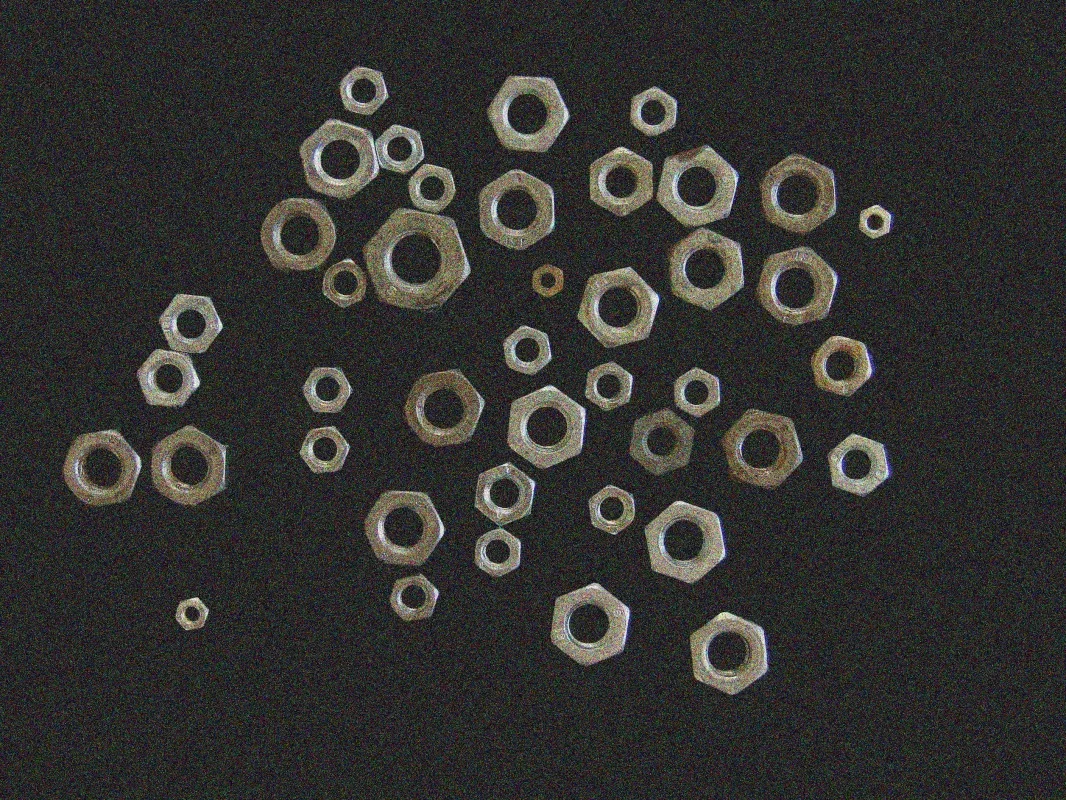
Original image with noise
Filtered Image
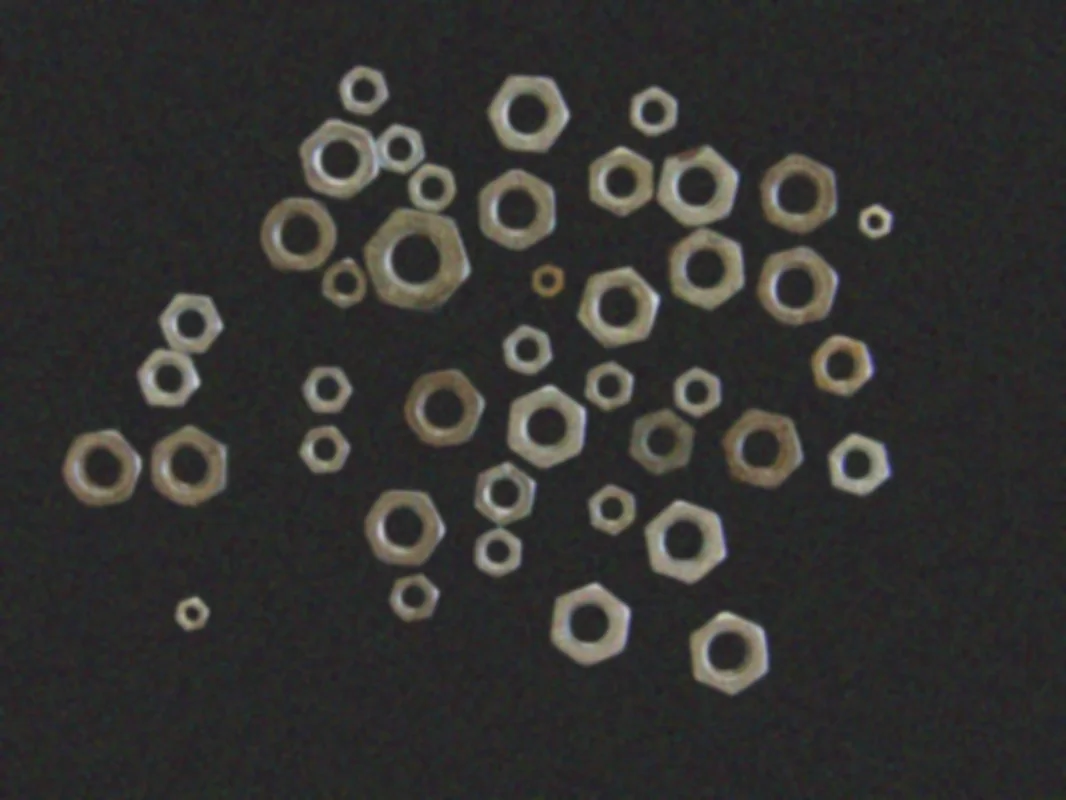
Blurred image with kernel_size=15, sigma_x=3.0, sigma_y=3.0
The Code
from telekinesis import pupil
from datatypes import io
import pathlib
from loguru import logger

DATA_DIR = pathlib.Path("path/to/telekinesis-data")

# Load image
filepath = str(DATA_DIR / "images" / "nuts_scattered_noised.jpg")
image = io.load_image(filepath=filepath)
logger.success(f"Loaded image from {filepath}")

# Apply Gaussian blur for smooth noise reduction
filtered_image = pupil.filter_image_using_gaussian_blur(
    image=image,
    kernel_size=19,
    sigma_x=2.0,
    sigma_y=3.0,
    border_type="default",
)

# Access results
filtered_image_np = filtered_image.to_numpy()
logger.success("Applied Gaussian Blur filter. Filtered output image shape: {}", filtered_image_np.shape)
The Explanation of the Code
The code begins by importing the necessary modules: pupil for image processing operations, io for data handling, pathlib for path management, and loguru for logging.
from telekinesis import pupil
from datatypes import io
import pathlib
from loguru import logger
Next, an image is loaded from a .jpg file using the io.load_image function. The input image may be either grayscale or color; Gaussian blur supports both formats.
DATA_DIR = pathlib.Path("path/to/telekinesis-data")

# Load image
filepath = str(DATA_DIR / "images" / "nuts_scattered_noised.jpg")
image = io.load_image(filepath=filepath)
The main operation uses the filter_image_using_gaussian_blur Skill from the pupil module. This Skill applies a Gaussian blur for smooth noise reduction using weighted averaging with a Gaussian kernel. The parameters can be tuned to control blur strength, sigma values, and border handling depending on the characteristics of the input image.
filtered_image = pupil.filter_image_using_gaussian_blur(
    image=image,
    kernel_size=19,
    sigma_x=2.0,
    sigma_y=3.0,
    border_type="default",
)
Finally, the filtered image is converted to a NumPy array using to_numpy() for further processing, visualization, or downstream tasks.
filtered_image_np = filtered_image.to_numpy()
logger.success(f"Output image shape: {filtered_image_np.shape}")
This operation is particularly useful in robotics and vision pipelines for noise reduction, pyramid construction, edge detection preprocessing, and feature extraction, where smooth natural-looking blur is required.
Running the Example
Runnable examples are available in the Telekinesis examples repository. Follow the README in that repository to set up the environment. Once set up, you can run this specific example with:
cd telekinesis-examples
python examples/pupil_examples.py --example filter_image_using_gaussian_blur
How to Tune the Parameters
The filter_image_using_gaussian_blur Skill has 4 parameters that control the blur characteristics:
kernel_size (default: 3): Controls the size of the Gaussian kernel. Must be odd.
- Units: Pixels
- Increase to create more blur and consider more distant pixels
- Decrease for less blur and faster processing
- Typical range: 3–31 (min: 3, max: 31)
- Use 3–7 for light blur, 7–15 for moderate blur, 15–31 for heavy blur
sigma_x (default: 0.0): Defines the standard deviation in the X direction.
- Units: Pixels (standard deviation)
- Increase to create more horizontal blur
- Decrease to reduce horizontal blur
- When 0, computed automatically from kernel_size
- Typical range: 0.0–10.0 (min: 0.0, max: 10.0)
- Use 0.0 for auto, 1.0–3.0 for light, 3.0–7.0 for moderate, 7.0–10.0 for heavy blur
sigma_y (default: 0.0): Defines the standard deviation in the Y direction.
- Units: Pixels (standard deviation)
- Increase to create more vertical blur
- Decrease to reduce vertical blur
- When 0, computed automatically from kernel_size
- Typical range: 0.0–10.0 (min: 0.0, max: 10.0)
- Use 0.0 for auto, 1.0–3.0 for light, 3.0–7.0 for moderate, 7.0–10.0 for heavy blur
TIP
Best practice: For isotropic (circular) blur, use equal values for sigma_x and sigma_y. For directional blur (like motion blur), use different values. Set both to 0.0 (default) to let the kernel_size determine the blur automatically.
border_type (default: default): Determines how image borders are handled when the kernel extends beyond the image boundary.
- Options: "default", "constant", "replicate", "reflect", "reflect 101"
- "default" uses the library's default behavior
- Use "default" or "reflect" for most cases
Where to Use the Skill
Filter Using Gaussian Blur is commonly used in the following pipelines:
- Noise reduction - Remove Gaussian noise before analysis
- Pyramid construction - Smooth before downsampling for scale-space analysis
- Edge detection preprocessing - Reduce noise before applying edge detectors
- Feature extraction - Initial smoothing for robust feature detection
- Image enhancement - Create soft-focus effects or reduce fine details
Related skills to build such a pipeline:
filter_image_using_sobel: Detect edges using Sobel operatorfilter_image_using_canny: Detect edges using Canny algorithm (if available)transform_image_using_pyramid_downsampling: Create image pyramids for multi-scale processing
Alternative Skills
| Skill | vs. Filter Using Gaussian Blur |
|---|---|
| filter_image_using_bilateral | Bilateral filter preserves edges better but is slower. Use bilateral when edges are critical, Gaussian when speed and smoothness matter. |
| filter_image_using_blur | Box blur is faster but lower quality. Use Gaussian for better results, box blur only when speed is absolutely critical. |
| filter_image_using_median_blur | Median blur is better for salt-and-pepper noise. Use median for impulse noise, Gaussian for general smoothing. |
When Not to Use the Skill
Do not use Filter Using Gaussian Blur when:
- You need to preserve sharp edges (Use bilateral filter instead)
- You're specifically removing salt-and-pepper noise (Use median blur instead)
- You want the fastest possible smoothing (Use box blur for speed)
- You need directional filtering (Use oriented filters like Gabor instead)