

Filter Image Using Box
SUMMARY
Filter Image Using Box applies a normalized box filter with configurable depth and normalization.
Box filter performs normalized averaging within a kernel region, useful for basic smoothing operations. This filter allows control over output bit depth and normalization, making it flexible for different preprocessing needs in computer vision pipelines. It's particularly useful when you need precise control over numerical precision in the filtering output.
Use this Skill when you want to perform basic averaging with control over output precision and normalization.
The Skill
from telekinesis import pupil

filtered_image = pupil.filter_image_using_box(
    image=image,
    kernel_size=datatypes.Int(5),
    normalize=datatypes.Bool(True),
    output_format=datatypes.String("64bit"),
    border_type=datatypes.String("default"),
)Example
Input Image
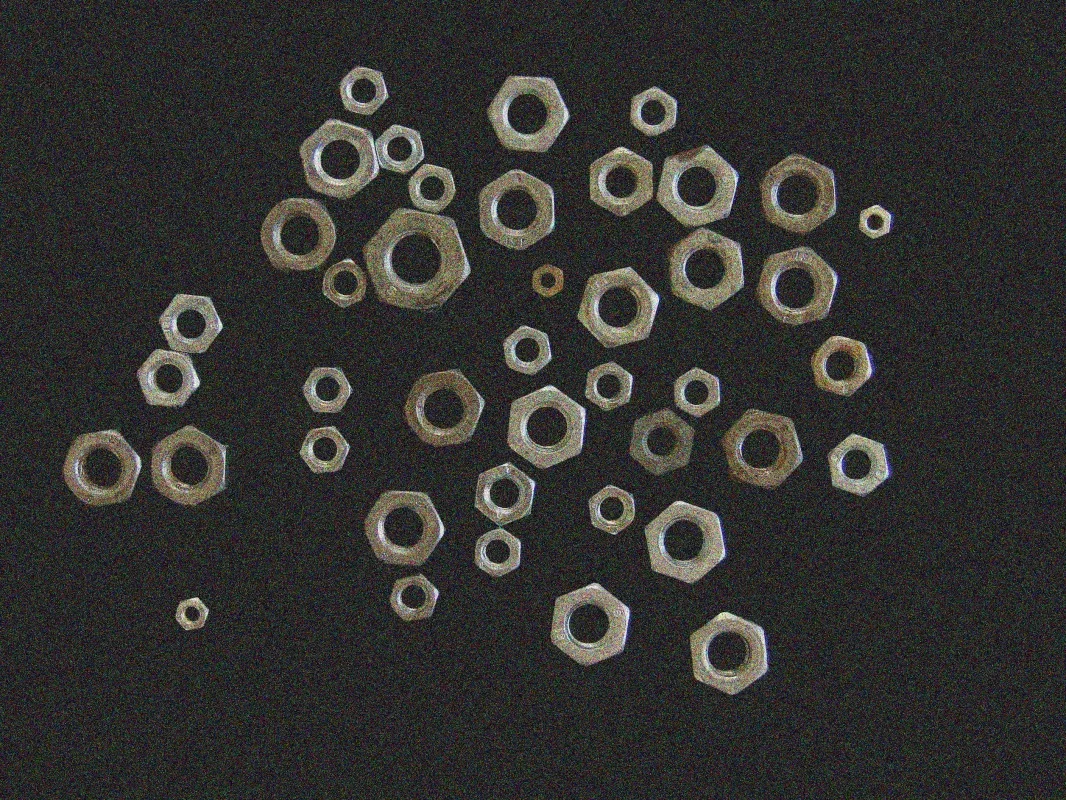
Original image
Filtered Image
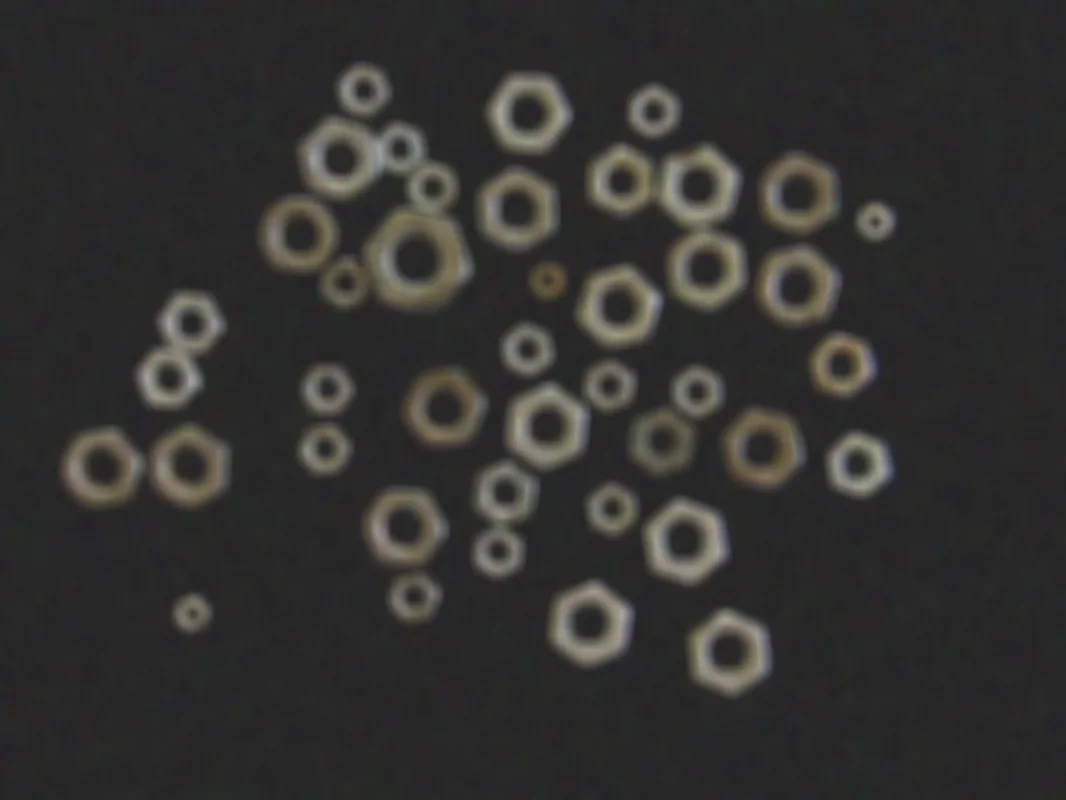
Filtered image with kernel_size=5, normalize=True, output_format="8bit" - smoothed with normalized kernel
The Code
from telekinesis import pupil
from datatypes import io
import pathlib
from loguru import logger

DATA_DIR = pathlib.Path("path/to/telekinesis-data")

# Load image
filepath = str(DATA_DIR / "images" / "nuts_scattered_noised.jpg")
image = io.load_image(filepath=filepath)
logger.success(f"Loaded image from {filepath}")

# Apply box filter for basic smoothing
filtered_image = pupil.filter_image_using_box(
    image=image,
    output_format="8bit",
    kernel_size=5,
    normalize=True,
    border_type="reflect",
)

# Access results
filtered_image_np = filtered_image.to_numpy()
logger.success("Applied Box filter. Filtered output image shape: {}", filtered_image_np.shape)
The Explanation of the Code
The code begins by importing the necessary modules: pupil for image processing operations, io for data handling, pathlib for path management, and loguru for logging.
from telekinesis import pupil
from datatypes import io
import pathlib
from loguru import logger
Next, an image is loaded from a .jpg file using the io.load_image function. The input image may be either grayscale or color; the box filter supports both formats.
DATA_DIR = pathlib.Path("path/to/telekinesis-data")

# Load image
filepath = str(DATA_DIR / "images" / "nuts_scattered_noised.jpg")
image = io.load_image(filepath=filepath)
The main operation uses the filter_image_using_box Skill from the pupil module. This Skill applies a normalized box filter with configurable depth and normalization for basic averaging operations. The parameters can be tuned to control smoothing strength, normalization, output precision, and border handling depending on the characteristics of the input image.
filtered_image = pupil.filter_image_using_box(
    image=image,
    output_format="8bit",
    kernel_size=5,
    normalize=True,
    border_type="reflect",
)
Finally, the filtered image is converted to a NumPy array using to_numpy() for further processing, visualization, or downstream tasks.
filtered_image_np = filtered_image.to_numpy()
logger.success(f"Output image shape: {filtered_image_np.shape}")
This operation is particularly useful in robotics and vision pipelines for preprocessing for downsampling, local averaging, integral image computation, and feature extraction, where control over normalization and output precision is required.
Running the Example
Runnable examples are available in the Telekinesis examples repository. Follow the README in that repository to set up the environment. Once set up, you can run this specific example with:
cd telekinesis-examples
python examples/pupil_examples.py --example filter_image_using_box
How to Tune the Parameters
The filter_image_using_box Skill has 4 parameters that control the averaging operation:
kernel_size (default: 3): Controls the size of the box kernel. Must be odd.
- Units: Pixels
- Increase to create larger averaging area and more smoothing
- Decrease for less smoothing and faster processing
- Typical range: 3–15 (min: 3, max: 15)
- Use 3–5 for subtle smoothing, 5–9 for moderate smoothing, 9–15 for heavy smoothing
normalize (default: True): Defines whether the kernel values are normalized so their sum equals one.
- When True, preserves average brightness of the image
- When False, may brighten or darken the image depending on the kernel values
- Set using
datatypes.Bool(True)ordatatypes.Bool(False) - Use True for standard smoothing, False only for special effects or specific mathematical operations
TIP
Best practice: Always use normalize=True unless you have a specific reason not to. Un-normalized kernels can lead to unexpected brightness changes.
output_format (default: "same as input"): Specifies the numerical precision of the output image.
- Options: "8bit", "16bitS", "16bitU", "32bit", "64bit"
- Higher depth preserves more precision but uses more memory
- Use "8bit" for standard image display, "16bit" or "32bit" for intermediate processing, "64bit" for maximum precision
border_type (default: default): Determines how image borders are handled when the kernel extends beyond the image boundary.
- Options: "default", "constant", "replicate", "reflect", "reflect 101"
- "default" uses the library's default behavior
- Use "default" or "reflect" for most cases
Where to Use the Skill
Box Filtering is commonly used in the following pipelines:
- Preprocessing for downsampling - Smooth before reducing resolution
- Local averaging operations - Compute local statistics
- Integral image computation - Efficient sum computation
- Feature extraction preprocessing - Initial smoothing stage
- Noise estimation - Estimate noise levels through averaging
Related skills to build such a pipeline:
transform_image_using_pyramid_downsampling: Downsample images for multi-scale processingfilter_image_using_gaussian_blur: Higher quality alternative for smoothing
Alternative Skills
| Skill | vs. Box Filtering |
|---|---|
| filter_image_using_blur | filter_image_using_blur is simpler (fewer parameters) but less configurable. Use filter_image_using_box when you need control over normalization and output depth. |
| filter_image_using_gaussian_blur | Gaussian blur produces smoother, more natural results. Use gaussian for better visual quality, box for speed and simplicity. |
| filter_image_using_bilateral | Bilateral filter preserves edges. Use bilateral when edges matter, box for uniform smoothing. |
When Not to Use the Skill
Do not use Box Filtering when:
- You need edge-preserving smoothing (Use bilateral filter instead)
- You want smooth, natural-looking results (Use Gaussian blur for better visual quality)
- You're removing salt-and-pepper noise (Use median blur instead)
- You need the absolute simplest API (Use filter_image_using_blur for fewer parameters)