

Crop Image Using Bounding Boxes
SUMMARY
Crop Image Using Bounding Boxes crops an image using multiple bounding boxes.
Extracts rectangular regions from an image given a list of bounding boxes. Each box is typically [x, y, width, height] or [x1, y1, x2, y2] depending on format. Returns a list of cropped images. Supports retain_coordinates for optional coordinate preservation.
Use this Skill when you want to extract multiple rectangular regions from an image.
The Skill
from telekinesis import pupil

cropped_images = pupil.crop_image_using_bounding_boxes(
    image=image,
    bounding_boxes=bounding_boxes,
    retain_coordinates=False,
)
crop_list = cropped_images.to_list()Example
Input Image
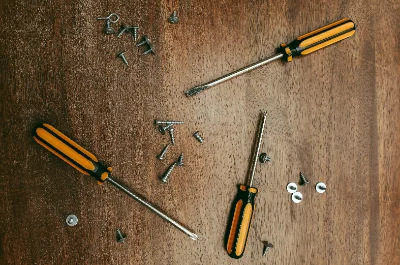
Original image with regions
Cropped Image 1
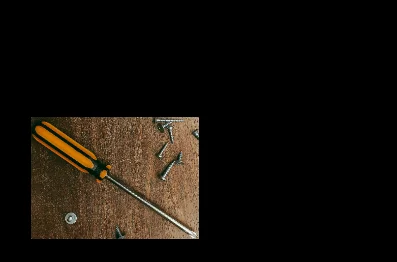
First cropped region
Cropped Image 2
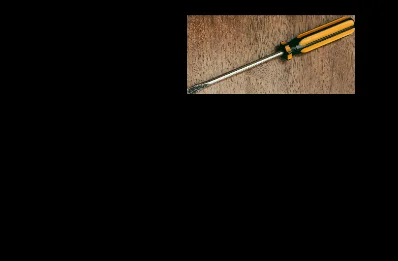
Second cropped region
Cropped Image 3

Third cropped region
The Code
from telekinesis import pupil
from datatypes import io
import pathlib
from loguru import logger

DATA_DIR = pathlib.Path("path/to/telekinesis-data")

# Load image
filepath = str(DATA_DIR / "images" / "driver_screw.webp")
image = io.load_image(filepath=filepath)
logger.success(f"Loaded image from {filepath}")

image_np = image.to_numpy()
h, w = image_np.shape[:2]

# Define bounding boxes [x, y, width, height]
bounding_boxes = [
    [65, 235, 330, 240],
    [370, 35, 330, 155],
    [445, 210, 85, 300],
]

# Crop image using multiple bounding boxes
cropped_images = pupil.crop_image_using_bounding_boxes(
    image=image,
    bounding_boxes=bounding_boxes,
    retain_coordinates=True,
)

# Access results
num_crops = len(cropped_images.to_list())
logger.success("Cropped {} regions", num_crops)
The Explanation of the Code
The code begins by importing the necessary modules: pupil for image processing operations, io for data handling, pathlib for path management, and loguru for logging.
from telekinesis import pupil
from datatypes import io
import pathlib
from loguru import logger
Next, an image is loaded from a .png file using the io.load_image function. Bounding boxes define rectangular regions in [x, y, width, height] format.
DATA_DIR = pathlib.Path("path/to/telekinesis-data")

# Load image
filepath = str(DATA_DIR / "images" / "driver_screw.webp")
image = io.load_image(filepath=filepath)
image_np = image.to_numpy()
h, w = image_np.shape[:2]

# Define bounding boxes [x, y, width, height]
bounding_boxes = [
    [65, 235, 330, 240],
    [370, 35, 330, 155],
    [445, 210, 85, 300],
]
The main operation uses the crop_image_using_bounding_boxes Skill from the pupil module. This Skill extracts multiple rectangular regions from an image given a list of bounding boxes. The parameters can be tuned to control which regions are extracted and whether coordinate metadata is retained.
cropped_images = pupil.crop_image_using_bounding_boxes(
    image=image,
    bounding_boxes=bounding_boxes,
    retain_coordinates=True,
)
Finally, the cropped images are accessed via to_list() for further processing, visualization, or downstream tasks. Each crop can be converted to NumPy using to_numpy().
num_crops = len(cropped_images.to_list())
logger.success(f"Cropped {num_crops} regions")
This operation is particularly useful in robotics and vision pipelines for object detection ROI extraction, batch processing, and multi-region cropping, where extracting multiple rectangular regions from an image is required.
Running the Example
Runnable examples are available in the Telekinesis examples repository. Follow the README in that repository to set up the environment. Once set up, you can run this specific example with:
cd telekinesis-examples
python examples/pupil_examples.py --example crop_image_using_bounding_boxes
How to Tune the Parameters
The crop_image_using_bounding_boxes Skill has 2 parameters:
bounding_boxes (no default—required):
- List of rectangular regions, each typically [x, y, width, height] or [x1, y1, x2, y2]
- Units: Pixels
- Ensure boxes are within image bounds; extend boxes to capture full objects
- Use for object detection crops, ROI extraction, or data augmentation
retain_coordinates (default: False):
- Whether to attach metadata about original positions to the cropped images
- Options: True, False
- Use False for plain cropped images; True when you need to map crops back to original coordinates
Where to Use the Skill
Crop Image Using Bounding Boxes is commonly used in the following pipelines:
- Object detection - Crop detected regions for classification
- ROI extraction - Extract regions of interest
- Batch processing - Process multiple regions independently
- Data augmentation - Random crops for training
Related skills to build such a pipeline:
detect_objects_using_*: Get bounding boxes for croppingcrop_image_using_polygon: Crop with non-rectangular shapesresize_image: Resize crops to fixed size
Alternative Skills
| Skill | vs. Crop Image Using Bounding Boxes |
|---|---|
| crop_image_using_polygon | Use when cropping with arbitrary polygon shapes instead of rectangles. |
When Not to Use the Skill
Do not use Crop Image Using Bounding Boxes when:
- You need non-rectangular cropping (Use crop_image_using_polygon)
- You have a single box (Still works; returns a list of one)
- Boxes extend outside image (Ensure boxes are clipped or valid)