

Robotiq Grippers
SUMMARY
Synapse supports the Robotiq 2F-85 and Hand-E parallel grippers over two protocols: URCAP (via a UR controller) and Modbus RTU (direct USB connection to your PC).
from telekinesis.synapse.tools.parallel_grippers import robotiq

gripper = robotiq.Robotiq2F85()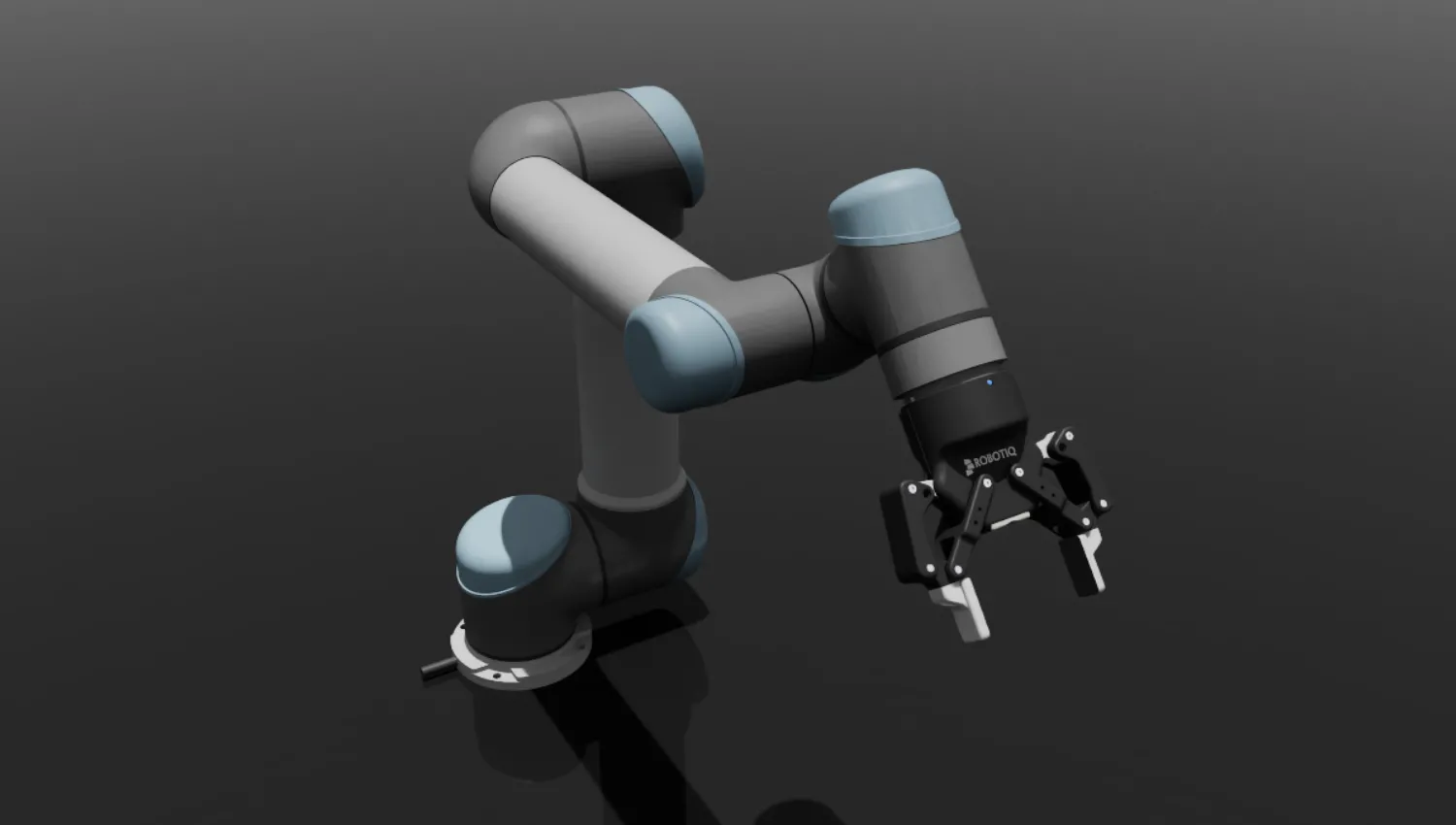
Supported Models
Parallel Grippers
| Model | Class | Max Gripping Force (N) | Stroke (mm) | Weight (kg) | Interface |
|---|---|---|---|---|---|
| 2F-85 | Robotiq2F85 | 235 | 85 | 0.92 | USB / RS-485 |
| Hand-E | RobotiqHandE | 130 | 50 | 0.92 | USB / RS-485 |
Choosing a Protocol
| Protocol | How the gripper connects | Requirements |
|---|---|---|
| URCAP | Gripper → UR controller → PC over Ethernet | UR robot with URCap installed |
| Modbus RTU | Gripper → ACC-ADT-RS485-USB converter → PC over USB | Converter + 24 V power supply |
Pick URCAP if you already have a UR robot. Pick Modbus RTU if you want to drive the gripper directly from your PC without a UR controller.
URCAP Setup
SAFETY FIRST
Once a session is open, Synapse can drive the gripper at any time. Keep fingers and tooling clear of the jaws and be ready to disconnect before issuing any motion from your PC.
1. Connect the gripper to the UR controller
The gripper communicates with the UR controller over RS-485. There are two ways to make that connection:
Option A — UR e-Series Coupling Kit (recommended)
A UR e-Series Coupling Kit plugs directly into the UR tool IO port and terminates at the gripper connector — no extra hardware required. Use this for e-Series robots (UR3e, UR5e, UR10e, UR16e, UR20, UR30).
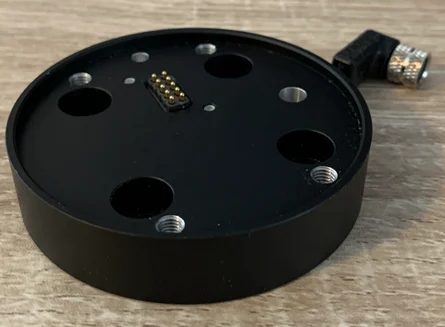
For CB-Series robots (UR3, UR5, UR10) use the UR CB-Series Coupling Kit instead:
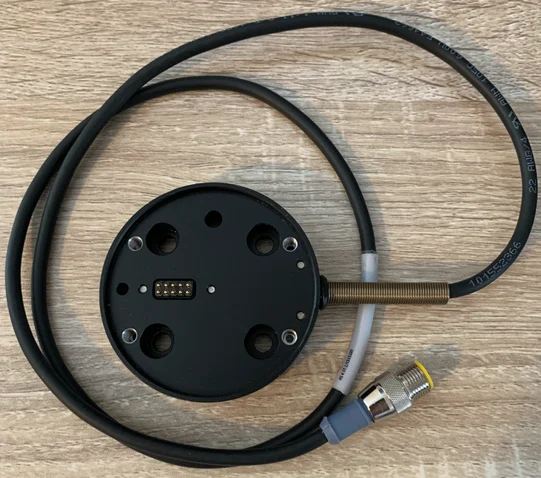
All supported Coupling models and part numbers are listed in the Robotiq Couplings & Cables guide.
Option B — ACC-ADT-RS485-USB converter
Use this if you do not have a Coupling cable. The converter bridges the gripper RS-485 bus to a USB port on the UR controller.
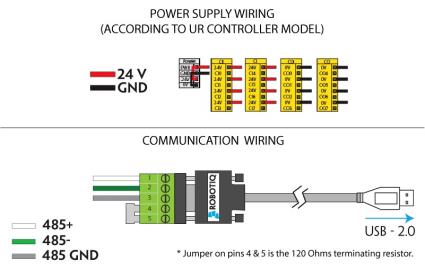
- Wire the converter to the gripper following Hand-E Installation § 3.2 — the connector wiring is identical for all Robotiq grippers.
- Plug the USB end into a USB port on the UR controller, not your PC.
2. Install the URCap
The URCap is the UR controller software that exposes the gripper over the network.
- Go to robotiq.com/support.
- Navigate to Gripper Model → Universal Robots → Software → Robotiq Gripper URCap.
- Download and install following the instructions on that page — the steps differ slightly between PolyScope 3 (CB-Series) and PolyScope 5 / PolyScopeX (e-Series).
Once installed, the URCap listens on port 63352 of the UR controller.
3. Configure your PC network
Put your PC on the same subnet as the UR controller.
- Connect an Ethernet cable between your PC and the UR controller.
- Read the controller IP from the PolyScope network settings.
- On your PC set a static IPv4 in the same subnet — e.g. controller at
192.168.1.1→ PC at192.168.1.2, subnet mask255.255.255.0, no gateway.
Verify the link:
ping 192.168.1.1 # replace with your UR controller's IPYou should see successful replies. If not:
| Check | Action |
|---|---|
| Physical link | Confirm cable seated, LAN port LEDs lit |
| Subnet match | PC and controller IPs share the first three octets |
| Route hijacking | Disable VPNs and virtual network adapters on the PC |
4. Verify the connection from Python
telekinesis-ai and telekinesis-urdfs before running any robotics skill. import time
from telekinesis.synapse.tools.parallel_grippers import robotiq
gripper = robotiq.Robotiq2F85()
gripper.connect(ip="192.168.1.1", protocol="URCAP") # UR controller IP
time.sleep(1)
gripper.disconnect()If connect succeeds without an exception, you are ready to run any Synapse gripper skill.
Modbus RTU Setup
SAFETY FIRST
Once a session is open, Synapse can drive the gripper at any time. Keep fingers and tooling clear of the jaws and be ready to disconnect before issuing any motion from your PC.
1. Connect the gripper to your PC
You need:
- An ACC-ADT-RS485-USB converter
- A UR CB-Series Coupling Kit (see the Robotiq Couplings & Cables guide for part numbers)
Steps:
- Connect the Coupling cable between the gripper and the converter following Hand-E Installation § 3.2.
- Power the converter with a 24 V supply — follow Hand-E Installation § 3.8 for the wiring. Any 24 V source works; you do not need a UR controller but you can use it.
- Plug the USB end into your PC.
2. Find your COM port
After plugging in the USB, identify the port name your OS assigned to the converter:
| OS | How to find it |
|---|---|
| Windows | Open Device Manager → expand Ports (COM & LPT) → look for USB Serial Port (COMx) |
| Linux | Run ls /dev/ttyUSB* in a terminal — typically /dev/ttyUSB0 |
| macOS | Run ls /dev/cu.usbserial-* in a terminal — use the path that appears |
3. Verify the connection from Python
telekinesis-ai and telekinesis-urdfs before running any robotics skill. import time
from telekinesis.synapse.tools.parallel_grippers import robotiq
gripper = robotiq.Robotiq2F85()
gripper.connect(serial_port="COM4", protocol="MODBUS_RTU") # Windows
# gripper.connect(serial_port="/dev/ttyUSB0", protocol="MODBUS_RTU") # Linux
# gripper.connect(serial_port="/dev/cu.usbserial-XXXX", protocol="MODBUS_RTU") # macOS
time.sleep(1)
gripper.disconnect()If connect succeeds without an exception, you are ready to run any Synapse gripper skill.