

RealSense: Capture Single RGB Image
SUMMARY
Connect to a RealSense camera, capture a single colour frame, and visualise the result with Rerun.
Example
Code
"""
A simple example demonstrating how to connect to a RealSense camera, capture an
image and disconnect from the camera when finished.

Please run this example from a terminal to avoid issues with rerun's spawn mode.
"""

from loguru import logger

import rerun as rr

from telekinesis.medulla.cameras import realsense


def main():
    camera = realsense.RealSense(
        name="my_realsense"
    )
    try:
        rr.init("RealSense_Capture_Example", spawn=True)
        camera.connect()

        image = camera.capture_single_color_frame()

        rr.log("Single_Image_Capture", rr.Image(image))
    except Exception as e:
        logger.error(
            f"Unable to capture image. Caught exception: {type(e).__name__}: {e}"
        )
    finally:
        camera.disconnect()


if __name__ == "__main__":
    main()
Explanation
Now, let's break down the code piece by piece.
A RealSense camera object is created with just a name. No serial number is required — the class connects to the first available device automatically.
camera = realsense.RealSense(
    name="my_realsense"
)
A Rerun viewer is opened with rr.init(..., spawn=True), then camera.connect() initializes the RealSense pipeline with default stream settings and makes the device ready to capture frames.
rr.init("RealSense_Capture_Example", spawn=True)
camera.connect()
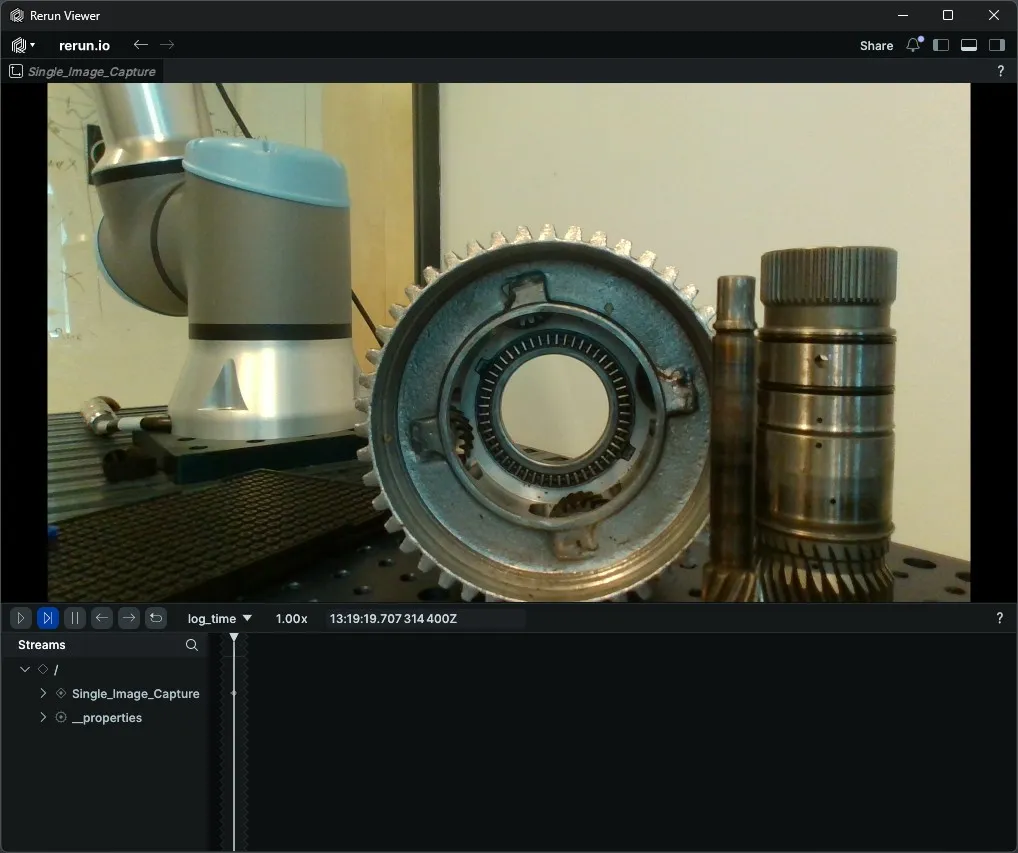
capture_single_color_frame activates the colour stream, retrieves one frame, and returns it as a NumPy array. The frame is logged to Rerun under "Single_Image_Capture" for immediate visual inspection.
image = camera.capture_single_color_frame()

rr.log("Single_Image_Capture", rr.Image(image))
The finally block guarantees that camera.disconnect() is always called, stopping the RealSense pipeline and releasing all USB resources regardless of whether an exception occurred.
finally:
    camera.disconnect()
Run
python capture_rgb_image_example.pyA Rerun viewer opens automatically. The captured colour frame appears under Single_Image_Capture once acquisition completes.