

Filter Image Using Blur
SUMMARY
Filter Image Using Blur applies a simple box blur filter to an image.
Box blur is a basic smoothing operation that averages pixel values within a kernel. It's fast and straightforward but can blur edges. This filter is commonly used when processing speed is more important than preserving fine details, such as in quick preprocessing steps, background estimation, or creating artistic blur effects.
Use this Skill when you want to quickly smooth an image when edge preservation is not critical.
The Skill
from telekinesis import pupil

blurred_image = pupil.filter_image_using_blur(
    image=image,
    kernel_size=15,
    border_type="default",
)Example
Input Image
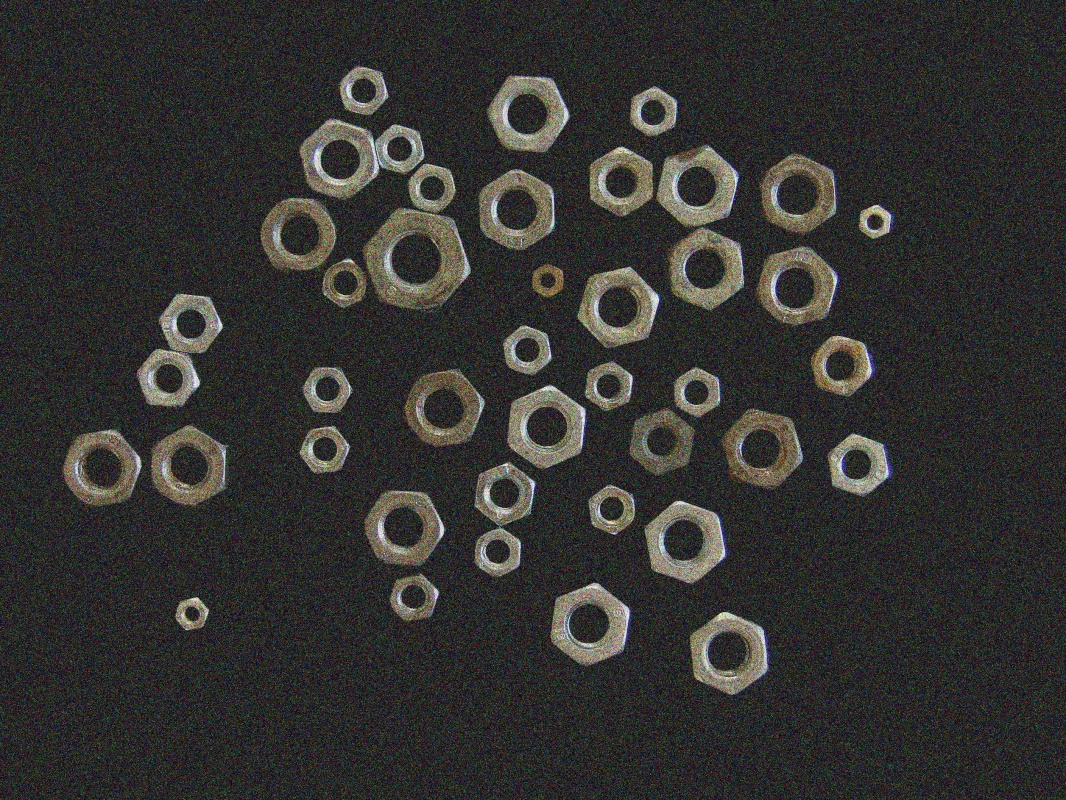
Original sharp image
Output Image
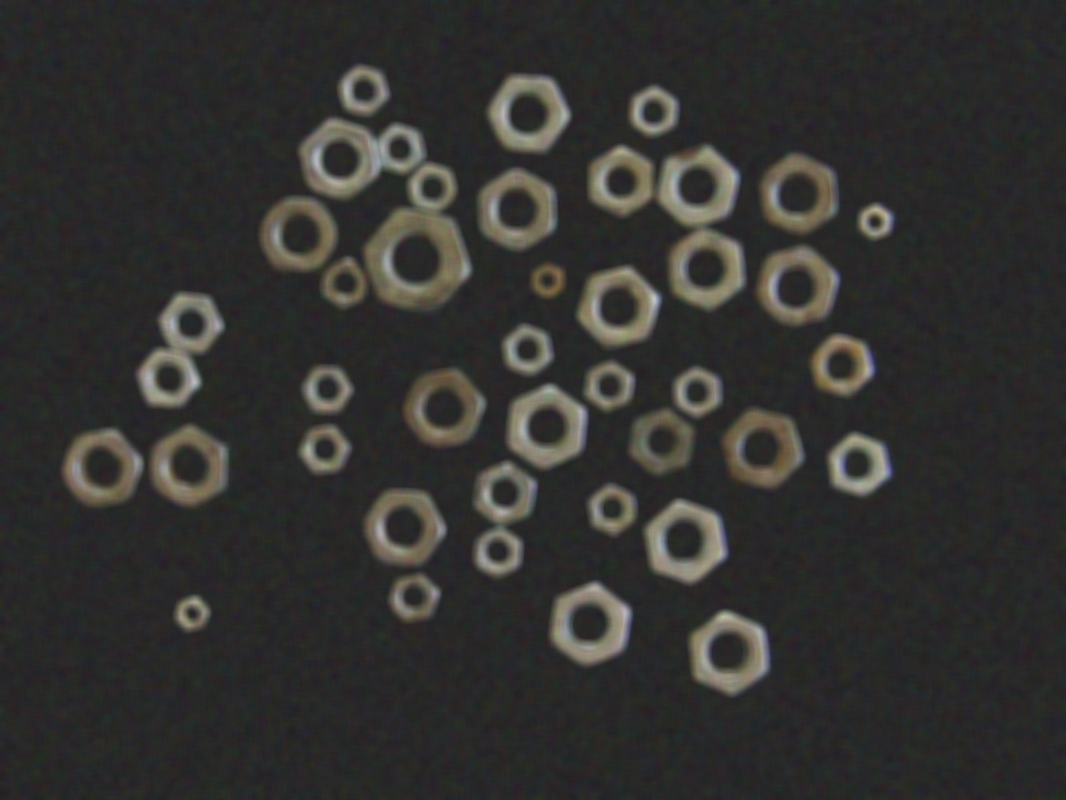
Blurred image with kernel_size=15 - smoothed uniformly across the image
The Code
from telekinesis import pupil
from datatypes import io, datatypes

import pathlib
from loguru import logger

DATA_DIR = pathlib.Path("path/to/telekinesis-data")

# Load image
filepath = str(DATA_DIR / "images" / "nuts_scattered_noised.jpg")
image = io.load_image(filepath=filepath)

# Apply box blur
blurred_image = pupil.filter_image_using_blur(
    image=image,
    kernel_size=15,
    border_type="default",
)
logger.success(f"Applied box blur with blurred image shape as {blurred_image.to_numpy().shape}")
The Explanation of the Code
The box blur filter performs a simple and efficient smoothing operation by replacing each pixel value with the average of all pixel values inside a fixed-size rectangular window (kernel) centered on that pixel. The code first imports the required modules. These imports provide access to the Pupil SDK, type-safe datatypes, and logging functionality.
from telekinesis import pupil
from datatypes import io, datatypes

# Optional
from loguru import logger
A data directory is set and the input image is then loaded from disk using io.load_image function. A log message confirms successful loading and reports the image dimensions. The input image may be either grayscale (H, W) or color (H, W, C). The box blur supports both formats.
DATA_DIR = pathlib.Path("path/to/telekinesis-data")

# Load image
filepath = str(DATA_DIR / "images" / "nuts_scattered_noised.png")
image = io.load_image(filepath=filepath)
Next, the blur parameters are configured. Box blur performs simple averaging over a fixed-size rectangular window, making it fast but potentially creating blocky artifacts compared to Gaussian blur.
kernel_size controls the size of the averaging window. Larger kernels produce stronger smoothing but may introduce more blocky artifacts.
border_type specifies how image borders are handled during filtering when the kernel extends beyond the image boundaries.
Finally, the box blur is applied using the filter_image_using_blur Skill. The original image remains unchanged, and a new blurred image is returned as output.
blurred_image = pupil.filter_image_using_blur(
    image=image,
    kernel_size=15,
    border_type="default",
)
logger.success(f"Applied box blur with blurred image shape as {blurred_image.to_numpy().shape}")
This operation averages each pixel with its neighbors inside the specified kernel, producing a fast and uniform smoothing effect.
Box blur is commonly used for quick noise reduction, background estimation, or creating a stylistic blur when performance and simplicity are prioritized over edge preservation.
Running the Example
Runnable examples are available in the Telekinesis examples repository. Follow the README in that repository to set up the environment. Once set up, you can run this specific example with:
cd telekinesis-examples
python examples/pupil_examples.py --example filter_image_using_blur
How to Tune the Parameters
The filter_image_using_blur Skill has 2 parameters that control the blur intensity:
kernel_size (default: 15):
- The size of the blur kernel. Must be odd.
- Units: Pixels
- Increase to create more blur, making the image softer
- Decrease for faster processing and less blur
- Typical range: 3-31
- Use 3-7 for light blur (subtle smoothing), 7-15 for moderate blur (noticeable smoothing), 15-31 for heavy blur (strong smoothing effect)
TIP
Best practice: Start with kernel_size=15 for moderate blur and adjust based on your needs. Remember that larger kernels are slower but create smoother results.
border_type (default: "default"):
- The border handling type for pixels near image edges
- Options: "default", "constant", "replicate", "reflect", "wrap"
- "default" uses the library's default behavior
- Use "default" or "reflect" for most cases
Where to Use the Skill in a Pipeline
Filter Using Blur is commonly used in the following pipelines:
- Fast preprocessing - Quick smoothing before other operations
- Background estimation - Blur to remove fine details and estimate background
- Artistic effects - Create intentional blur for visual effects
- Downsampling preparation - Smooth before reducing image resolution
- Motion blur simulation - Approximate motion effects
A typical pipeline for background estimation looks as follows:
# Example pipeline using box blur (parameters omitted).

from telekinesis import pupil
from datatypes import io

# 1. Load the image
image = io.load_image(filepath=...)

# 2. Apply heavy blur to estimate background
blurred_image = pupil.filter_image_using_blur(image=image, kernel_size=31, ...)

# 3. Subtract background from original to isolate foreground
foreground = image - blurred_image

# 4. Further process the foreground
result = ...
Related skills to build such a pipeline:
load_image: Load images from diskfilter_image_using_gaussian_blur: More sophisticated smoothing with better quality
Alternative Skills
| Skill | vs. Filter Using Blur |
|---|---|
| filter_image_using_gaussian_blur | Gaussian blur produces smoother, more natural results than box blur. Use gaussian when quality matters, box blur when speed is critical. |
| filter_image_using_bilateral | Bilateral filter preserves edges while smoothing. Use bilateral when edges are important, box blur when uniform smoothing is acceptable. |
| filter_image_using_median_blur | Median blur is better for removing salt-and-pepper noise. Use median for impulse noise, box blur for general smoothing. |
When Not to Use the Skill
Do not use Filter Using Blur when:
- You need to preserve edges (Use bilateral filter or Gaussian blur instead)
- You're removing salt-and-pepper noise (Use median blur which is specifically designed for this)
- You need smooth, natural-looking blur (Use Gaussian blur for better visual quality)
- You're preparing for edge detection (Don't blur, or use minimal Gaussian smoothing)
WARNING
Box blur can create blocky artifacts and doesn't preserve edges. For higher quality smoothing, consider using Gaussian blur instead.