

Enhance Image Using White Balance
SUMMARY
Enhance Image Using White Balance applies white balance correction to adjust color temperature.
White balance removes color casts caused by lighting conditions, making images appear more natural. This operation adjusts the relative intensities of color channels to make neutral colors appear truly neutral, compensating for colored lighting. It's essential for correcting images taken under different illumination conditions.
Use this Skill when you want to correct color casts from lighting conditions.
The Skill
from telekinesis import pupil

balanced_image = pupil.enhance_image_using_white_balance(image=image)Example
Input Image
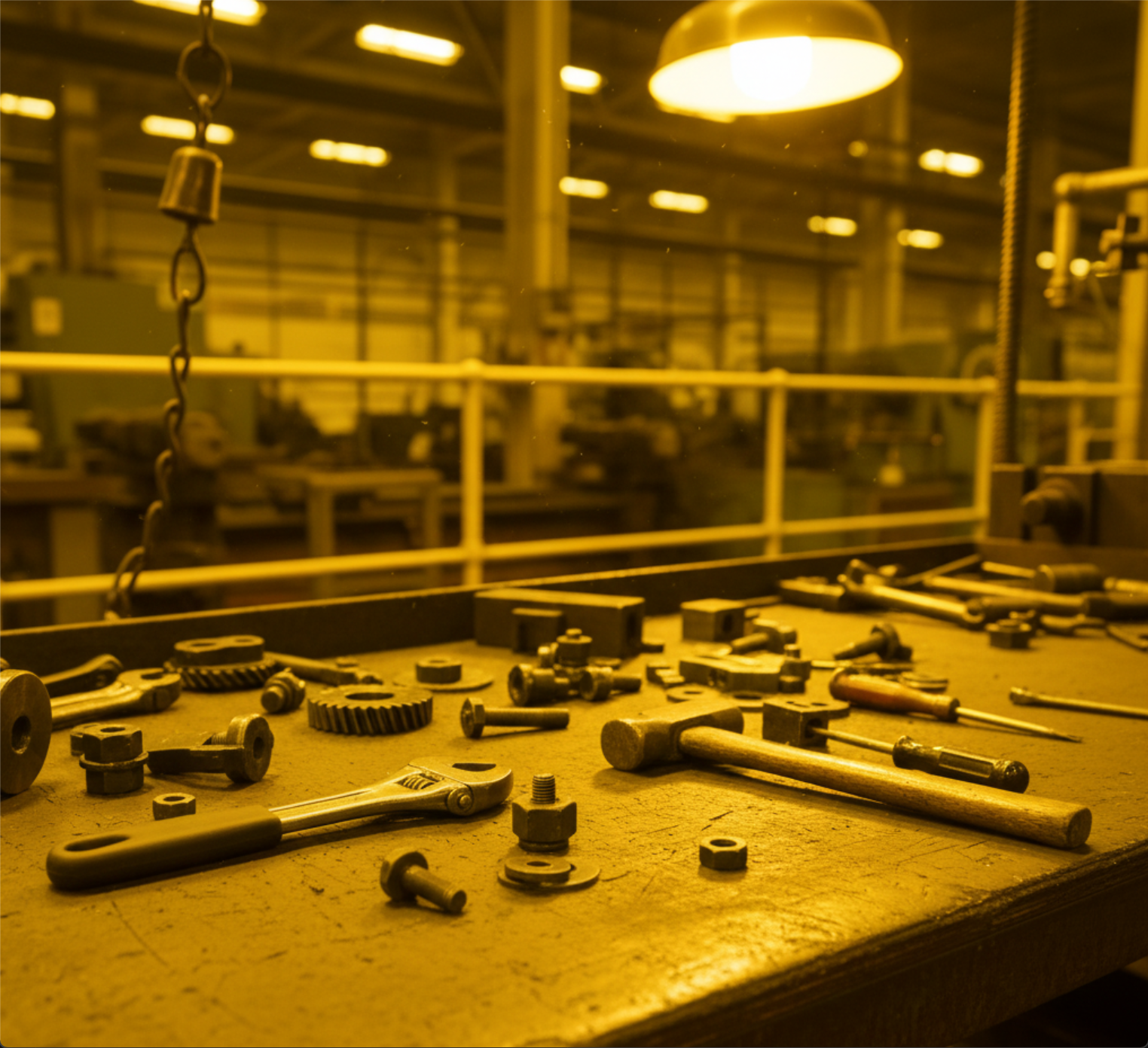
Original image with color cast
Output Image
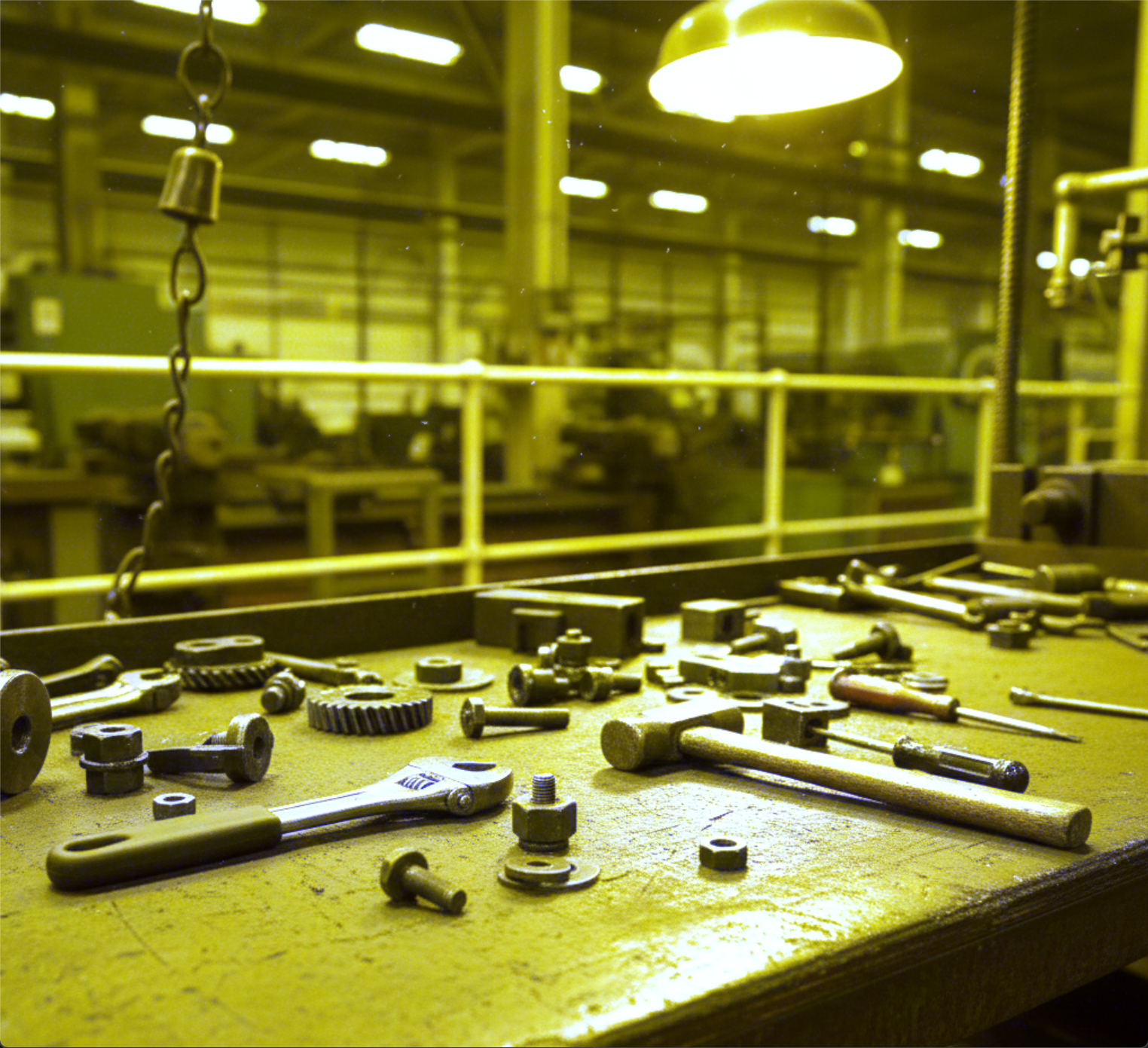
White-balanced image with neutral colors
The Code
from telekinesis import pupil
from datatypes import io
import pathlib

# Optional for logging
from loguru import logger

DATA_DIR = pathlib.Path("path/to/telekinesis-data")

# Load image
filepath = str(DATA_DIR / "images" / "hand_tools_yellow_light.png")
image = io.load_image(filepath=filepath)
logger.success(f"Loaded image with shape {image.to_numpy().shape}")

# Apply white balance enhancement
enhanced_imaged = pupil.enhance_image_using_white_balance(
    image=image
)
logger.success(f"Applied white balance enhancement with balanced image shape as {enhanced_imaged.to_numpy().shape}")
The Explanation of the Code
This example demonstrates how to use the enhance_image_using_white_balance Skill to correct color casts caused by illumination, such as warm yellow indoor lighting.
The code begins by importing the required Telekinesis modules, along with utilities for file handling and optional logging.
from telekinesis import pupil
from datatypes import io
import pathlib
from loguru import logger
A data directory is set and the input image is then loaded from disk using io.load_image function. A log message confirms successful loading and reports the image dimensions.
DATA_DIR = pathlib.Path("path/to/telekinesis-data")

filepath = str(DATA_DIR / "images" / "hand_tools_yellow_light.png")
image = io.load_image(filepath=filepath)
logger.success(f"Loaded image with shape {image.to_numpy().shape}")
This Skill automatically estimates the scene illuminant and adjusts the relative intensities of the color channels to remove color casts introduced by lighting. The correction is applied globally, producing a color-normalized output image. The original image remains unchanged, and a new white-balanced image is returned.
enhanced_imaged = pupil.enhance_image_using_white_balance(
    image=image
)
logger.success(f"Applied white balance enhancement with balanced image shape as {enhanced_imaged.to_numpy().shape}")
This Skill focuses on photometric enhancement rather than spatial filtering or geometric transformation. enhance_image_using_white_balance Skill is typically used early in an image-processing pipeline to ensure consistent color appearance before downstream tasks such as segmentation, feature extraction, or visualization.
Running the Example
Runnable examples are available in the Telekinesis examples repository. Follow the README in that repository to set up the environment. Once set up, you can run this specific example with:
cd telekinesis-examples
python examples/pupil_examples.py --example enhance_image_using_white_balance
How to Tune the Parameters
The enhance_image_using_white_balance Skill has no tunable parameters - it automatically estimates the illuminant and corrects accordingly.
TIP
Best practice: White balance is most effective when the image contains neutral colors (grays, whites) that should appear truly neutral. It automatically estimates the illuminant and corrects accordingly.
Where to Use the Skill in a Pipeline
- Photo correction - Remove color casts from photos
- Preprocessing - Normalize colors before analysis
- Display normalization - Ensure consistent color appearance
- Color calibration - Correct illumination effects
When Not to Use the Skill
- No color cast present (Unnecessary)
- Artistic color grading desired (White balance removes intentional color tones)
- No neutral colors in scene (Algorithm may not work well)