

Image Processing
Image Processing
pupil covers 2D image processing: the building-block operations you compose before and after perception - bitwise math, cropping, geometric transforms, color conversion, enhancement, filtering, morphology, and measurement. Pick the group that matches the operation you need.
Bitwise Operations
Bitwise operations combine or invert images and binary masks pixel by pixel. Use them to intersect, union, subtract, or complement masks when composing detection and segmentation results.
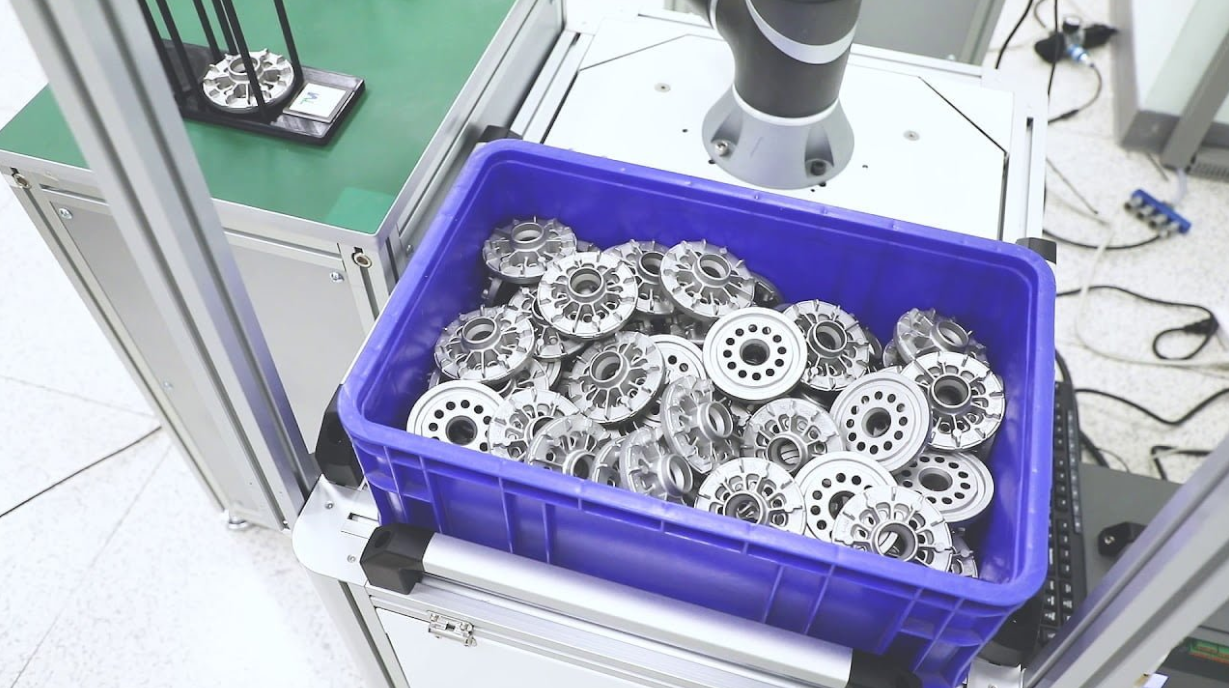
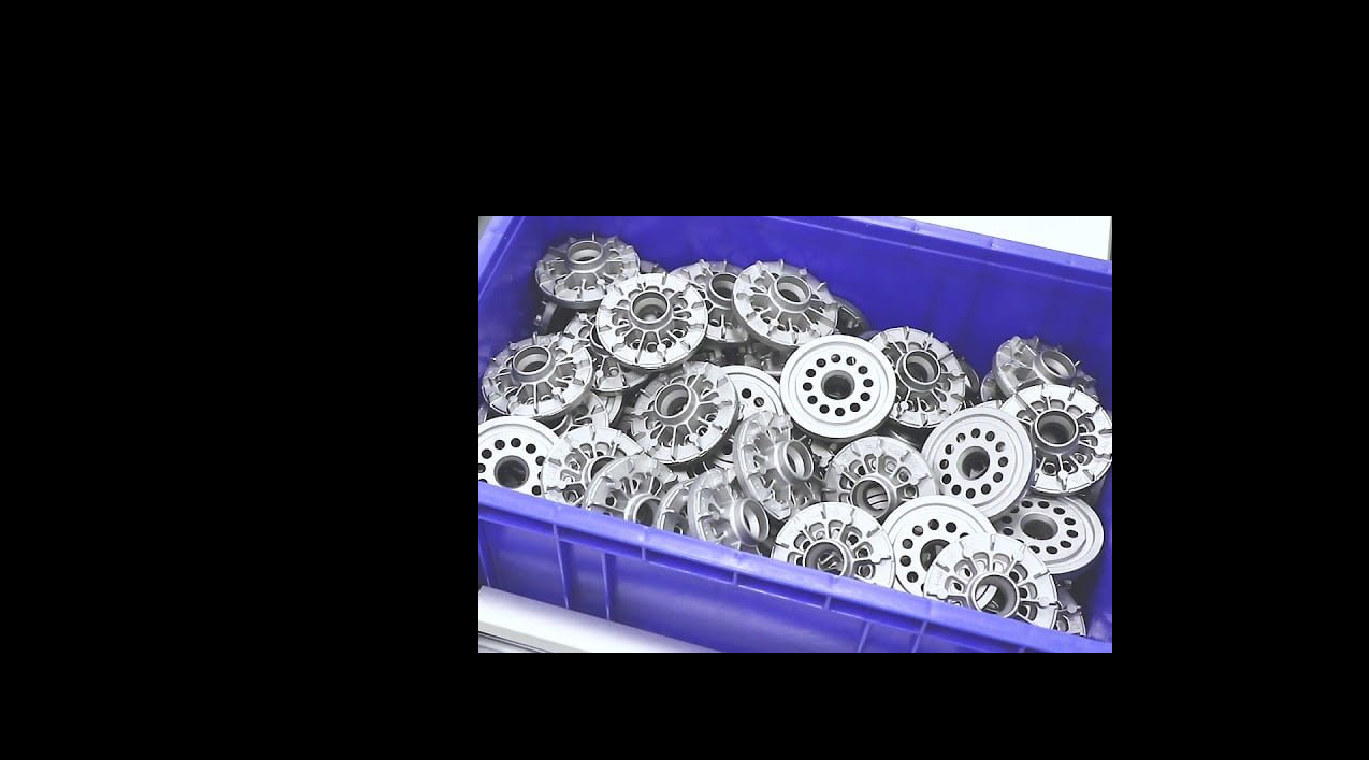
Bitwise AND Images
Perform a pixel-wise bitwise AND operation between two images or binary masks, useful for mask intersection and logical filtering.
View →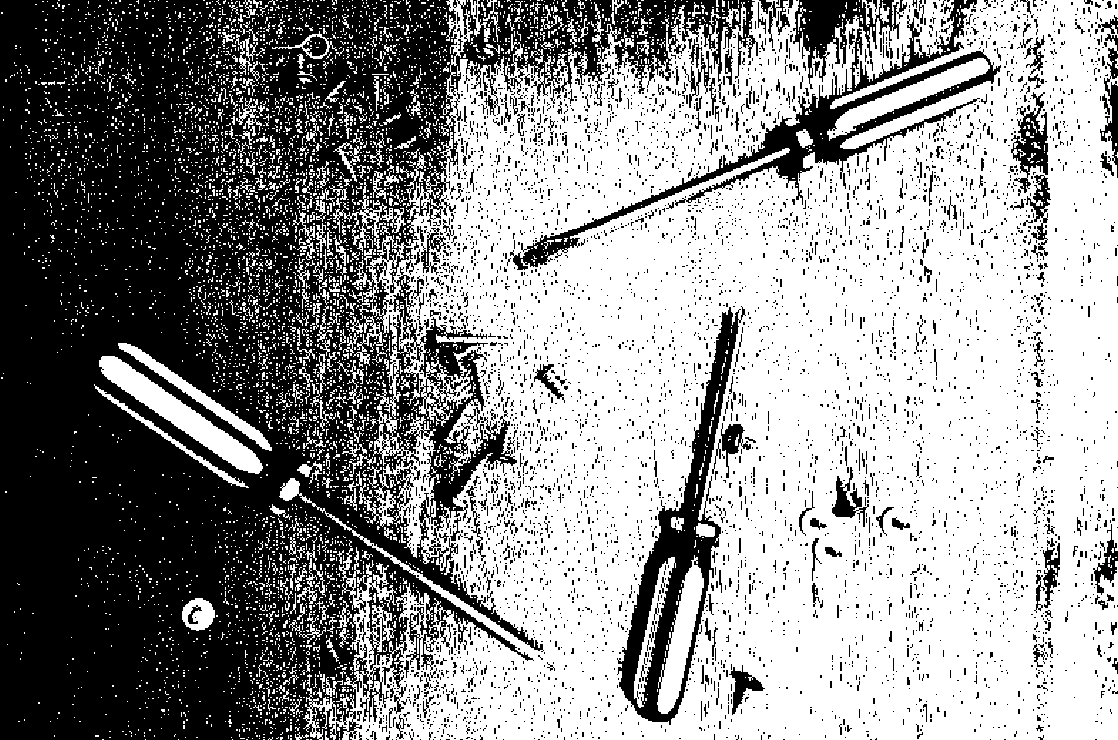
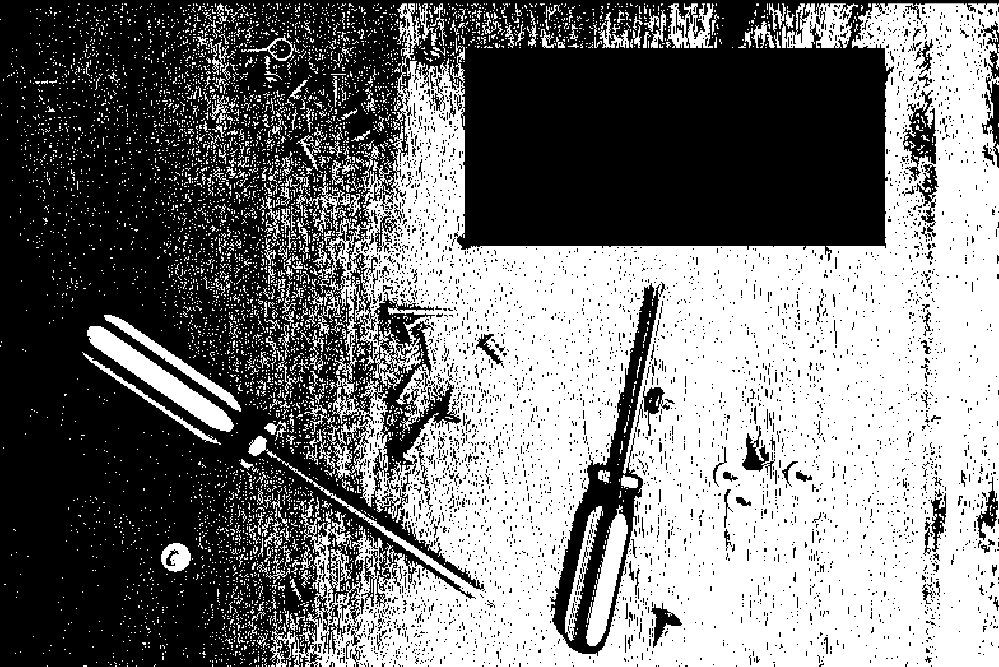
Bitwise Difference Images
Compute the pixel-wise absolute difference between two images to highlight changes, useful for motion detection, defect inspection, and image comparison.
View →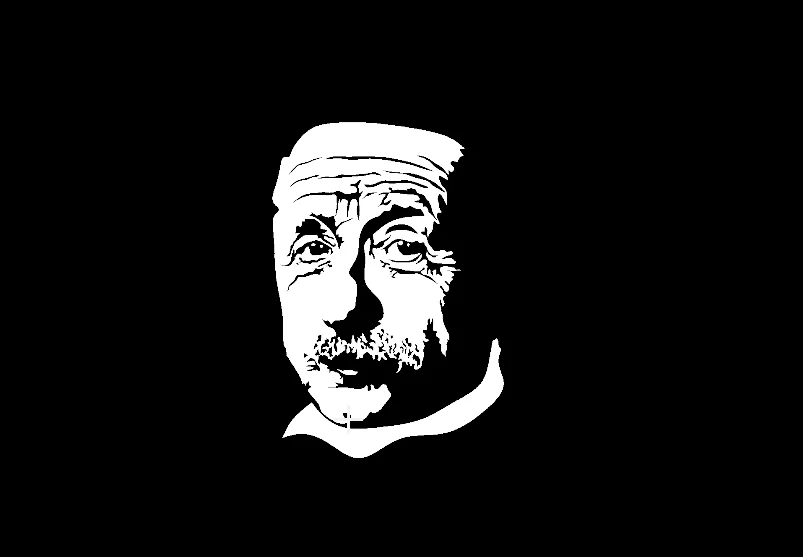
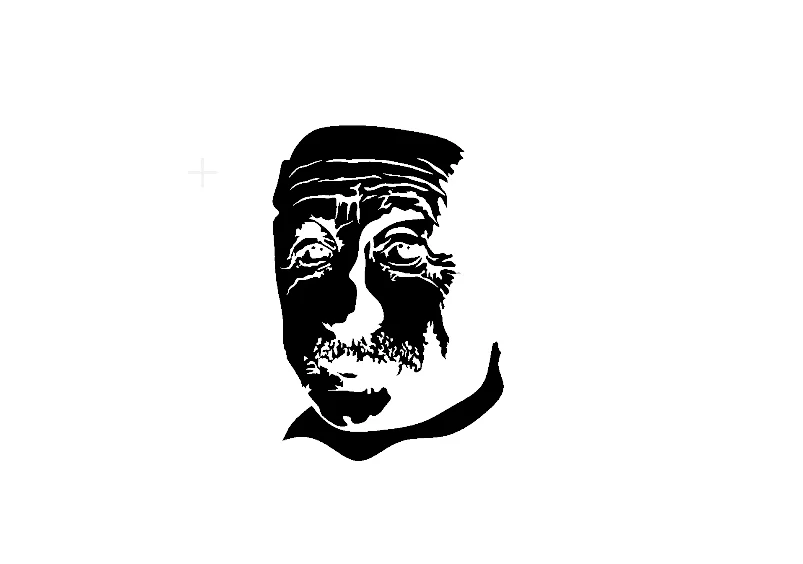
Bitwise NOT Image
Invert an image or binary mask by performing a pixel-wise bitwise NOT operation. Useful for mask inversion, foreground/background swapping, and logical complement operations.
View →
Bitwise OR Images
Combine two images or binary masks using pixel-wise bitwise OR operation. Useful for mask union, merging detection results, and filling gaps.
View →
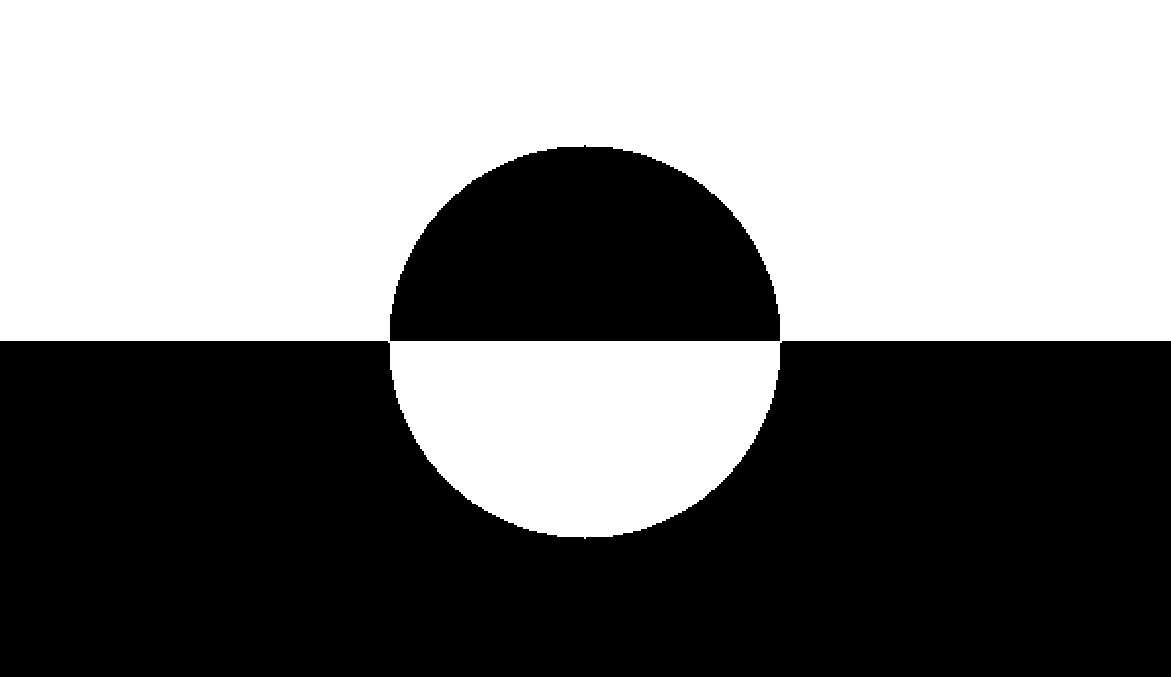
Bitwise XOR Images
Compute pixel-wise exclusive regions between two binary images using bitwise XOR. Useful for change detection, mask comparison, and highlighting differences.
View →Cropping & Padding
Crop an image down to a region of interest - centered, by bounding boxes, or by an arbitrary polygon - or pad it out to a target size. Use these to prepare fixed-size model inputs or to isolate detected objects.
Crop Image Center
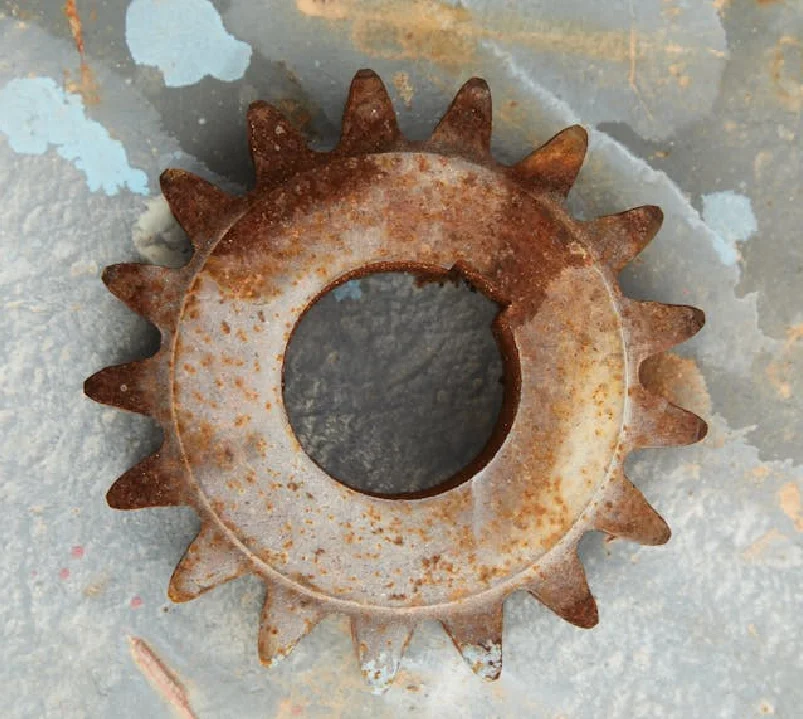
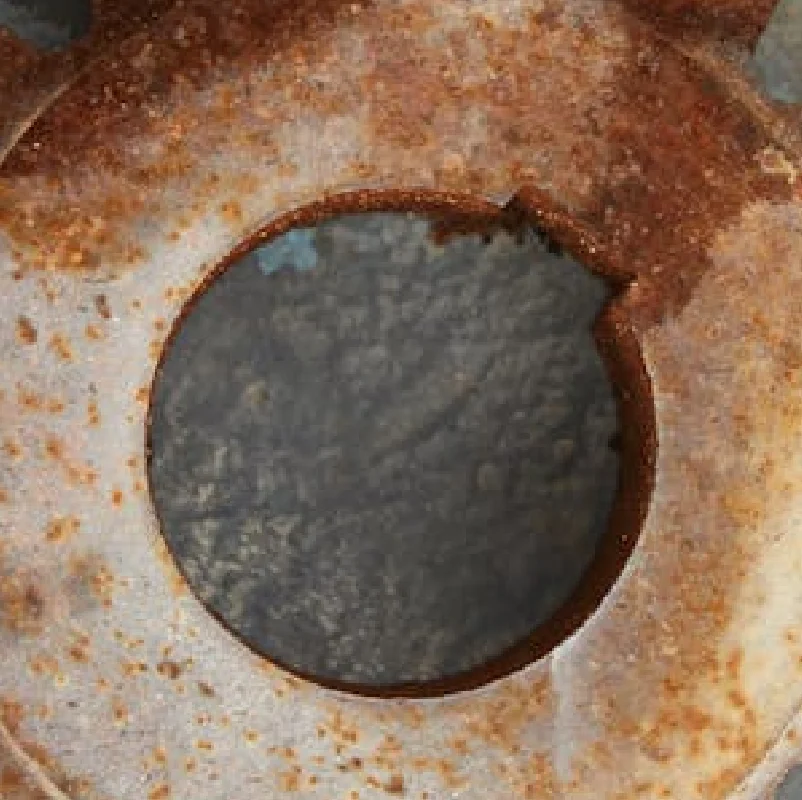
Crop an image to specified dimensions centered on the image, with optional padding for smaller images. Useful for fixed-size model inputs, thumbnails, and normalization.
View →
Crop Image Using Bounding Boxes
Crop an image using multiple rectangular bounding boxes, optionally retaining coordinate metadata. Useful for object detection, ROI extraction, and batch processing.
View →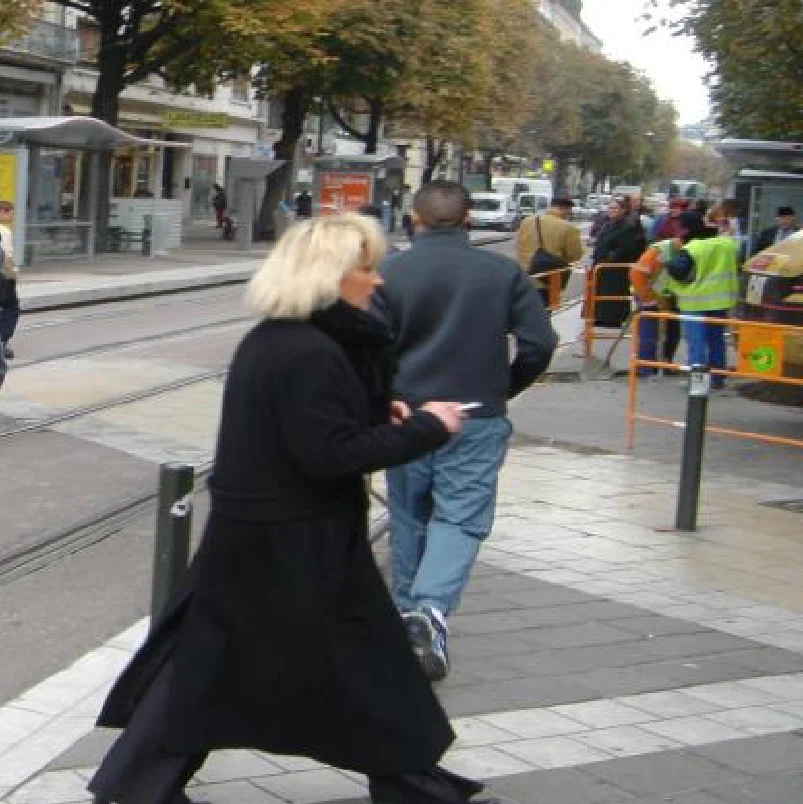
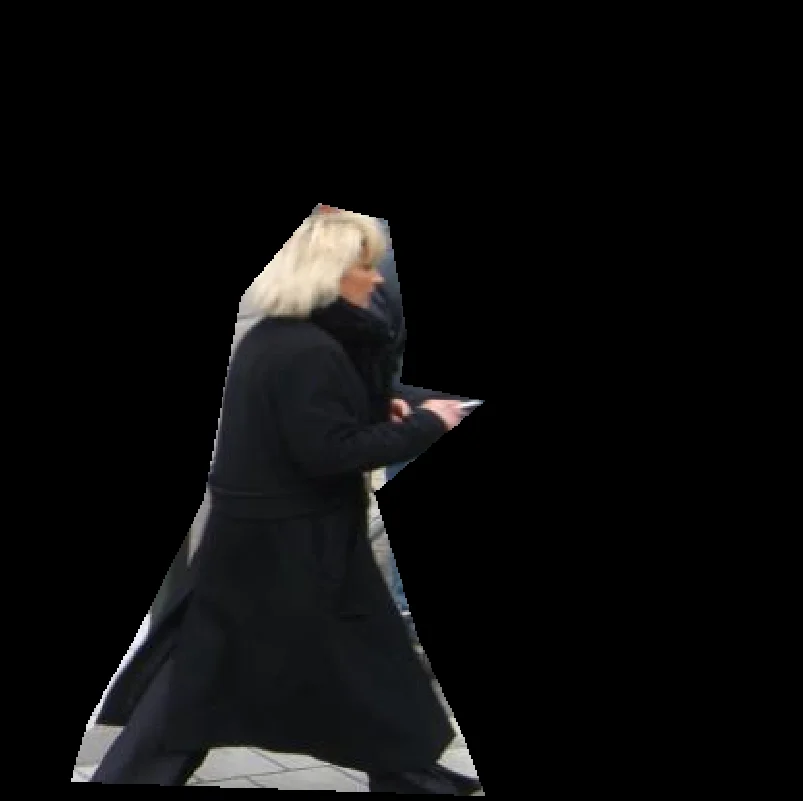
Crop Image Using Polygon
Crop an image using an arbitrary polygon mask, retaining pixels inside the polygon. Useful for irregular shapes, segmentation contours, and non-rectangular ROIs.
View →
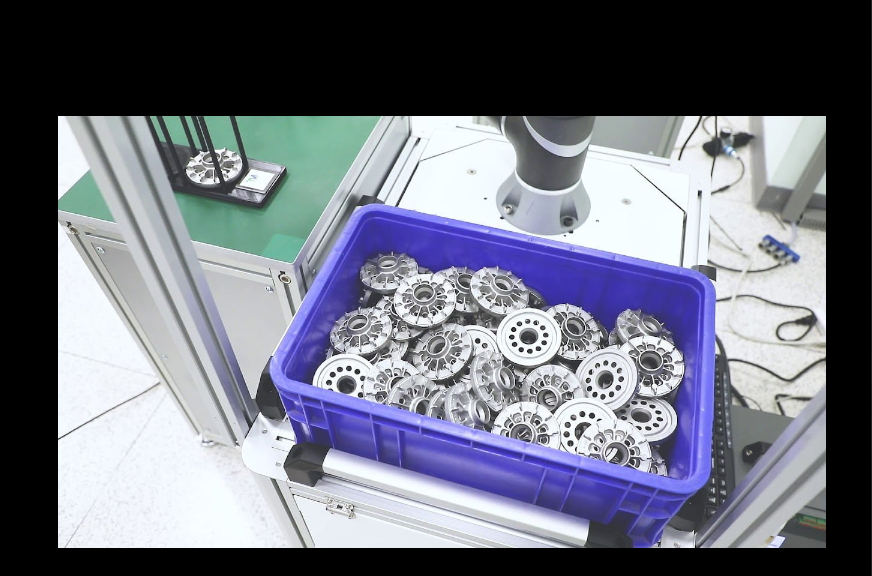
Pad Image
Add padding to an image on top, bottom, left, and right with configurable border handling and fill value.
View →Geometric Transforms
Resize, rotate, shift, or rescale an image while controlling aspect ratio and border handling. Pyramid up/down-sampling gives you clean multi-scale versions of the same image.


Resize Image
Resize an image by scale factor or explicit width and height for flexible scaling in vision pipelines.
View →
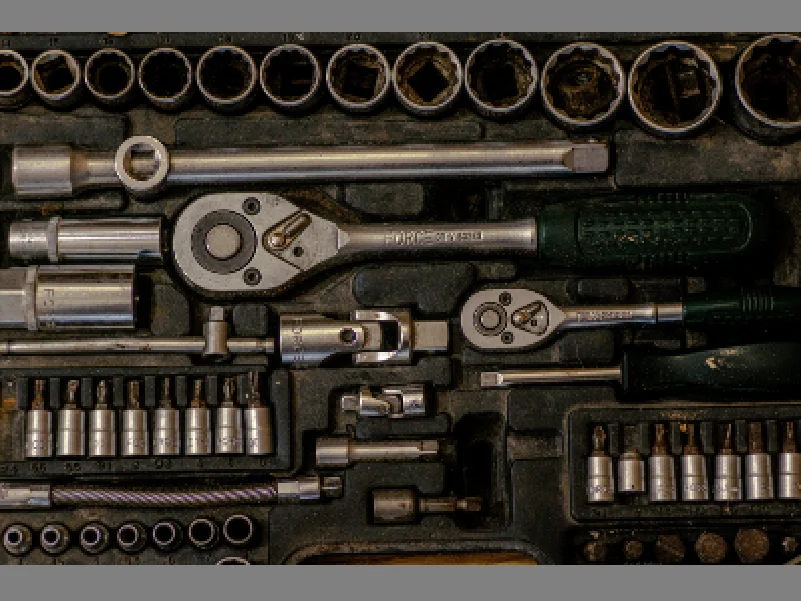
Resize Image With Aspect Fit
Resize an image to fit within target dimensions while preserving aspect ratio, with optional padding.
View →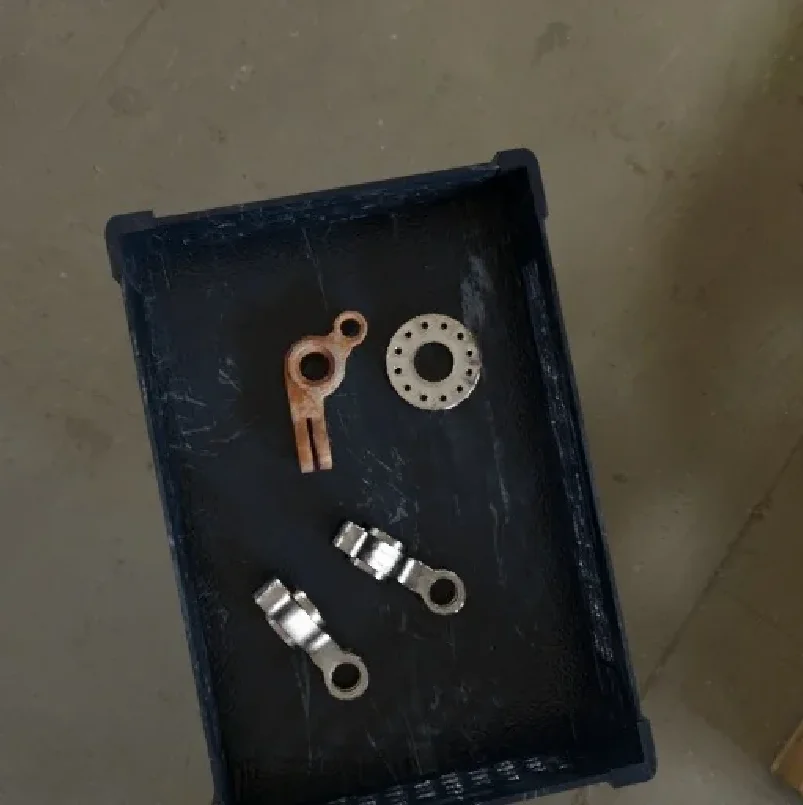
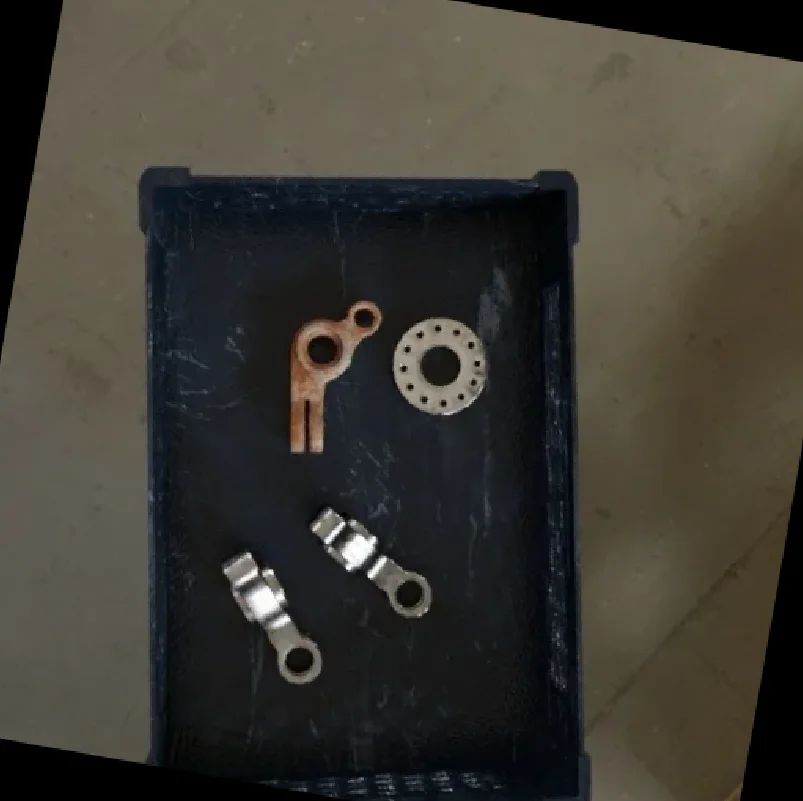
Rotate Image
Rotate an image by a specified angle with options to keep original dimensions or expand canvas.
View →
Translate Image
Shift an image by a fixed number of pixels in horizontal and vertical directions with configurable border handling and interpolation.
View →
Transform Using Pyramid Downsampling
Downsample an image using Gaussian pyramid smoothing and subsampling for multi-scale processing and efficient image analysis.
View →
Transform Using Pyramid Upsampling
Upsample an image using Gaussian pyramid smoothing and interpolation for multi-scale reconstruction and image enlargement.
View →Color & Channels
Convert between color spaces, split an image into its individual channels or merge channels back together, and blend two images with a weighted overlay.
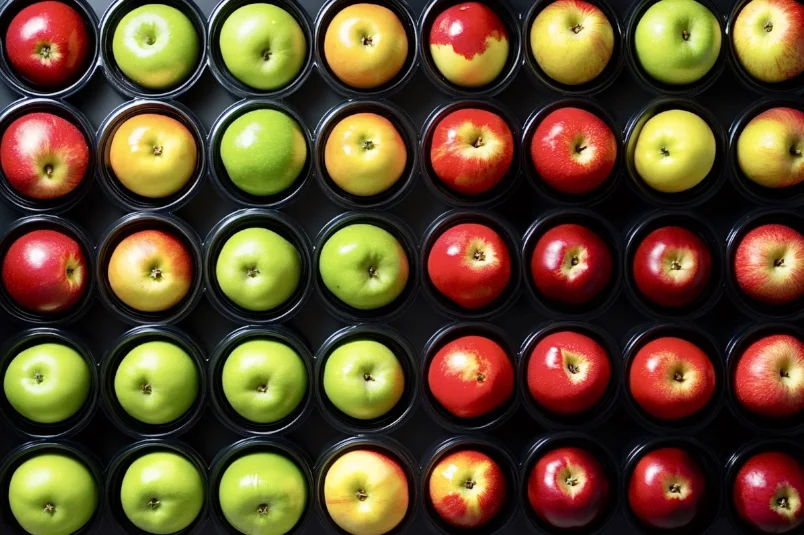
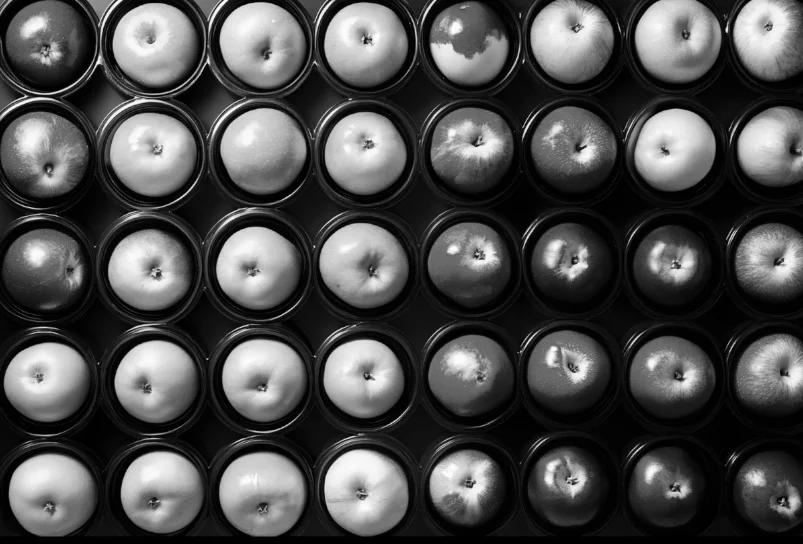
Convert Image Color Space
Convert an image between color spaces (e.g., RGB, BGR, HSV, GRAY, RGBA) for segmentation, display, or cross-library compatibility.
View →
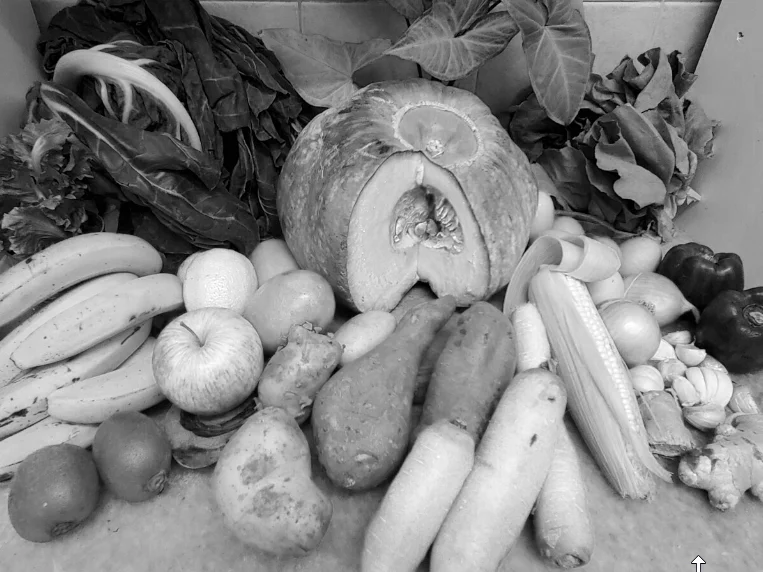
Split Image Into Channels
Split a multi-channel image into individual color channels for per-channel processing and analysis.
View →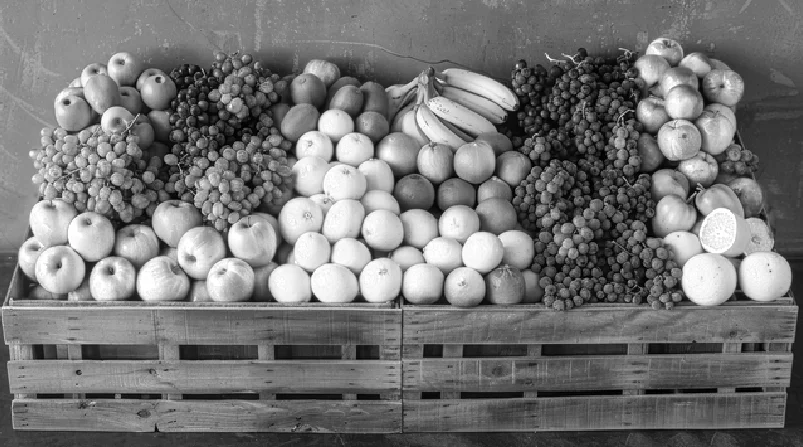
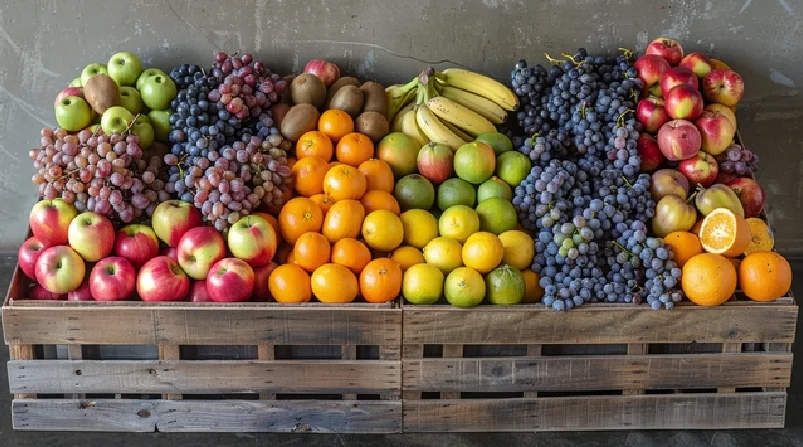
Merge Image From Channels
Merge multiple single-channel images into a multi-channel image, useful for per-channel processing and color reconstruction.
View →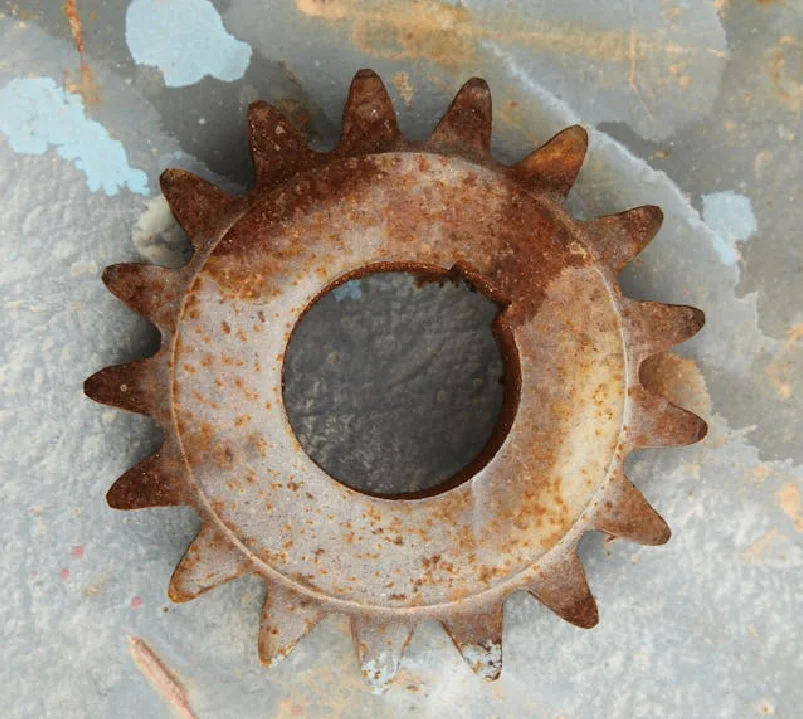
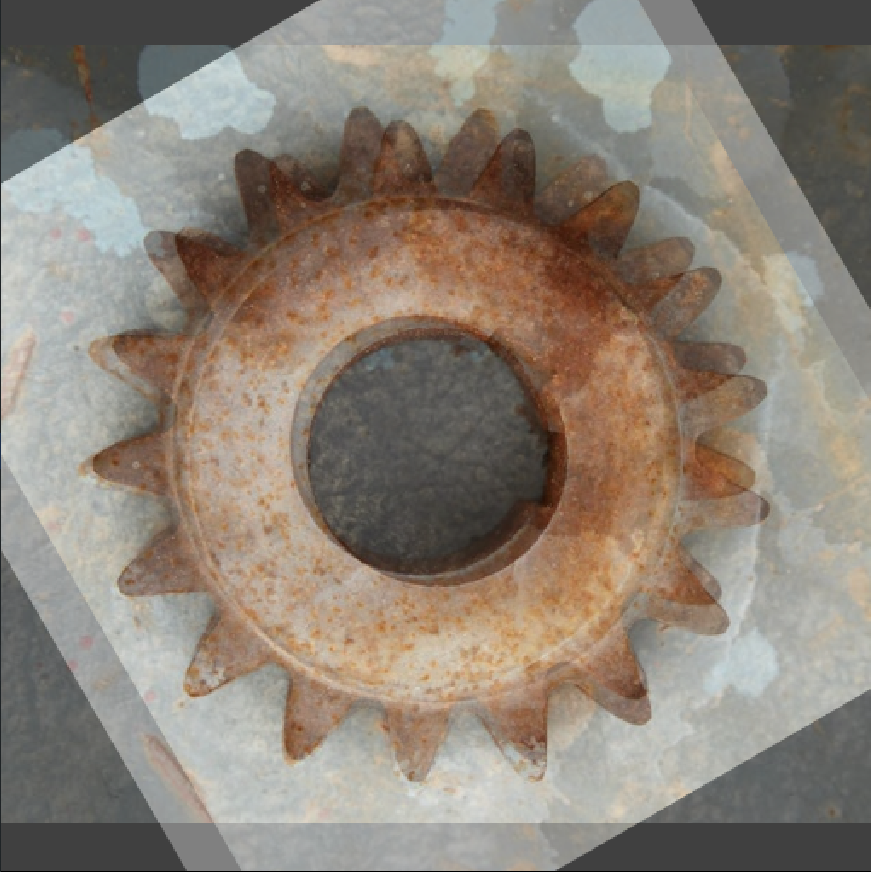
Overlay Images Using Weighted Overlay
Blend two images using weighted overlay for visualization, crossfade, or multi-exposure effects.
View →Enhancement & Normalization
Correct exposure, contrast, and color casts, and normalize intensity so downstream steps see consistent images across varying lighting conditions.

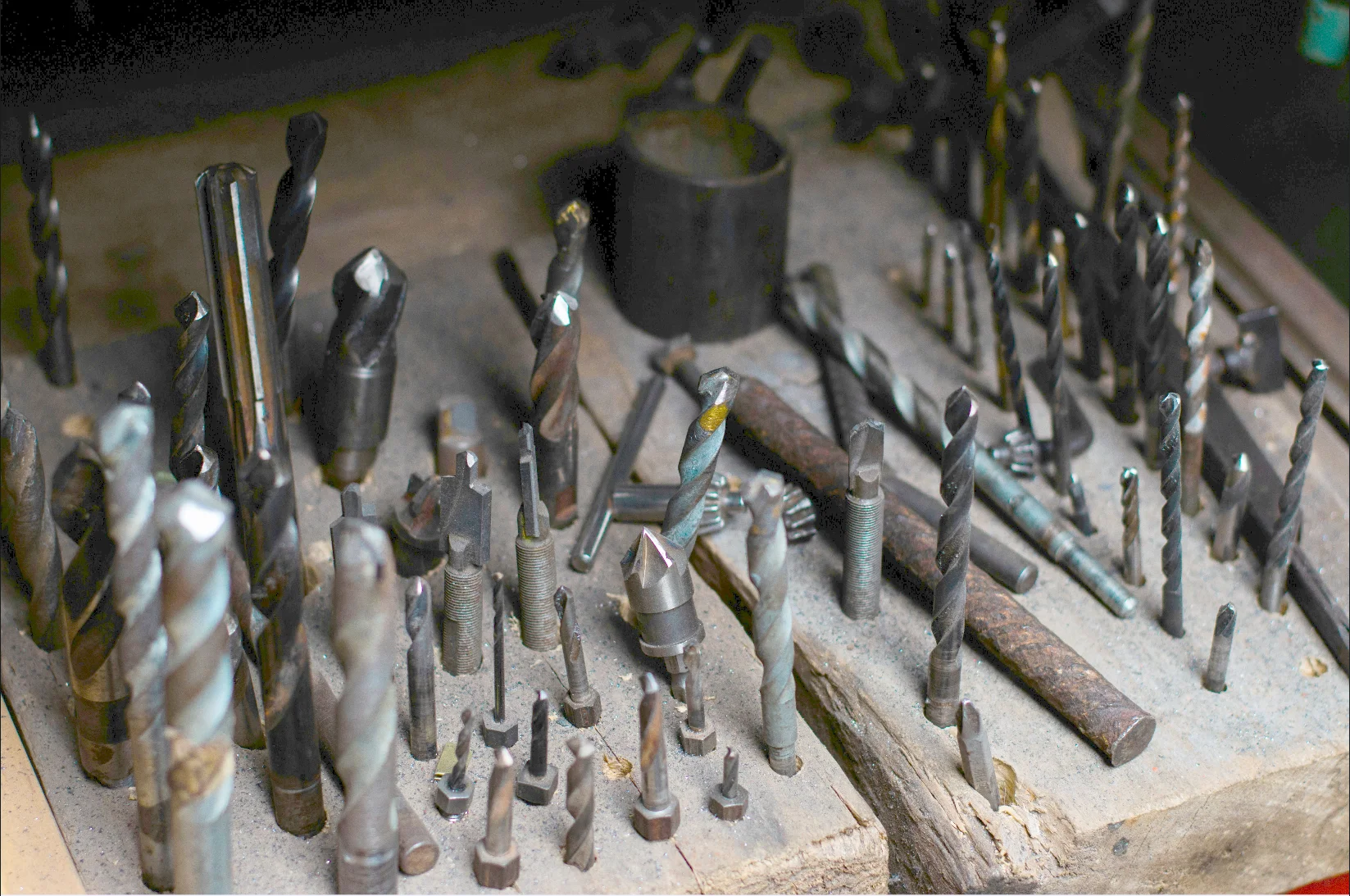
Enhance Image Using Auto Gamma Correction
Automatically adjust image brightness using adaptive gamma estimation to normalize exposure. Ideal for varying lighting conditions.
View →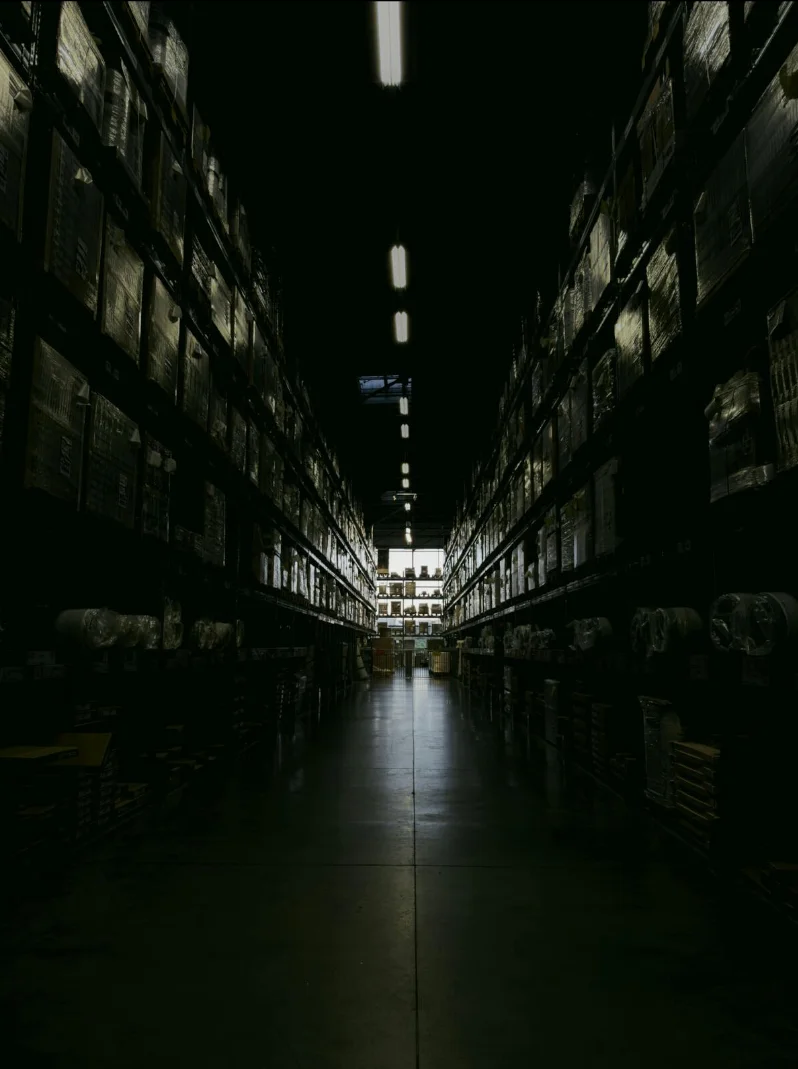
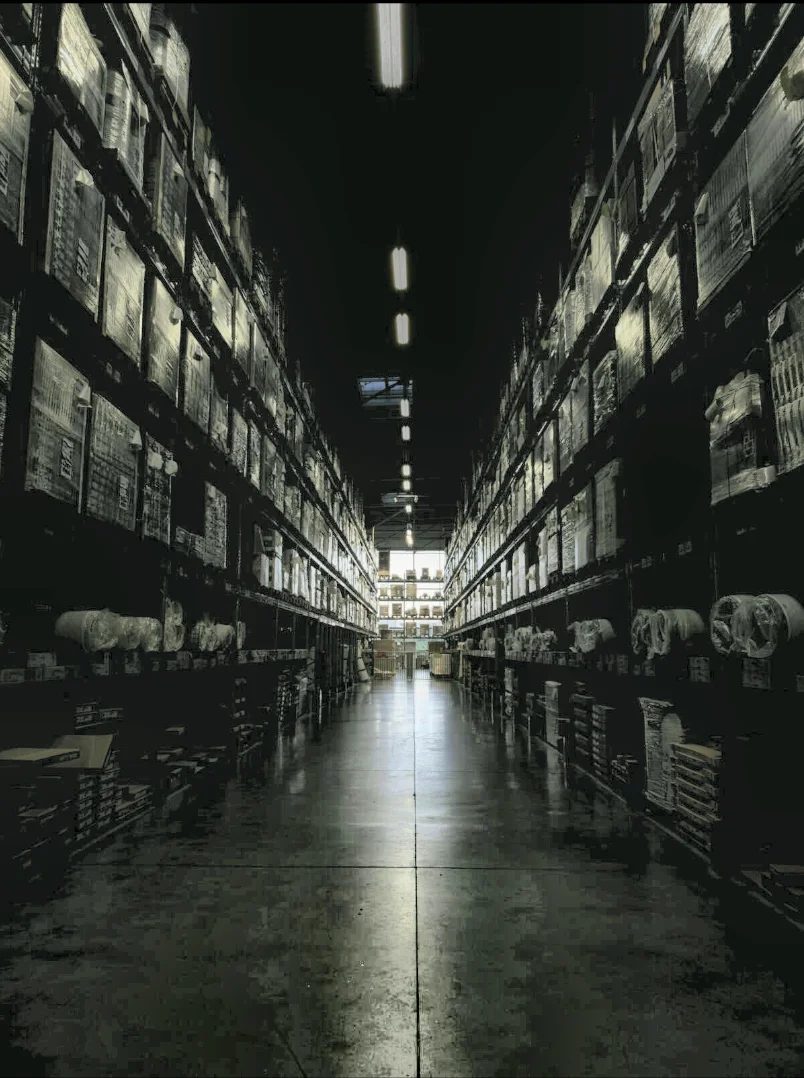
Enhance Image Using CLAHE
Apply Contrast Limited Adaptive Histogram Equalization (CLAHE) to enhance local contrast while controlling noise amplification, ideal for low-light or unevenly illuminated images.
View →
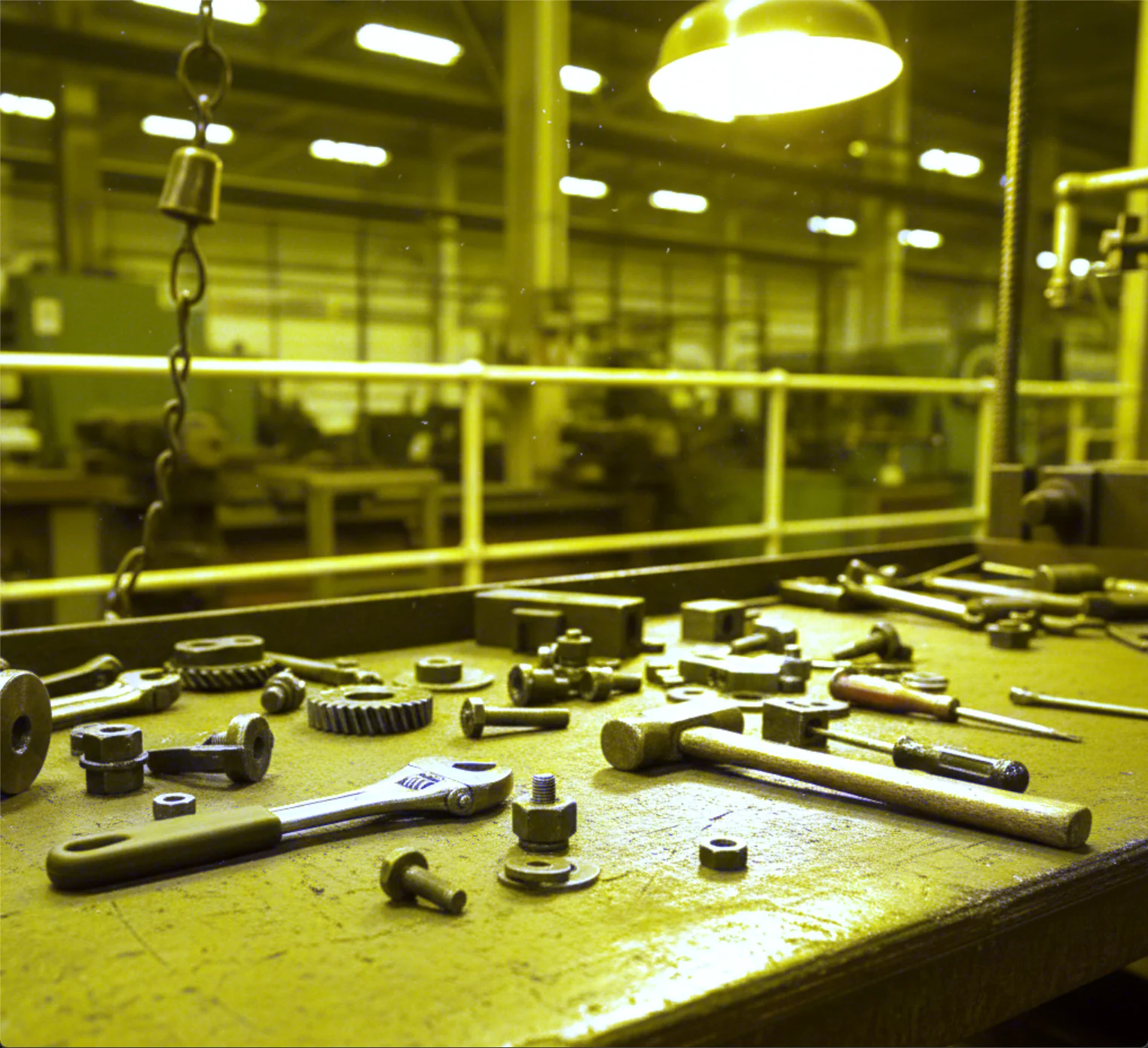
Enhance Image Using White Balance
Apply automatic white balance correction to remove color casts and adjust color temperature, ensuring neutral colors appear natural under varying illumination.
View →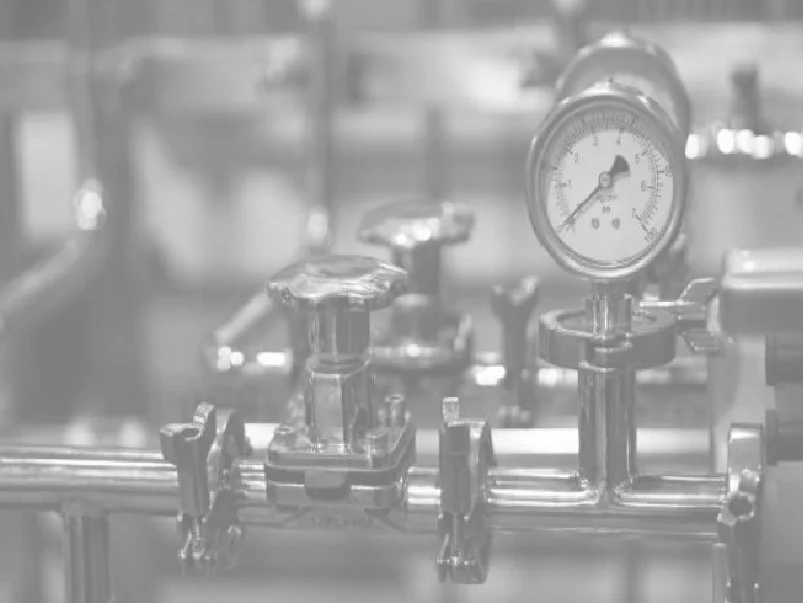
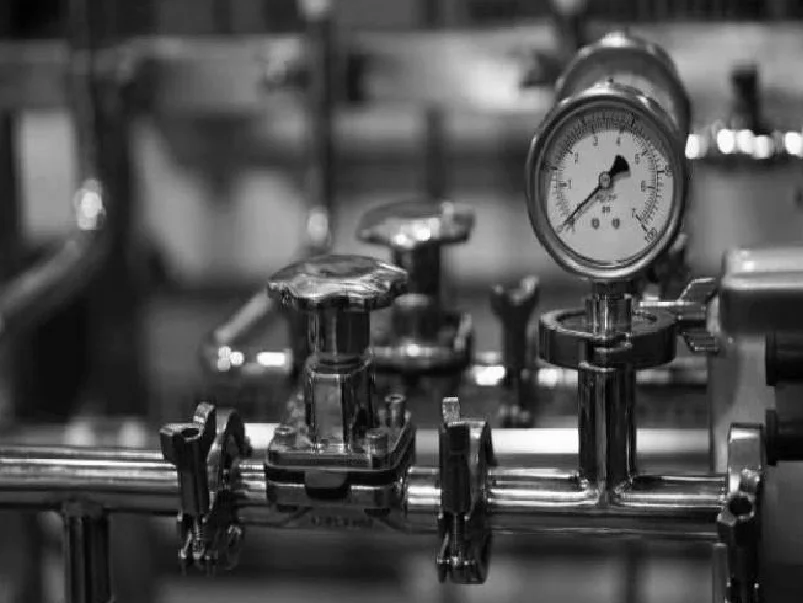
Normalize Image Intensity
Normalize image intensity values using minmax or histogram-based methods for consistent contrast and downstream processing.
View →Smoothing & Noise Reduction
Reduce noise before thresholding or edge detection. Choose fast averaging (box, blur), edge-preserving smoothing (bilateral, Gaussian), or impulse-noise removal (median).
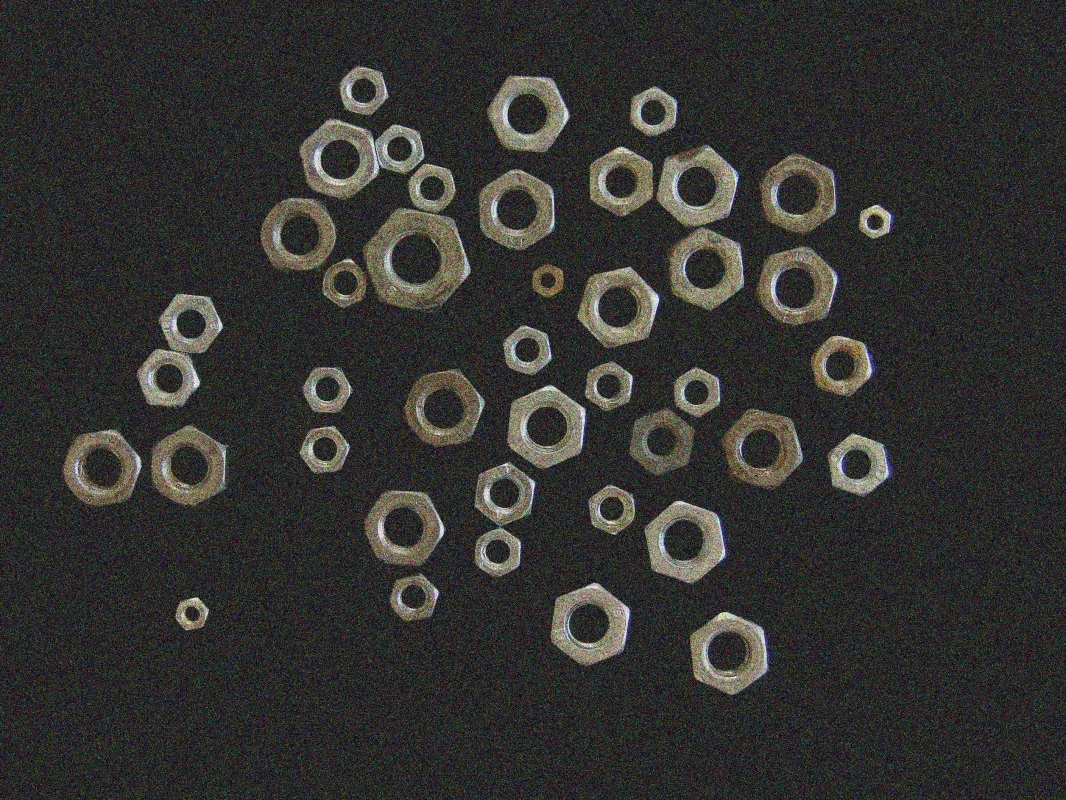
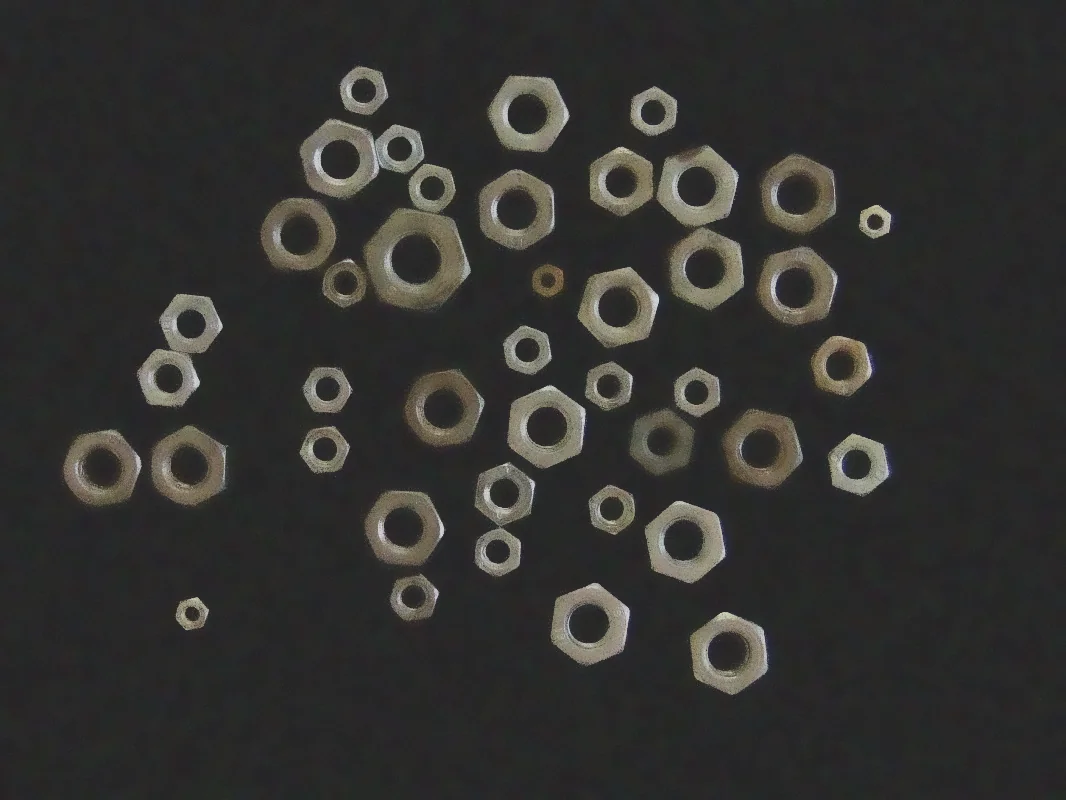
Filter Image Using Bilateral
Apply a bilateral filter to reduce image noise while preserving edges by considering both spatial proximity and color similarity, ideal for edge-preserving smoothing in photography and vision pipelines.
View →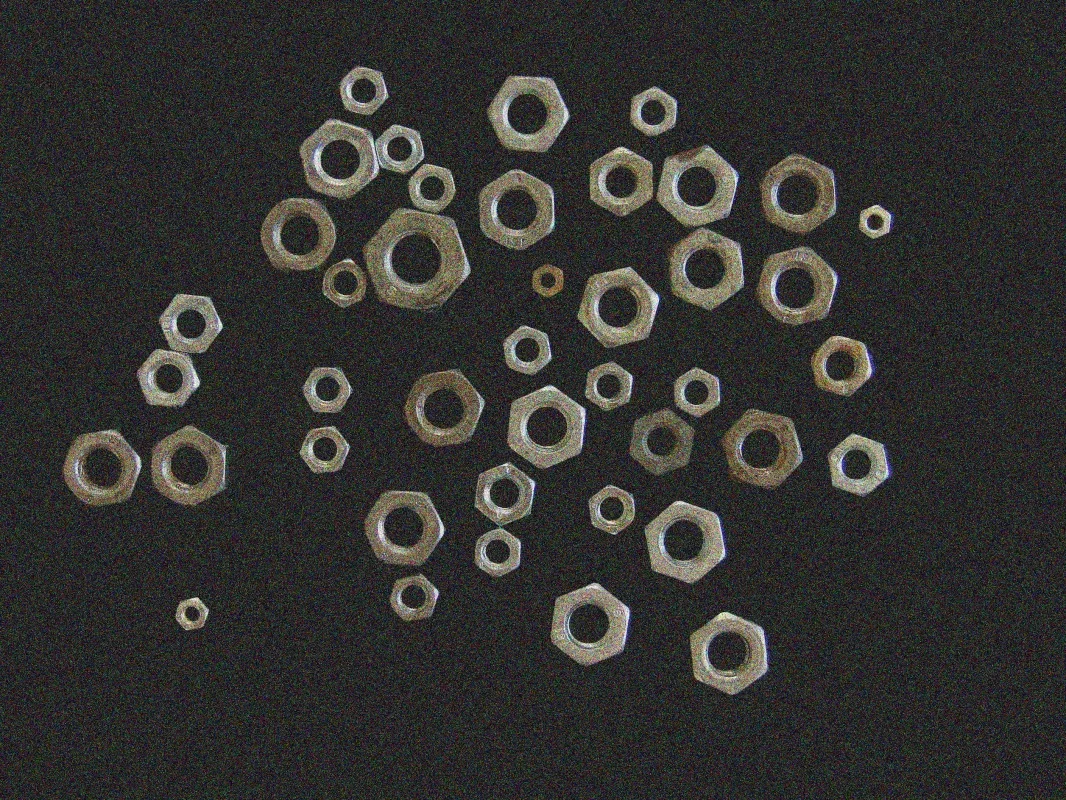
Filter Image Using Blur
Apply a simple box blur to quickly smooth an image by averaging pixel values within a kernel. Ideal for fast preprocessing, background estimation, or artistic blur effects where edge preservation is not critical.
View →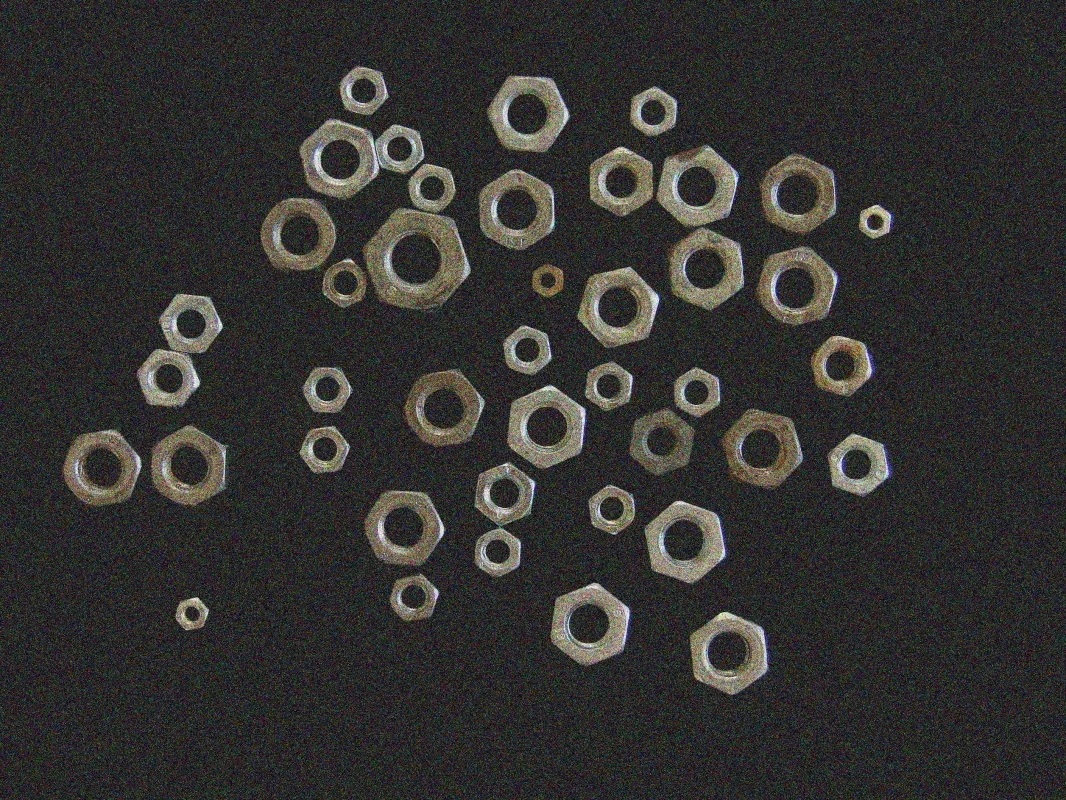
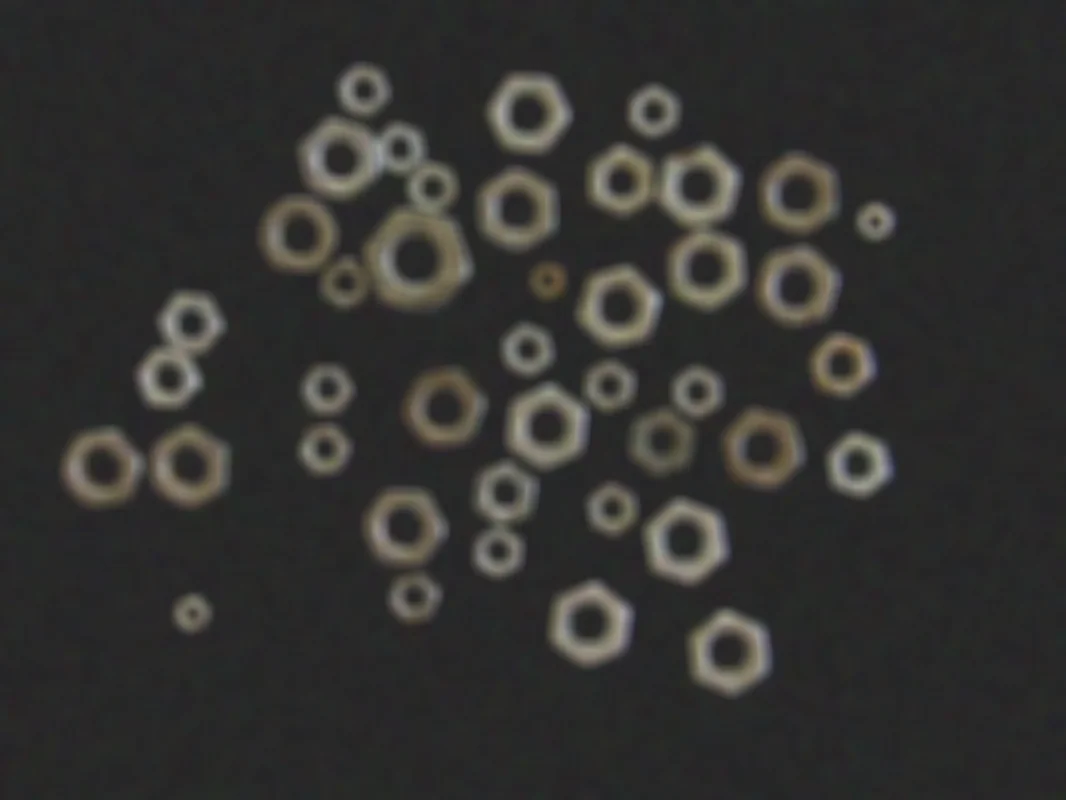
Filter Image Using Box
Apply a normalized box filter to perform basic averaging with control over kernel size, normalization, output depth, and border handling. Ideal for preprocessing, local averaging, and feature extraction where precision matters.
View →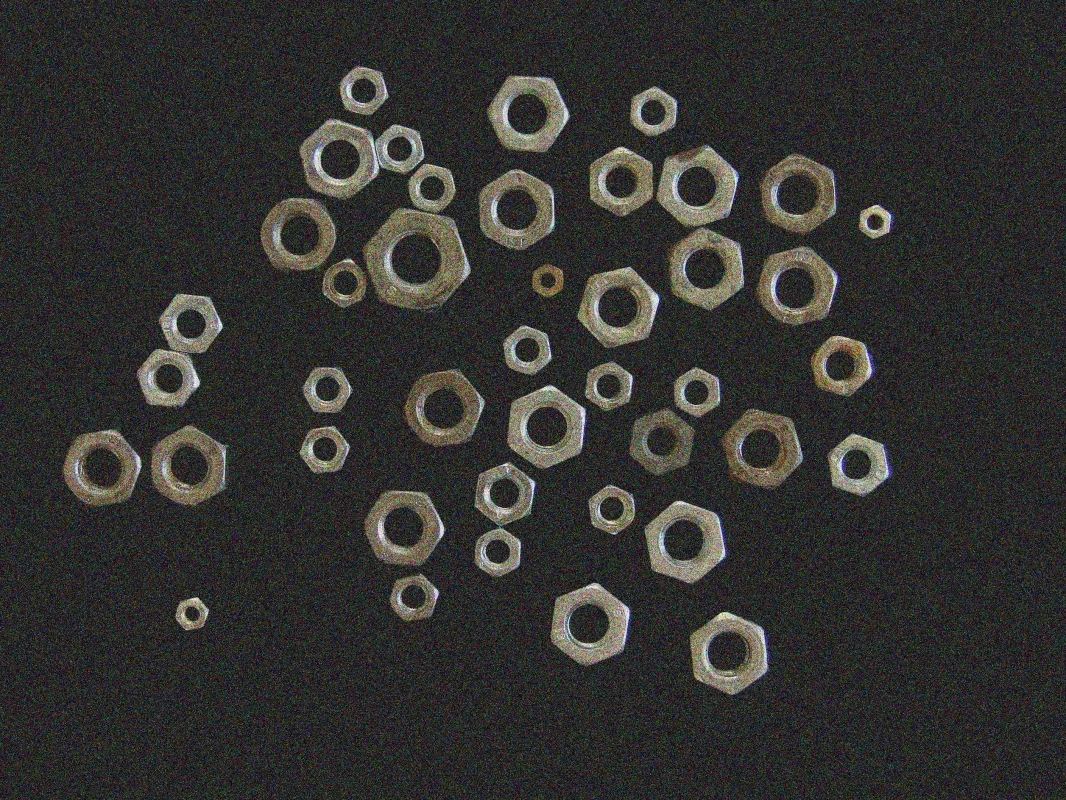
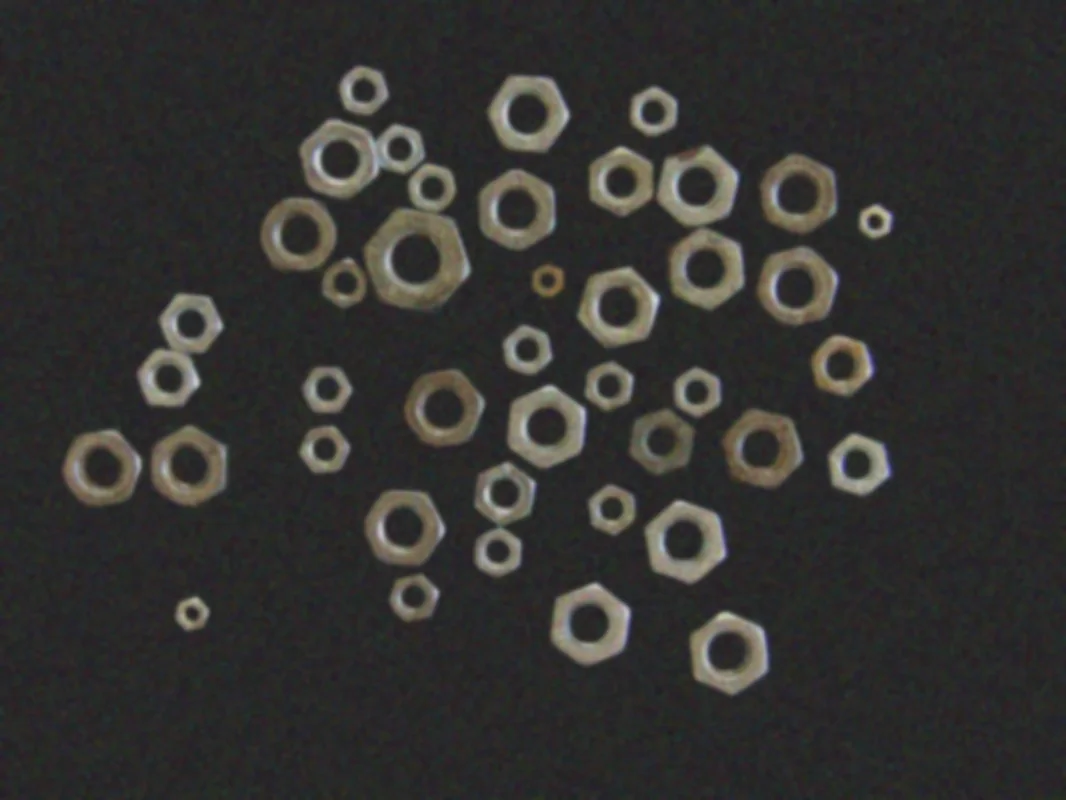
Filter Image Using Gaussian Blur
Apply a Gaussian blur to smoothly reduce noise while preserving edges, ideal for preprocessing, image enhancement, and feature extraction in computer vision pipelines.
View →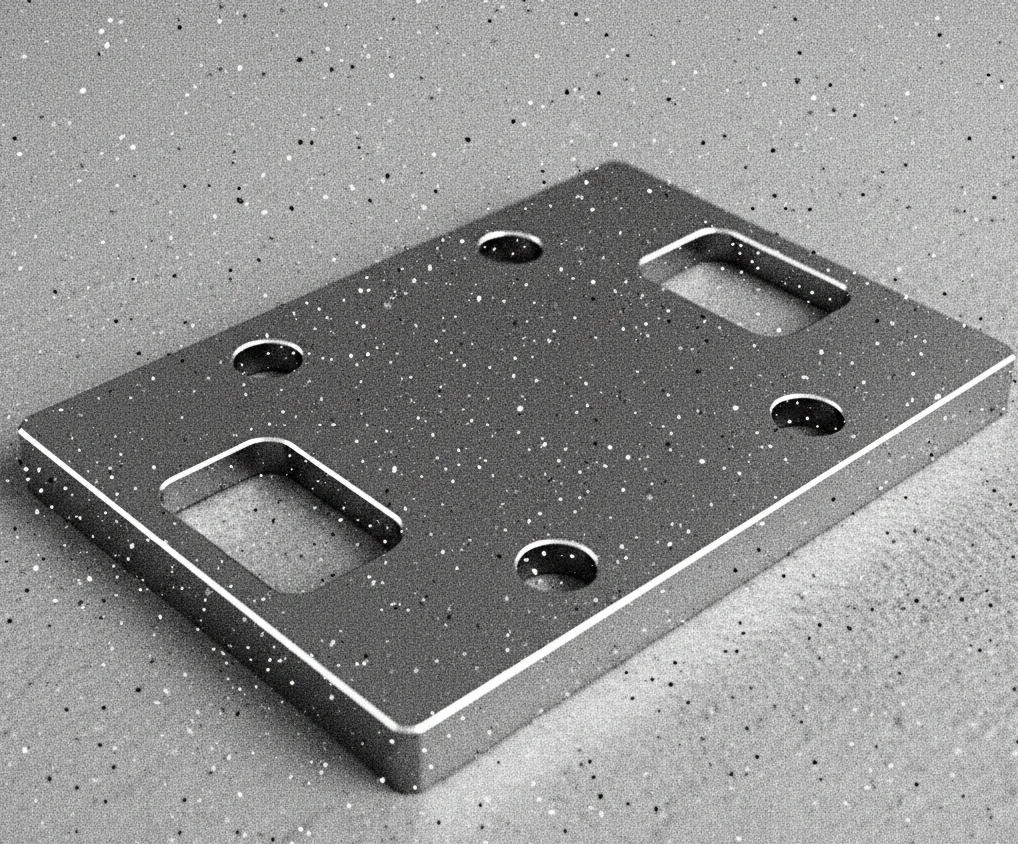
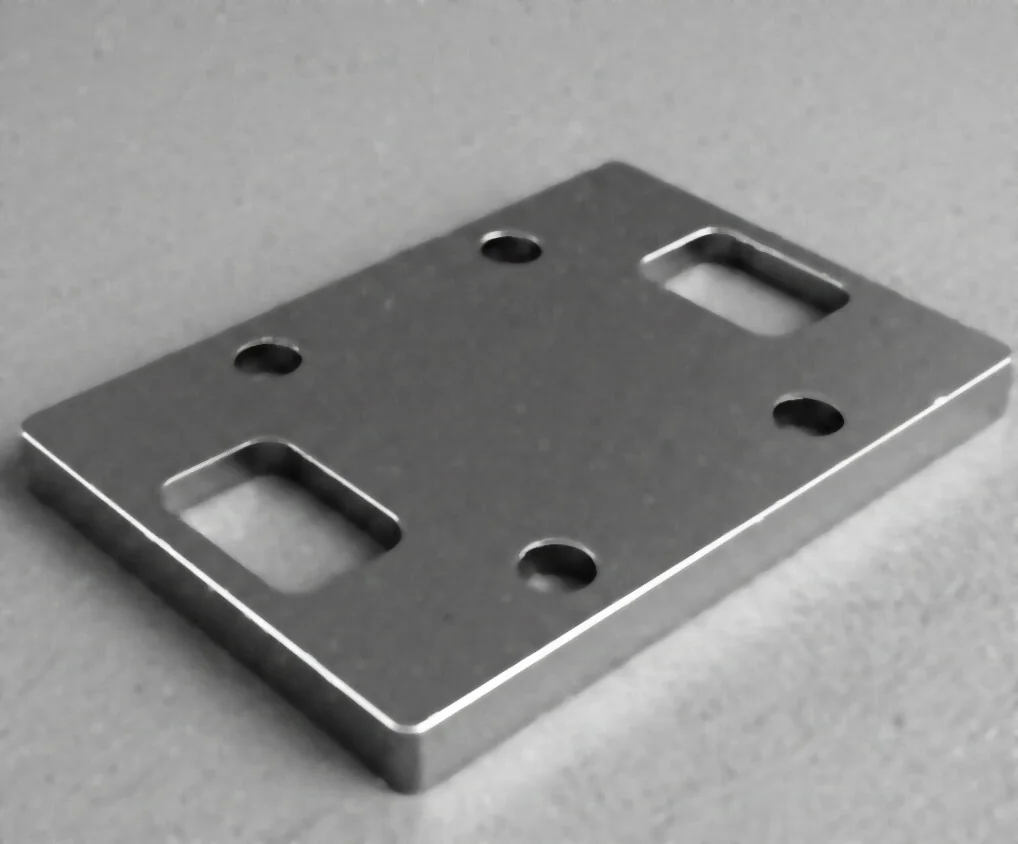
Filter Image Using Median Blur
Apply a median blur filter to remove salt-and-pepper noise while preserving edges, ideal for impulse noise removal and image restoration in vision pipelines.
View →Edge Detection
Extract edges and gradients using first- and second-order derivative operators. Sobel and Scharr give directional gradients; the Laplacian catches fine detail and zero-crossings.
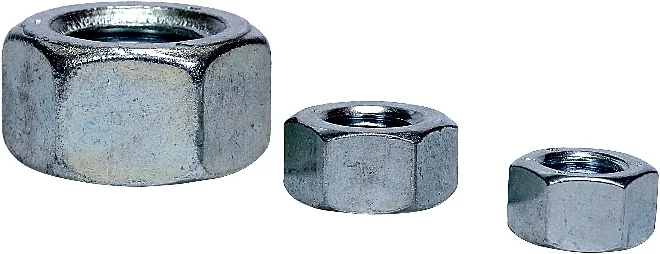
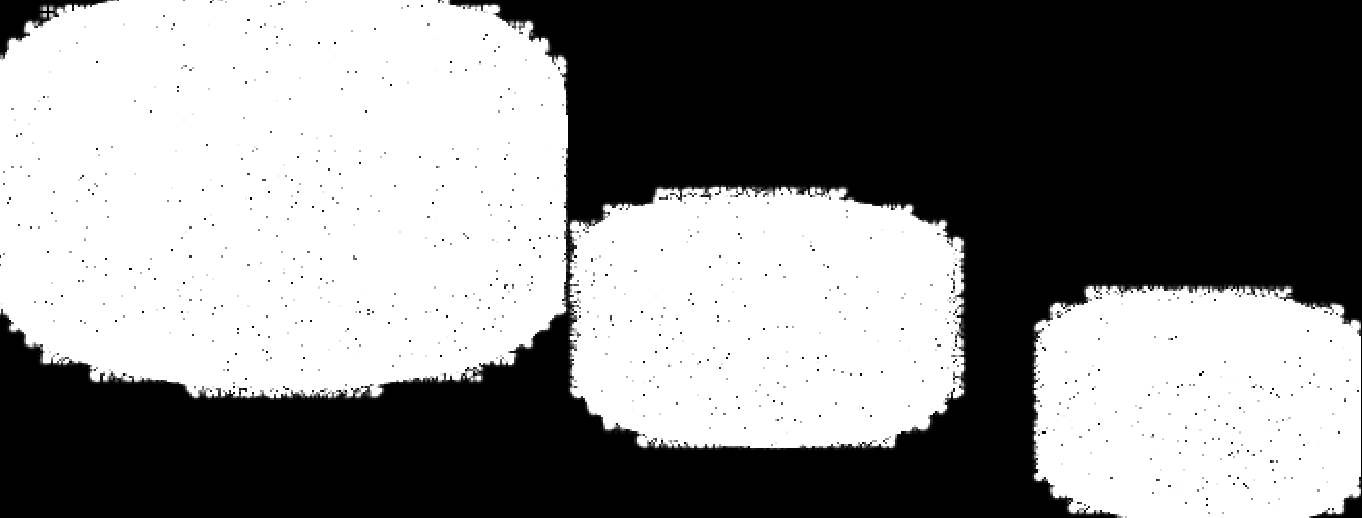
Filter Image Using Sobel
Apply Sobel filter for directional edge detection, computing gradients in X and Y directions to detect edges and orientation.
View →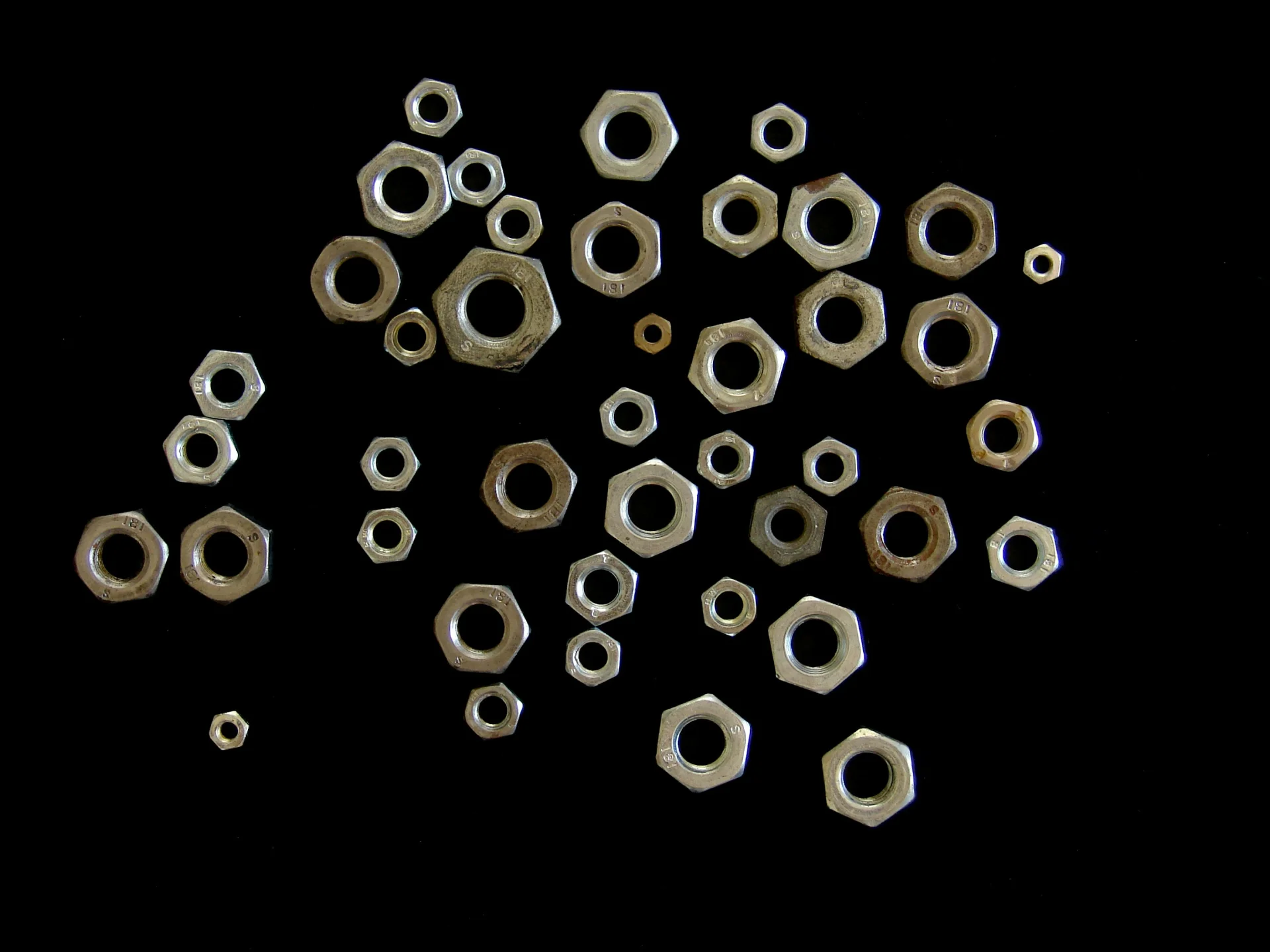
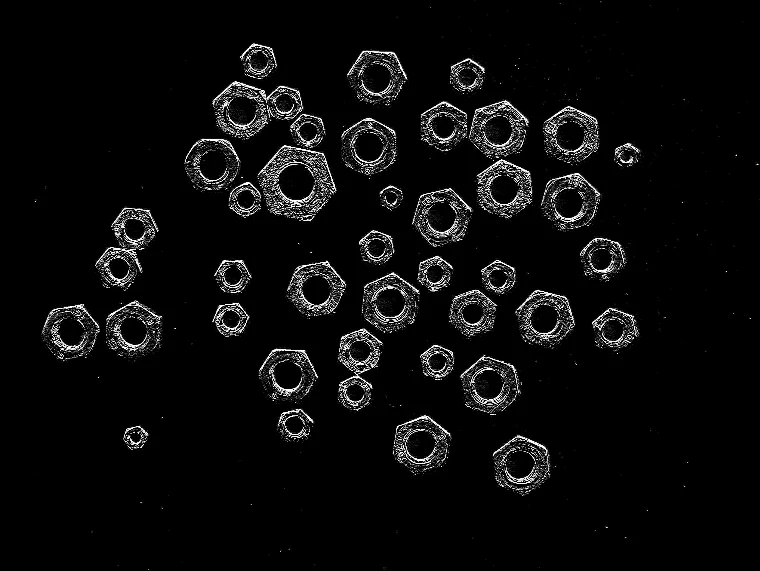
Filter Image Using Scharr
Apply Scharr filter for high-accuracy edge detection with improved rotation invariance, suitable for gradient-based applications.
View →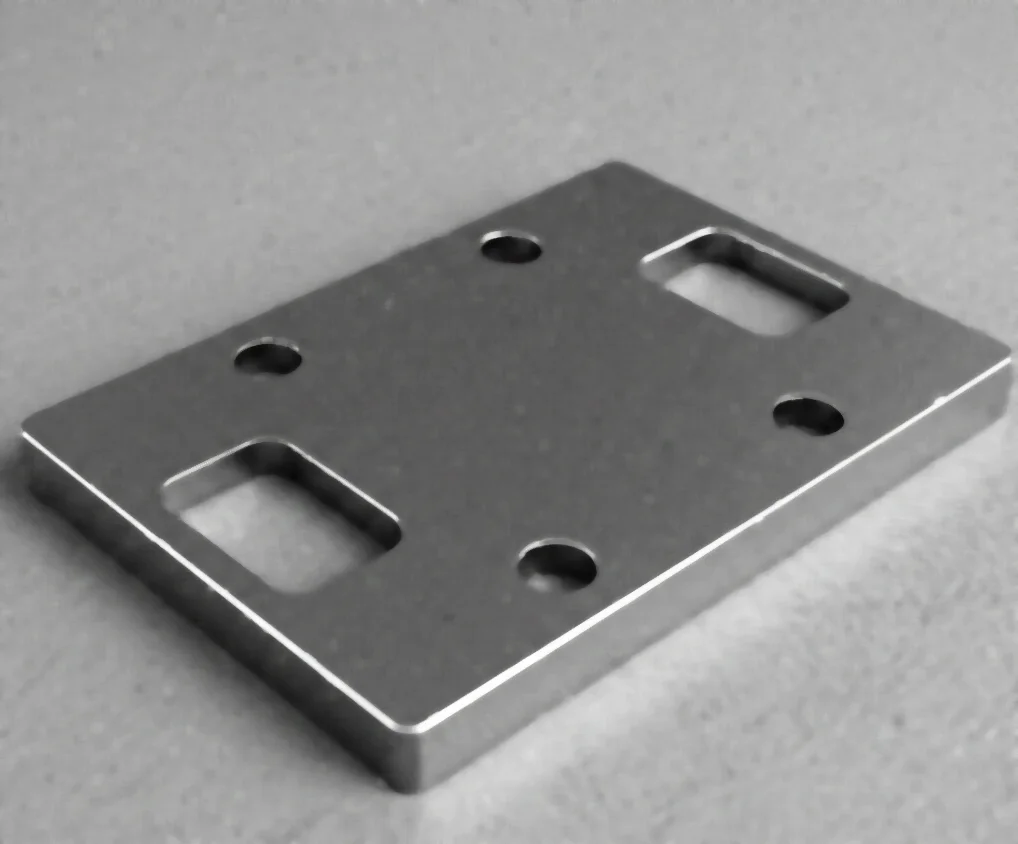
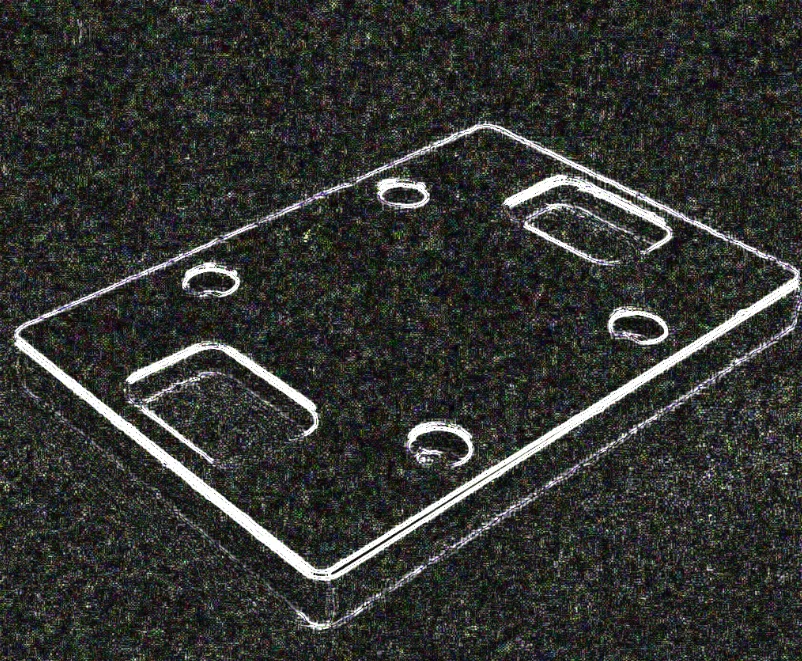
Filter Image Using Laplacian Filter
Apply a Laplacian filter to detect edges and fine details using second-order derivatives, ideal for precise edge localization, image sharpening, and zero-crossing detection.
View →Ridge & Texture Filters
Enhance thin, tubular, or oriented structures - vessels, fibers, cracks, PCB traces, textures - using multi-scale ridge and texture filters.
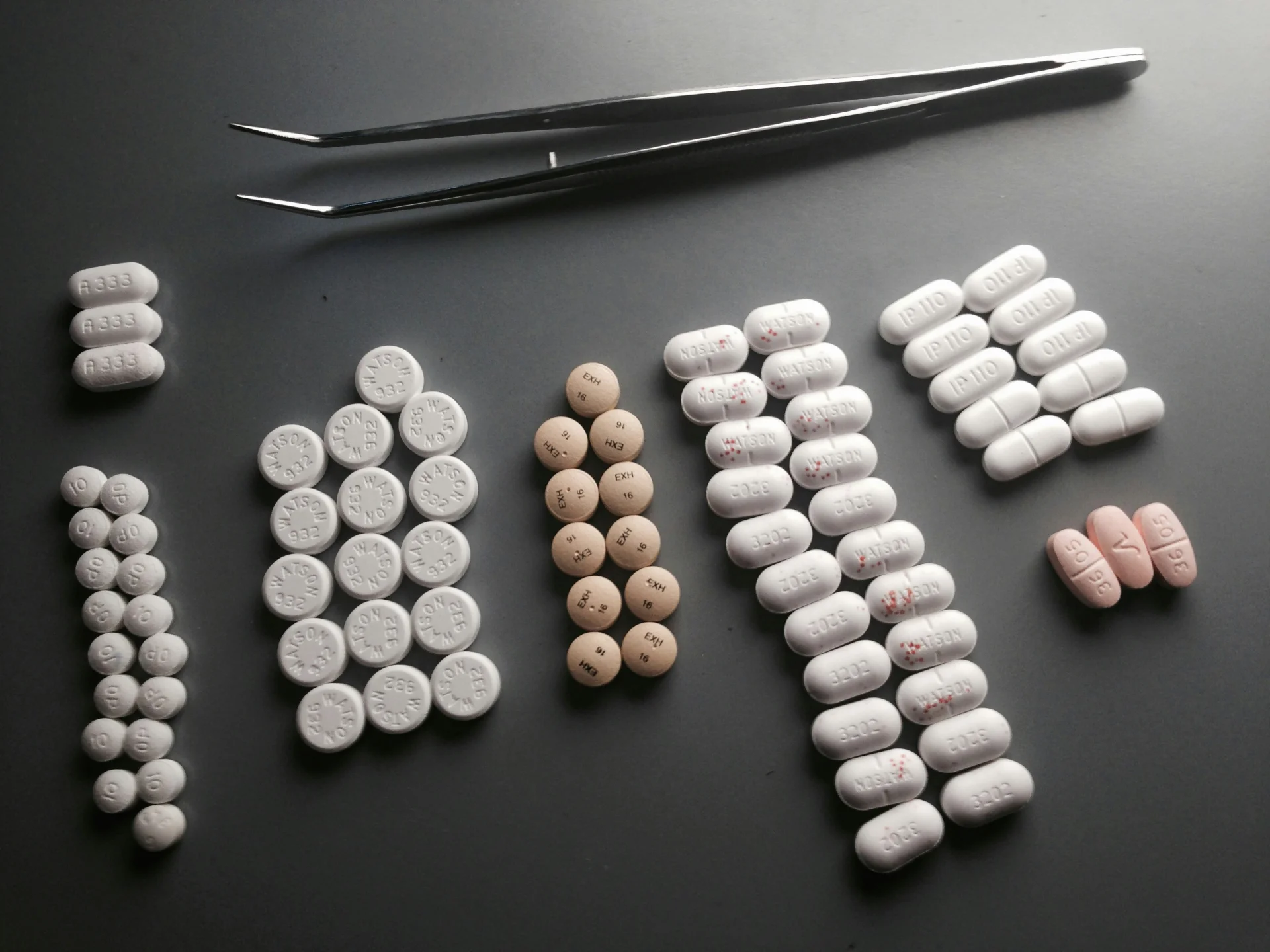
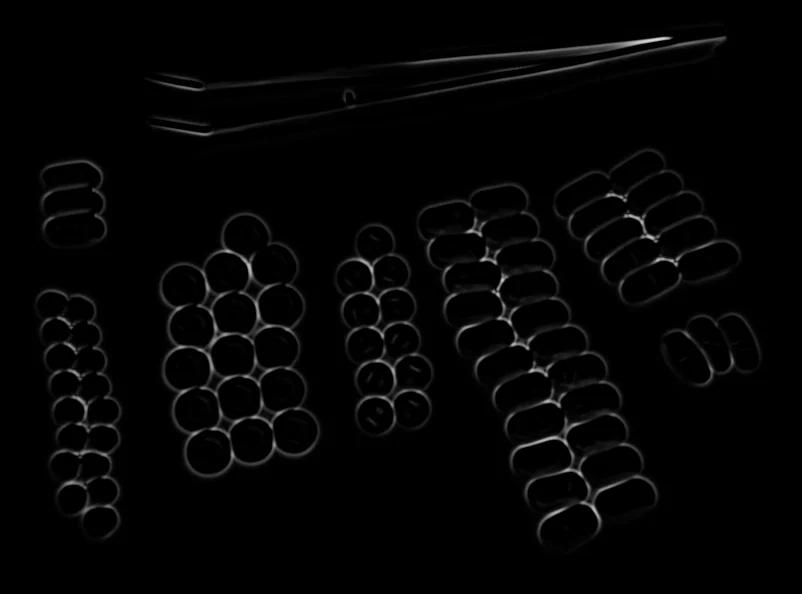
Filter Image Using Frangi
Apply the Frangi vesselness filter to enhance tubular structures in images, ideal for medical imaging, retinal scans, angiography, and other applications requiring vessel detection.
View →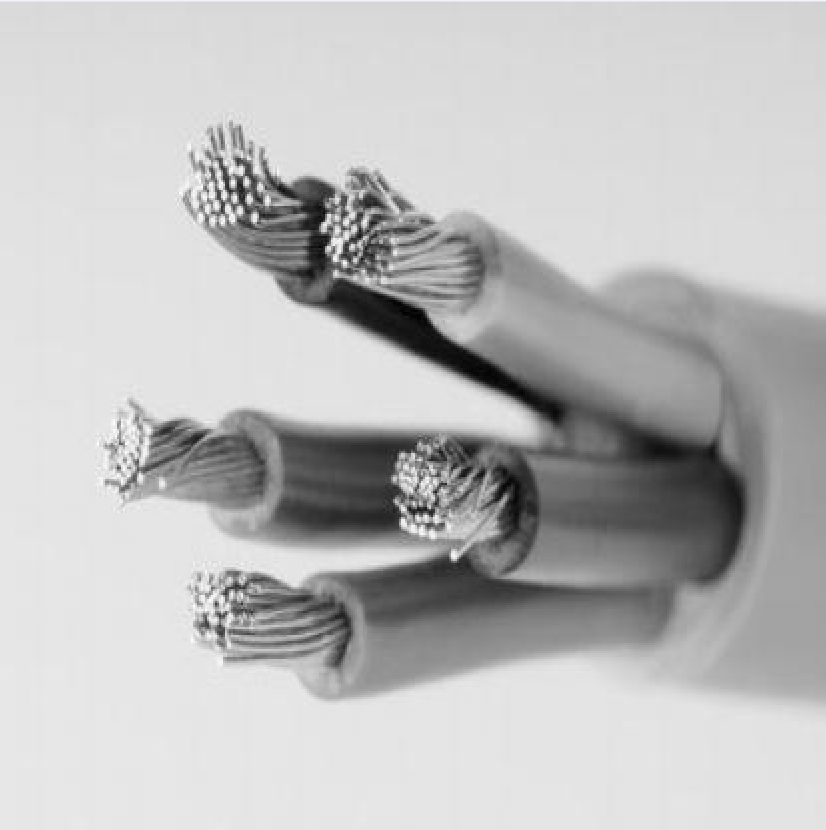
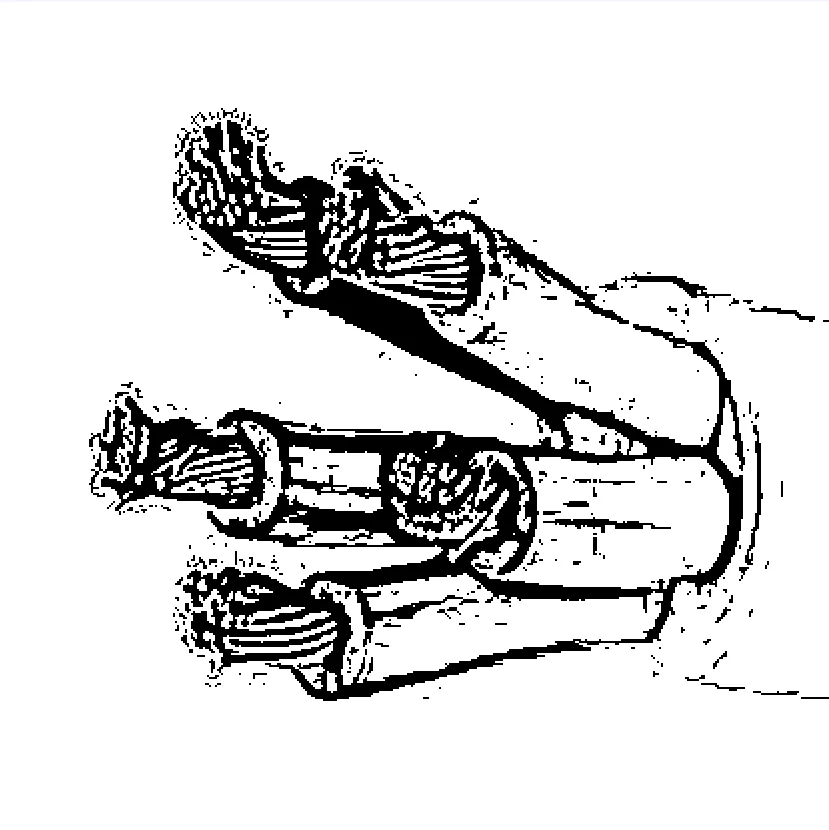
Filter Image Using Hessian Filter
Apply a Hessian-based vesselness filter to detect tubular and ridge-like structures, offering a faster alternative to Frangi for vessel detection and ridge enhancement in biomedical and industrial imaging.
View →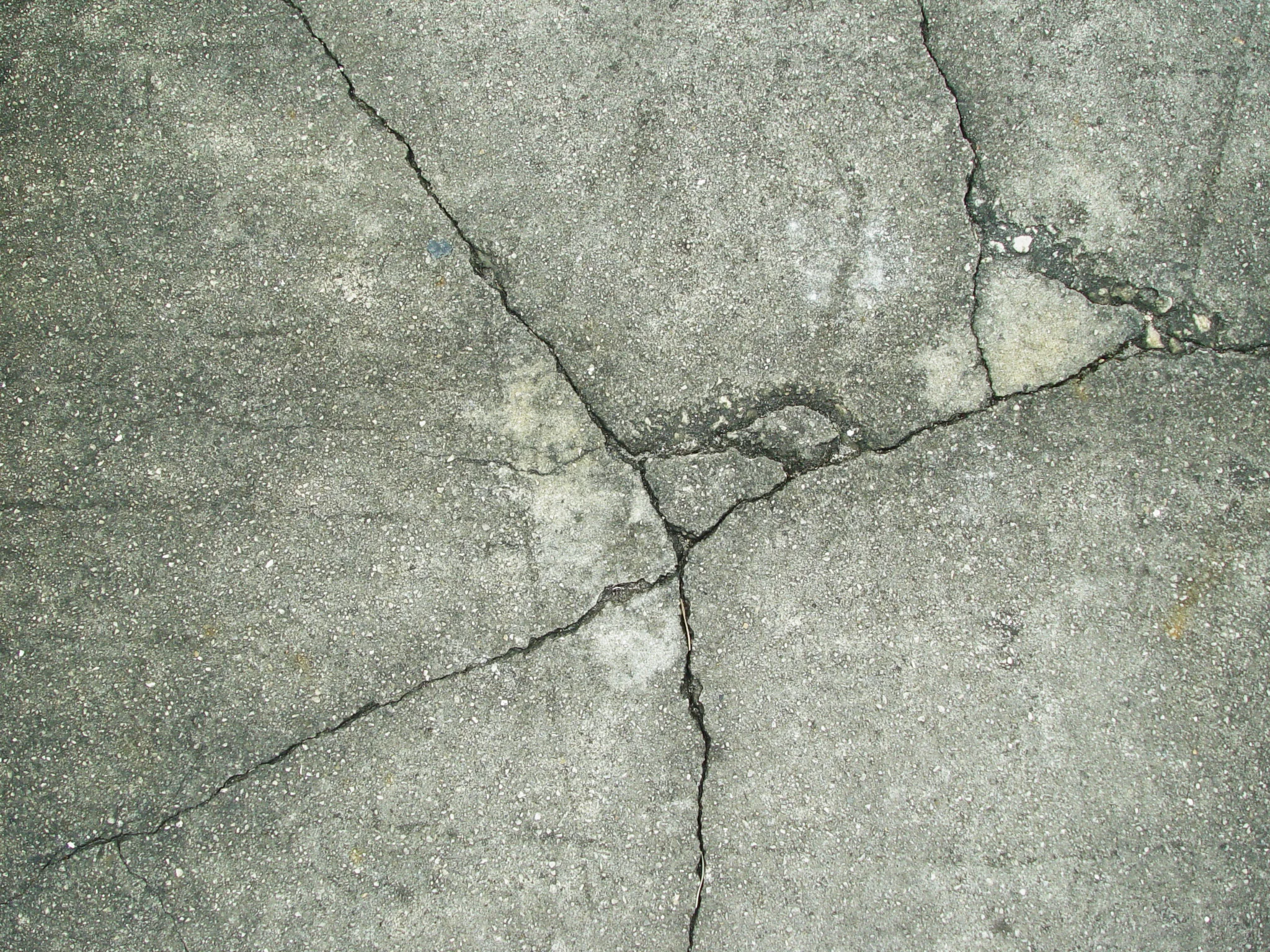
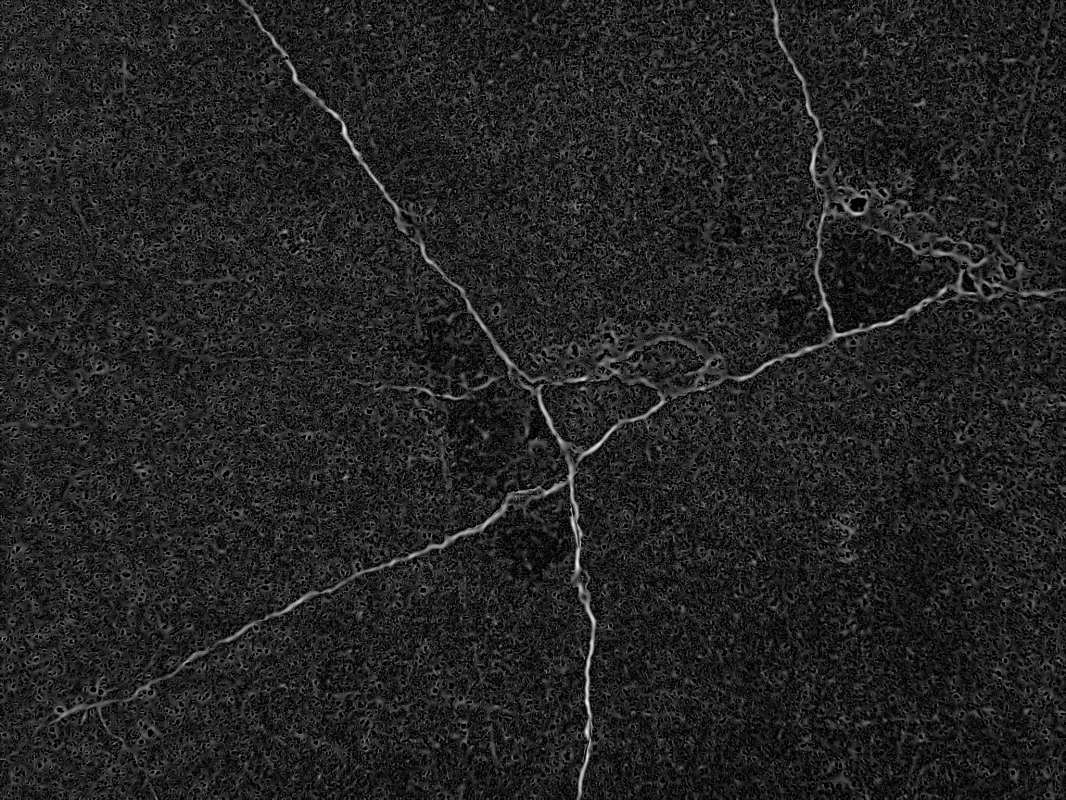
Filter Image Using Meijering
Apply the Meijering filter to detect neurites and fine branching structures in biomedical images, ideal for neuronal imaging and morphological analysis.
View →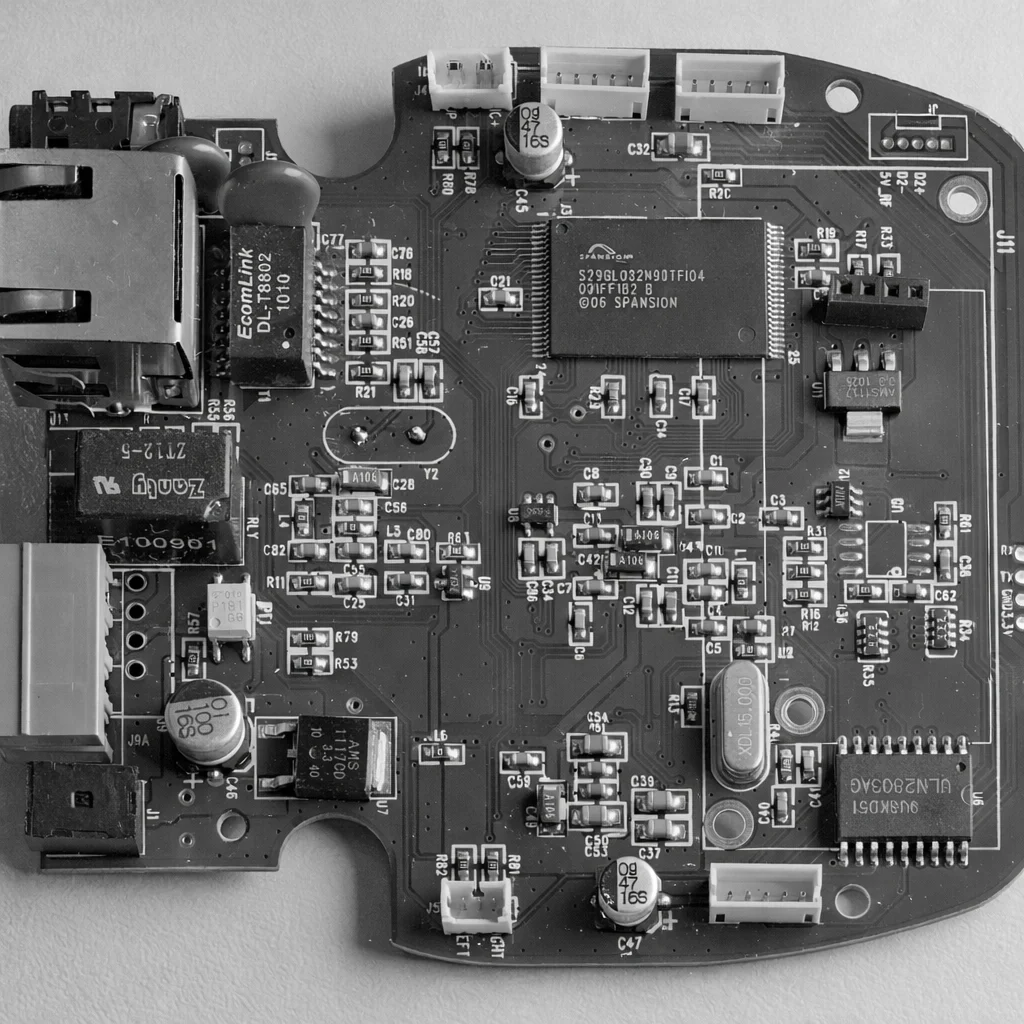
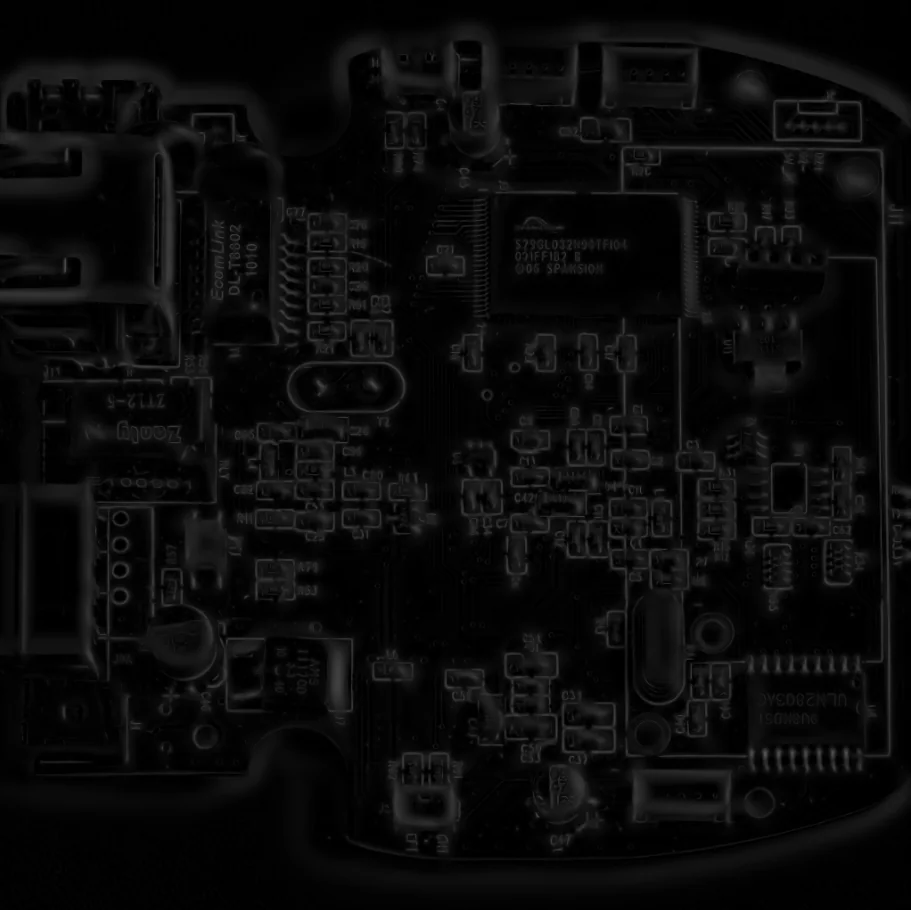
Filter Image Using Sato Filter
Apply Sato filter for multi-scale ridge detection to enhance thin linear structures such as fibers, vessels, cracks, and PCB traces.
View →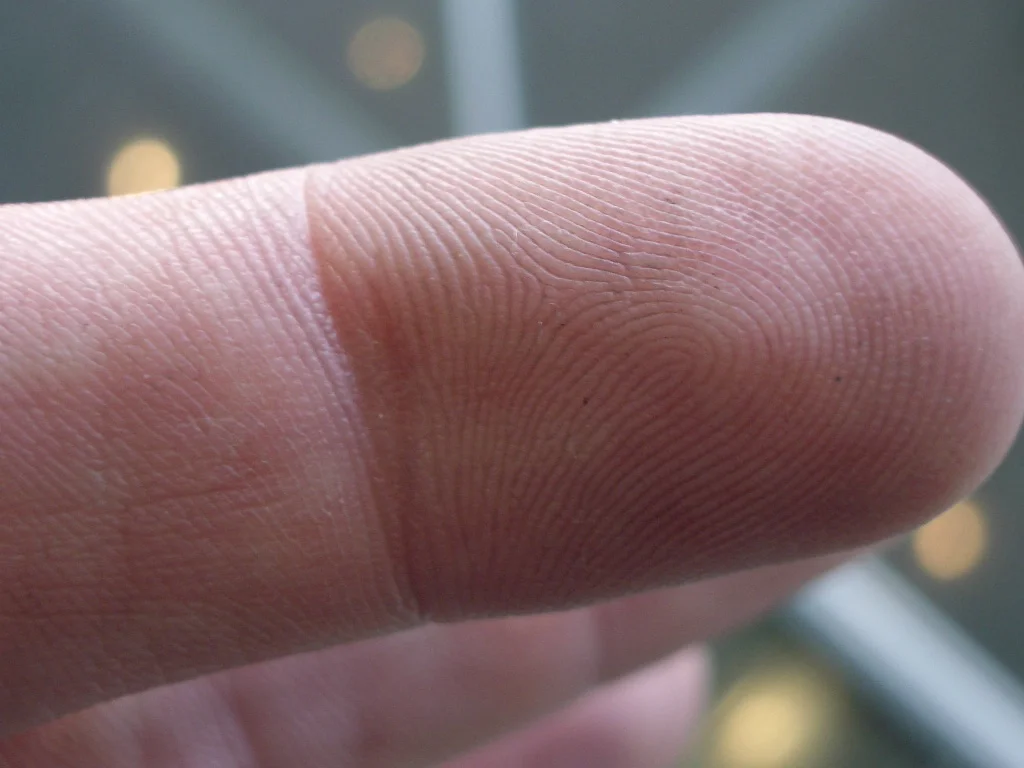
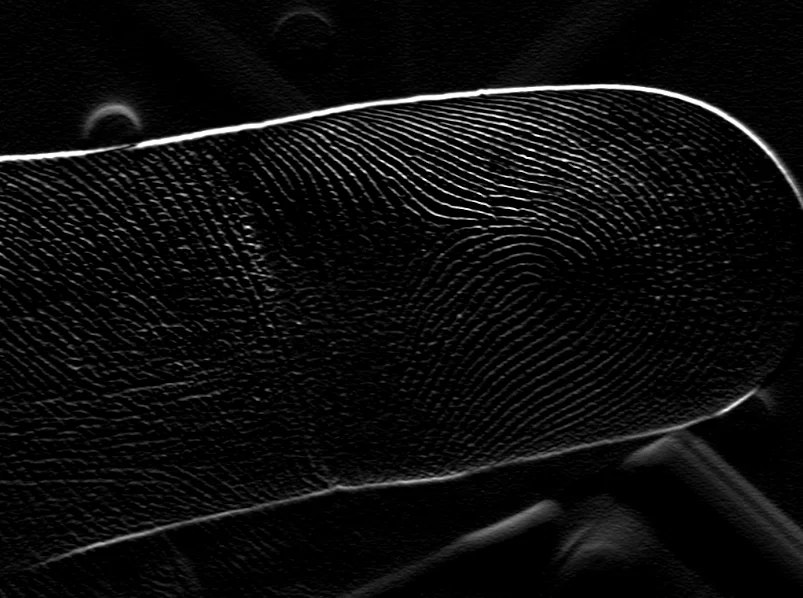
Filter Image Using Gabor
Apply a Gabor filter to detect oriented textures and features at specific scales and orientations, ideal for texture analysis, fingerprint recognition, and biomedical imaging.
View →Morphological Operations
Reshape binary regions: grow or shrink them (dilate/erode), clean up noise and holes (open/close), extract boundaries or fine features (gradient, top-hat, black-hat), or reduce shapes to their skeleton (thinning).
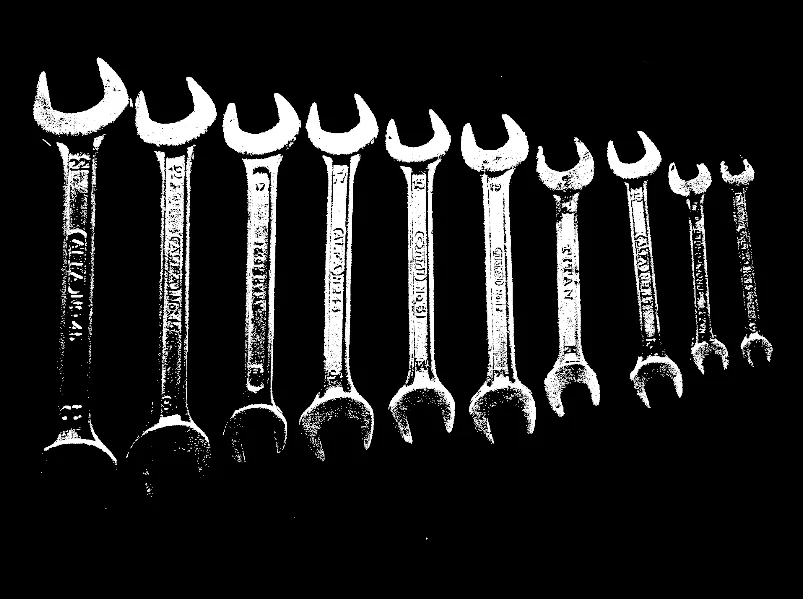
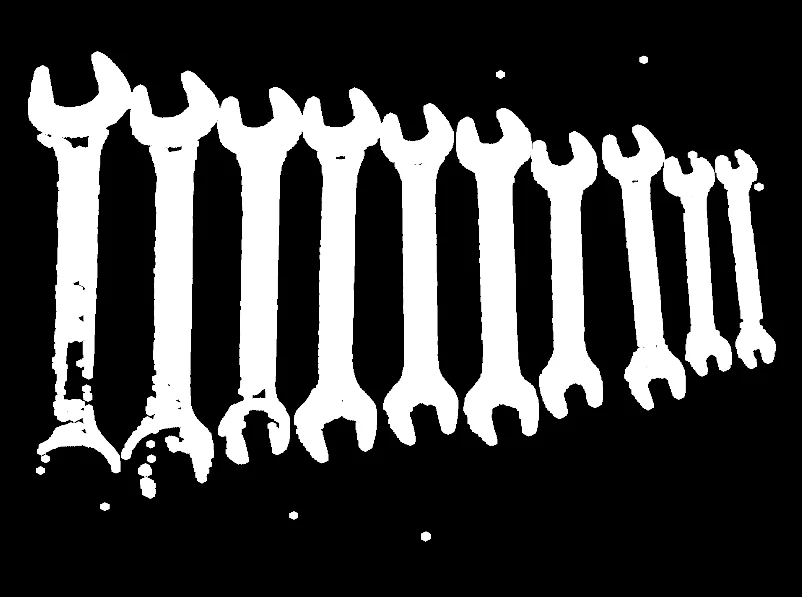
Filter Image Using Morphological Dilation
Apply morphological dilation to expand bright regions and fill small gaps or holes, useful for mask expansion, object connection, and feature enhancement.
View →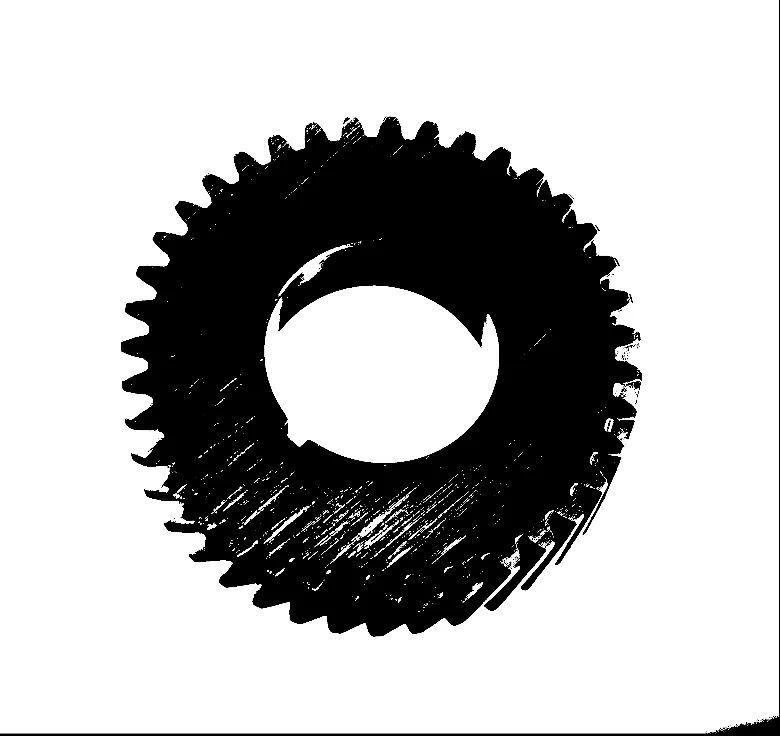
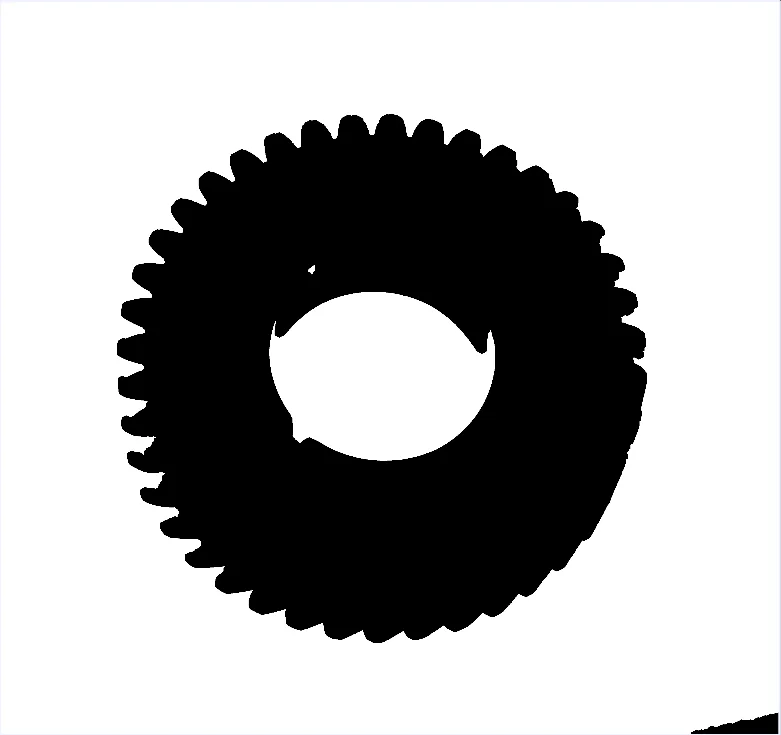
Filter Image Using Morphological Erosion
Apply morphological erosion to shrink bright regions and remove small noise, useful for binary image cleanup, object separation, and feature removal.
View →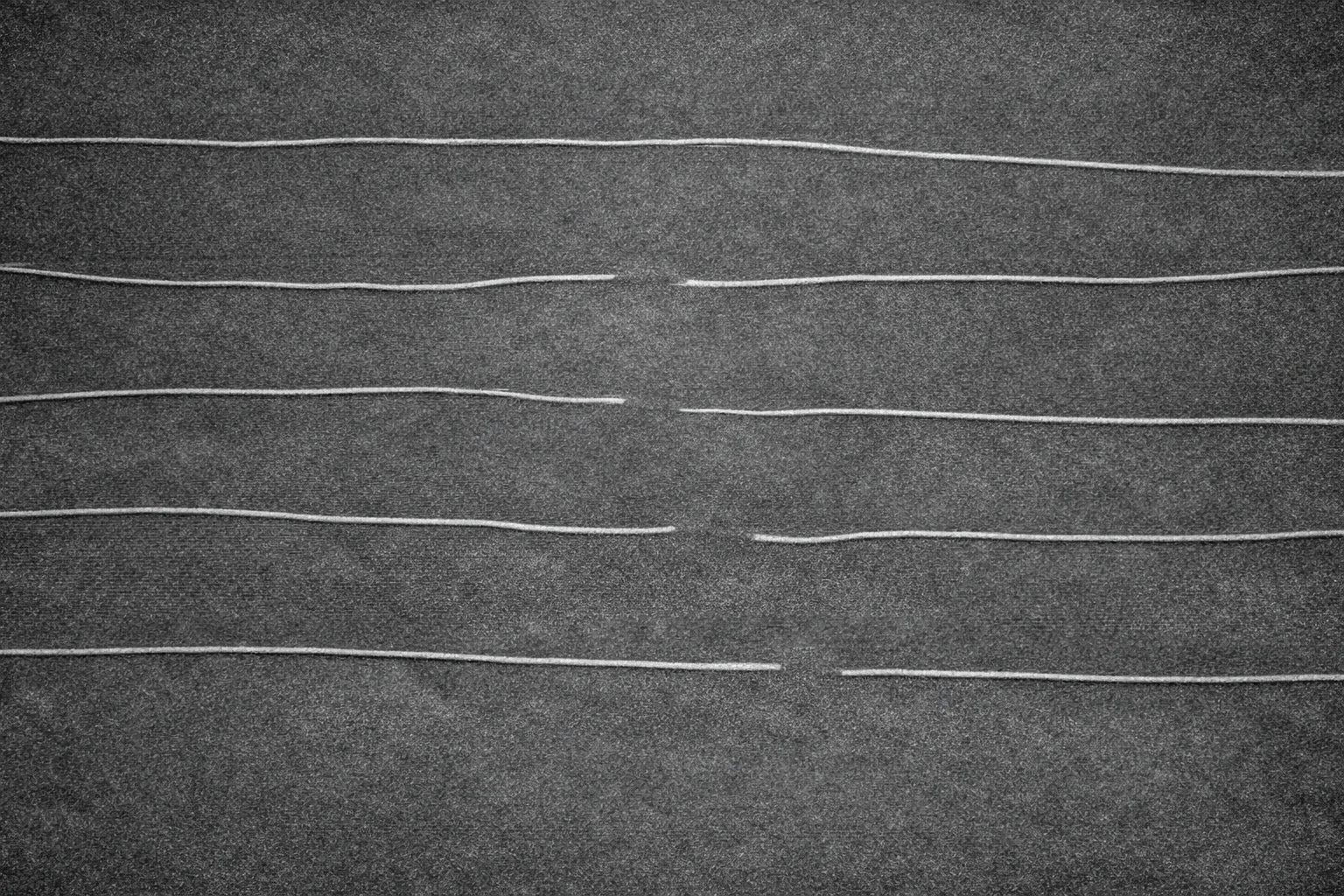
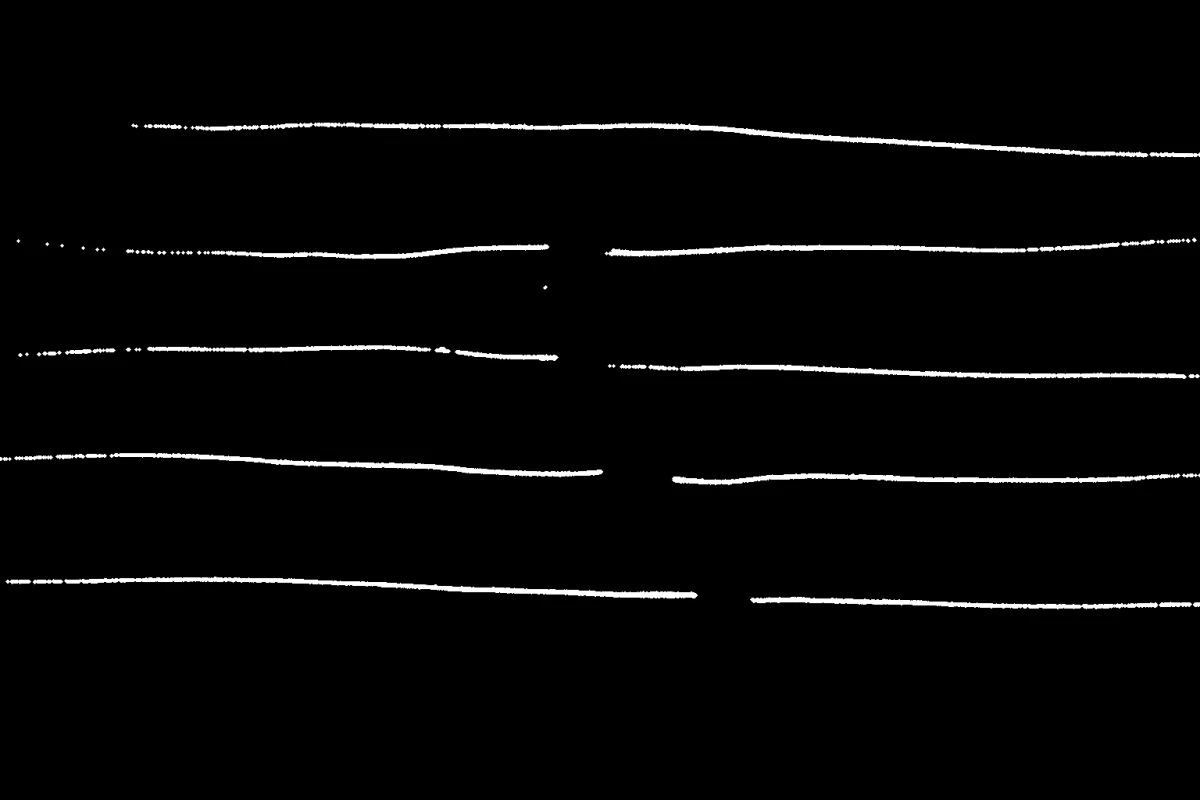
Filter Image Using Morphological Open
Apply morphological opening (erosion followed by dilation) to remove small noise while preserving object size, effective for binary image cleanup and segmentation refinement.
View →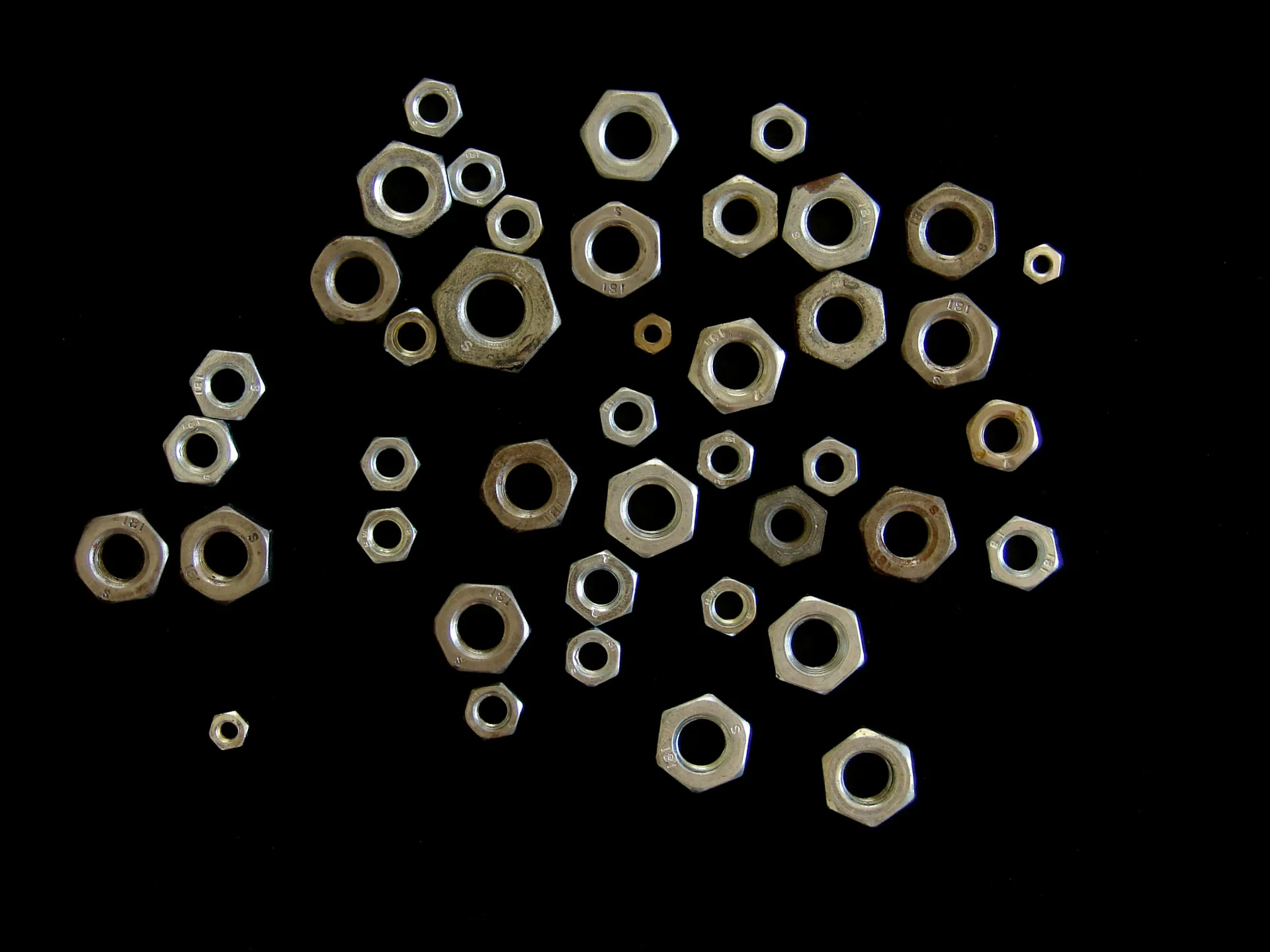
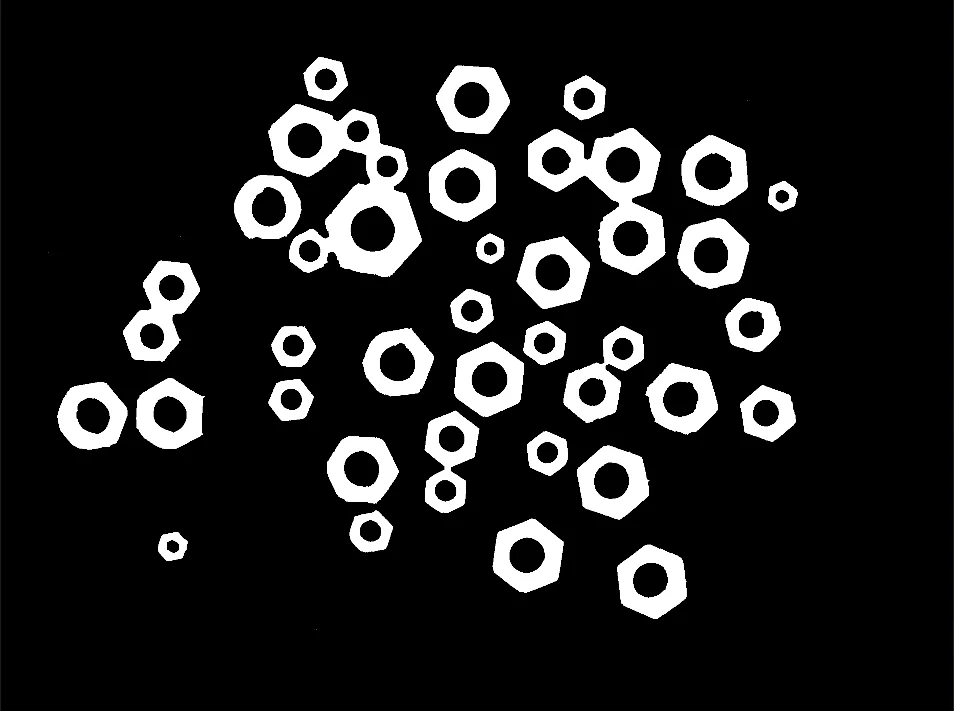
Filter Image Using Morphological Close
Apply morphological closing (dilation followed by erosion) to fill holes and connect nearby objects while preserving overall shape, ideal for segmentation cleanup and feature completion.
View →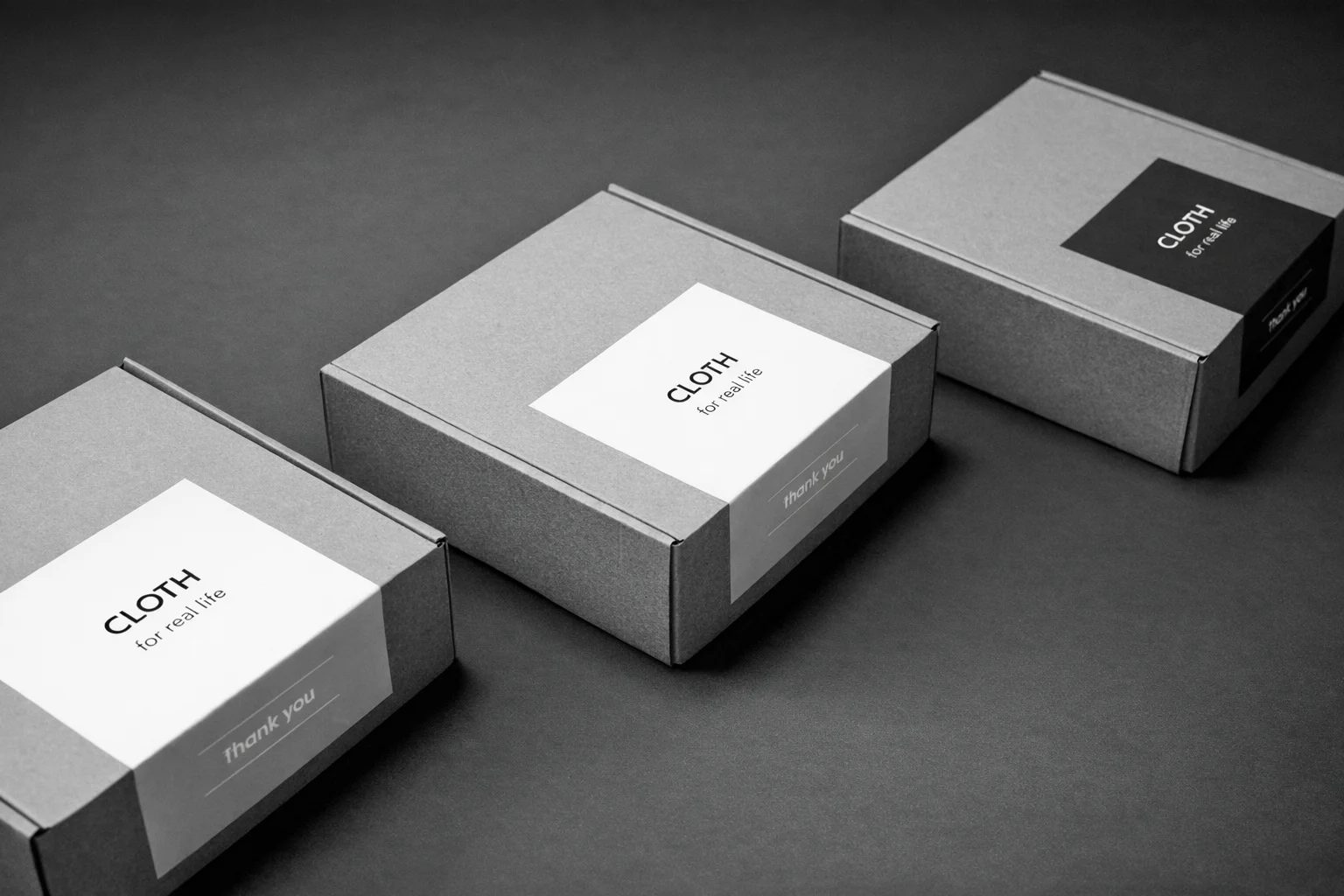
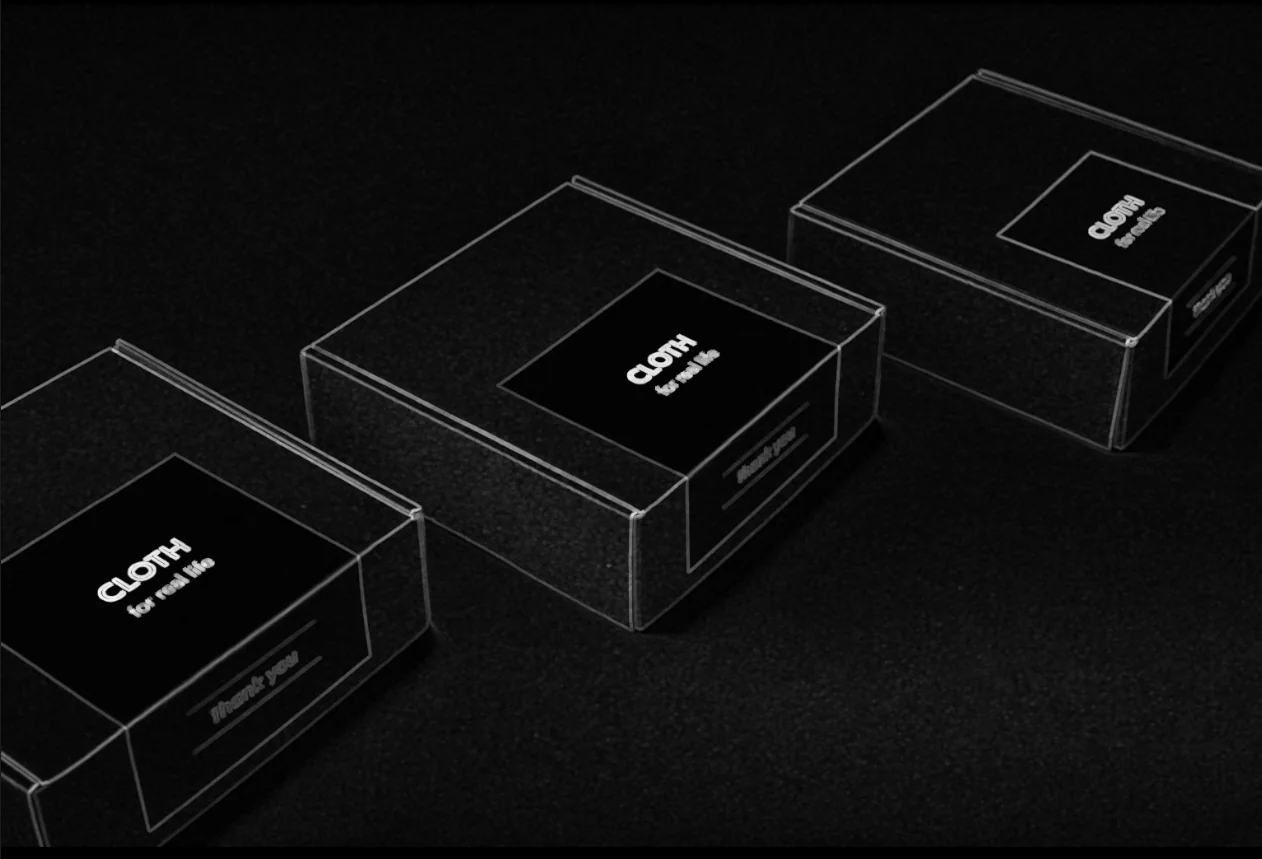
Filter Image Using Morphological Gradient
Apply morphological gradient to extract object boundaries by computing the difference between dilation and erosion, useful for robust edge detection in binary or grayscale images.
View →
Filter Image Using Morphological Tophat Filter
Apply morphological top-hat transform to extract or enhance small bright features in images, useful for background correction, small object detection, and detail enhancement.
View →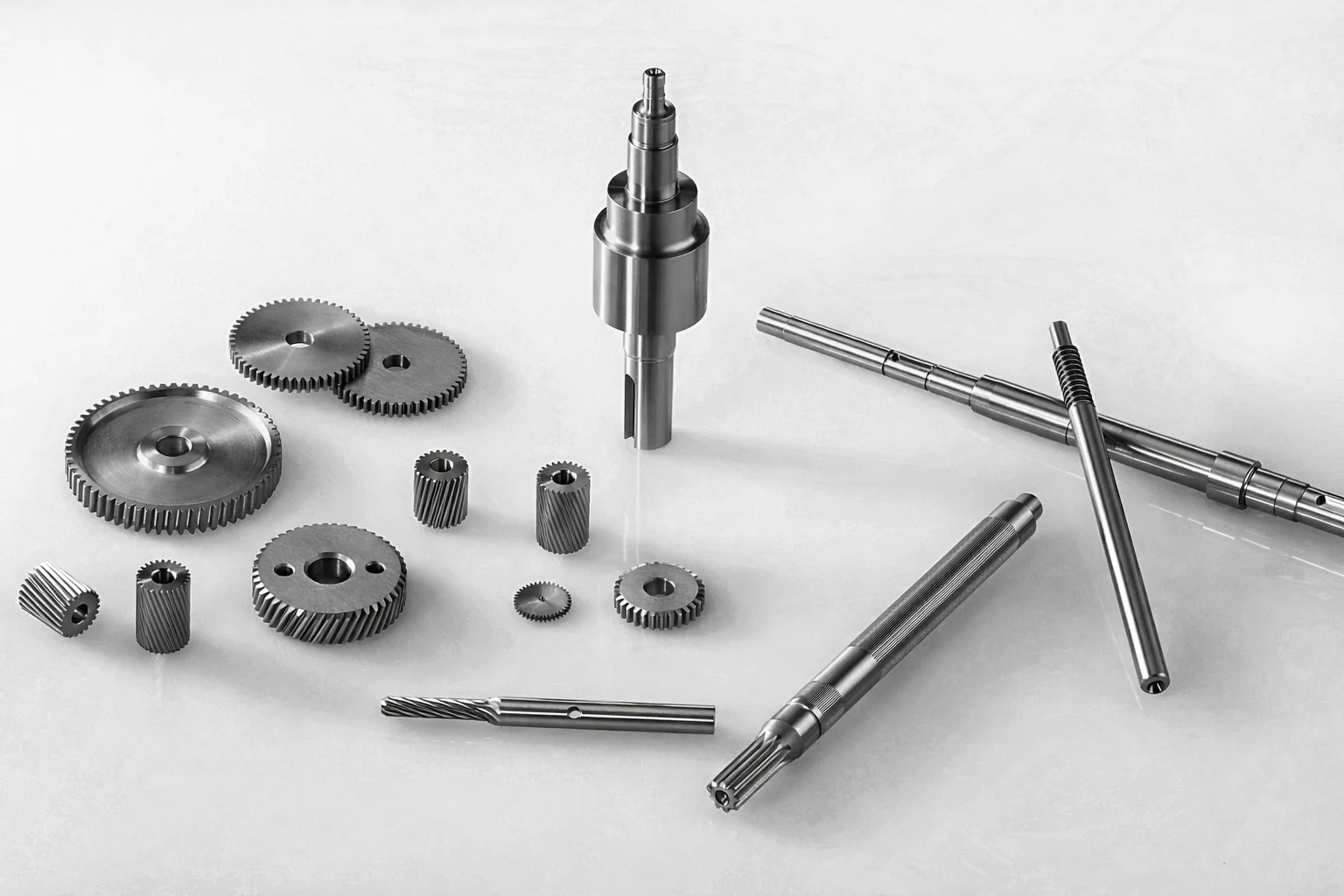
Filter Image Using Morphological Blackhat
Apply morphological black-hat transform to extract small dark features, cracks, or holes on bright backgrounds, ideal for defect and surface inspection.
View →
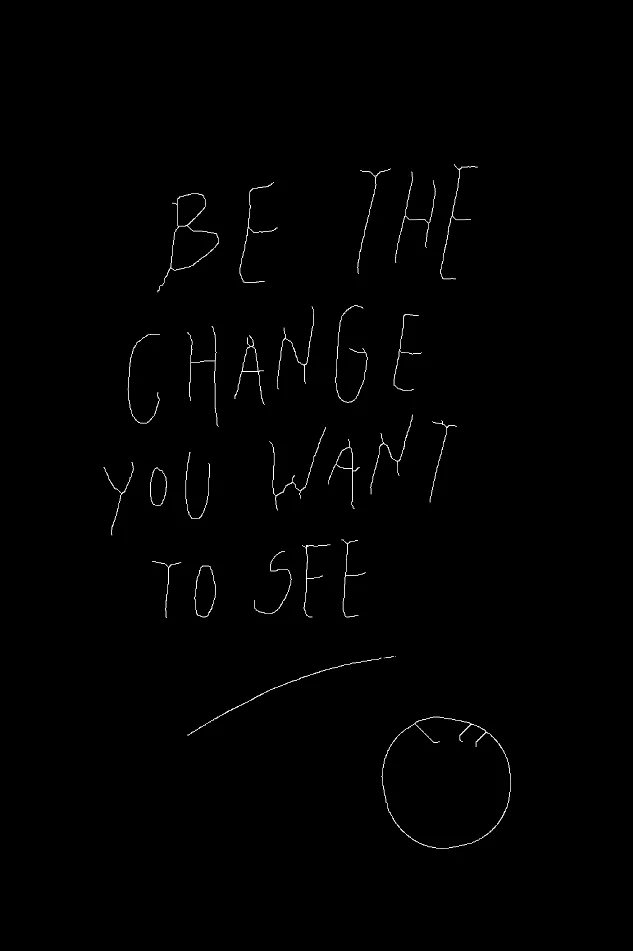
Filter Image Using Morphological Thinning Filter
Apply skeletonization (thinning) to binary images to reduce objects to their skeletal structure while preserving connectivity and topology.
View →Measurement & Geometry
Measure properties of a mask - its centroid and principal axes - or project a pixel into 3D camera coordinates using camera intrinsics.
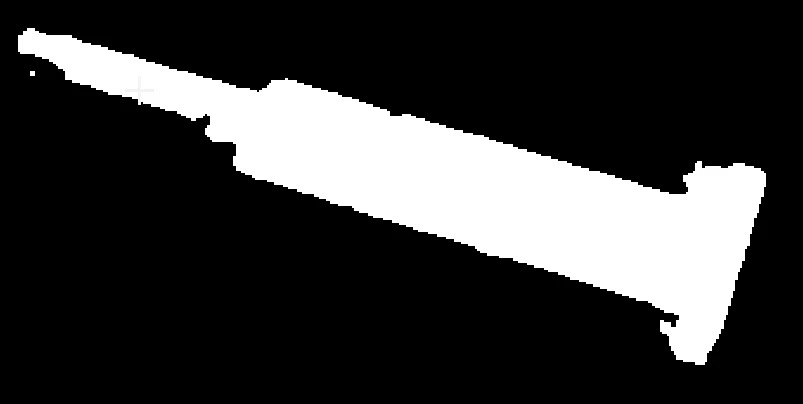
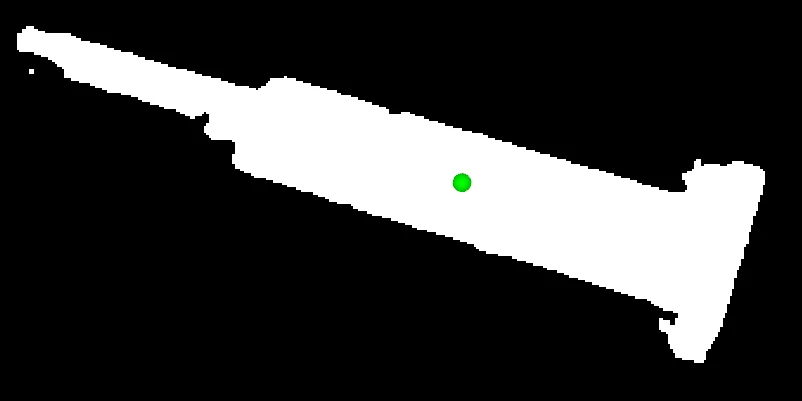
Calculate Mask Centroid
Compute the centroid (center of mass) of non-zero pixels in a binary mask. Useful for object localization, alignment, and tracking.
View →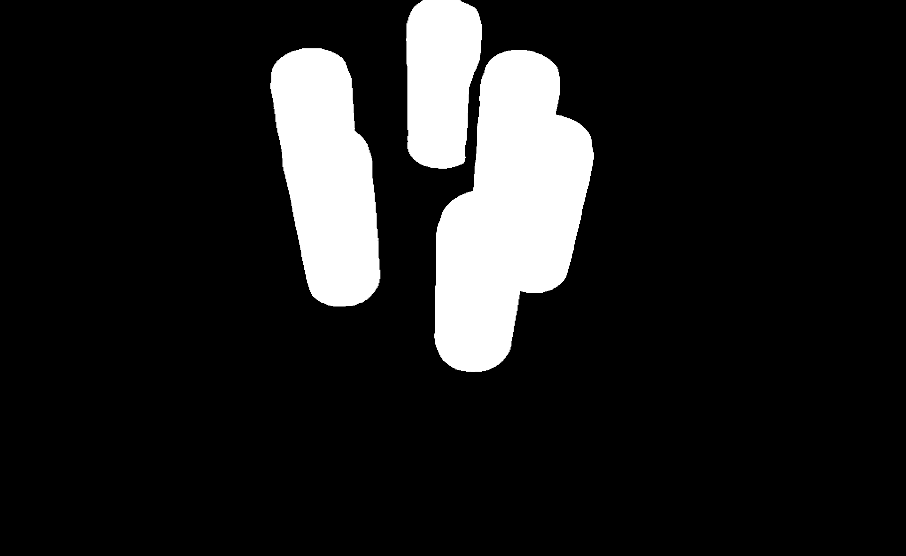
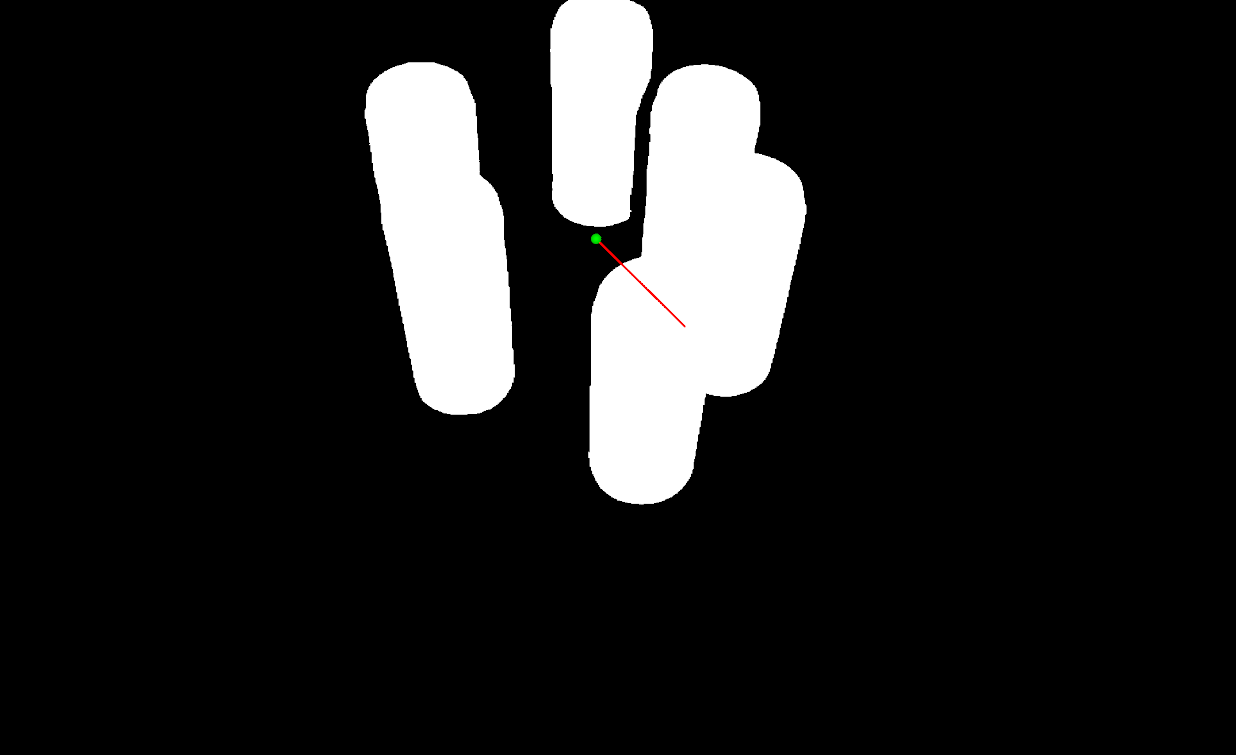
Calculate Mask PCA
Perform principal component analysis on a binary mask to compute centroid, eigenvectors, eigenvalues, and principal angle with visualization. Useful for shape orientation analysis, alignment, and morphological characterization.
View →
Project Pixel to Camera Point
Convert a 2D pixel coordinate and depth value into a 3D point in camera coordinates using camera intrinsics and distortion coefficients.
View →Where to Go Next?
Continue to the next tutorial.
Point Cloud Processing
3D point cloud filtering, downsampling, and processing with Vitreous.
Next tutorial →