

Install Isaac Sim Extension
This guide walks through installing Isaac Sim 6.0.1 and the Telekinesis bridge extension. Once installed, you can set up your simulation environment, test and iterate with Telekinesis Skills.
Install Isaac Sim
If you already have Isaac Sim installed, you can skip to Verify below.
Install Isaac Sim 6.0.1 by following NVIDIA's Isaac Sim installation guide. See Compatibility for supported versions.
INFO
Supported platforms are Linux x86_64 and Windows x86_64.
TIP
Install Isaac Sim in its own conda environment, separate from the one where you installed telekinesis-ai. This keeps Isaac Sim's dependencies from conflicting with the Telekinesis SDK.
Launch Isaac Sim
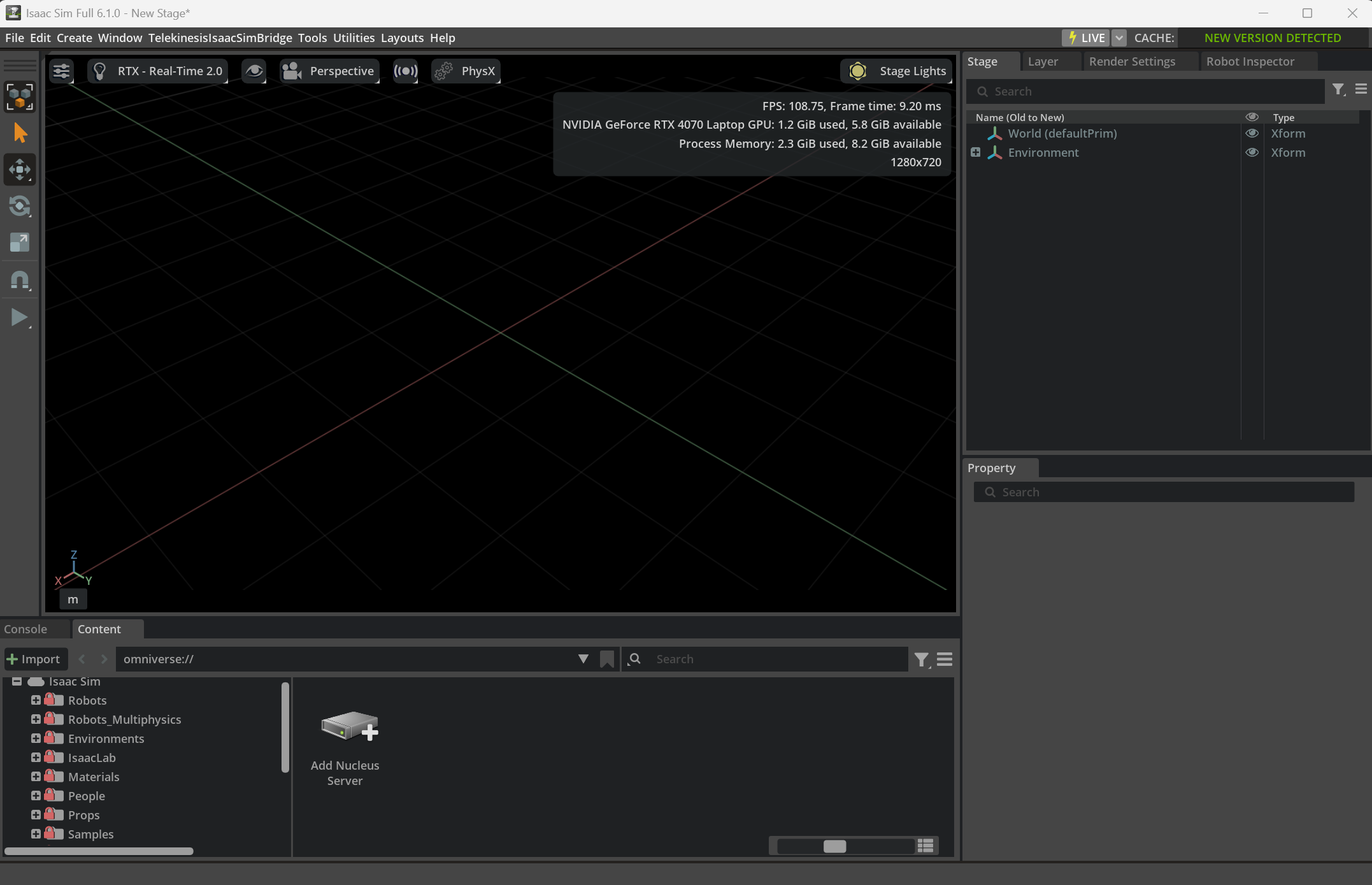
Launch Isaac Sim as described in NVIDIA's installation guide. The Isaac Sim window should open:
Install Telekinesis Isaac Sim Extension
Option A: Install from Extension Manager (Recommended)
Go to Window ▸ Extensions
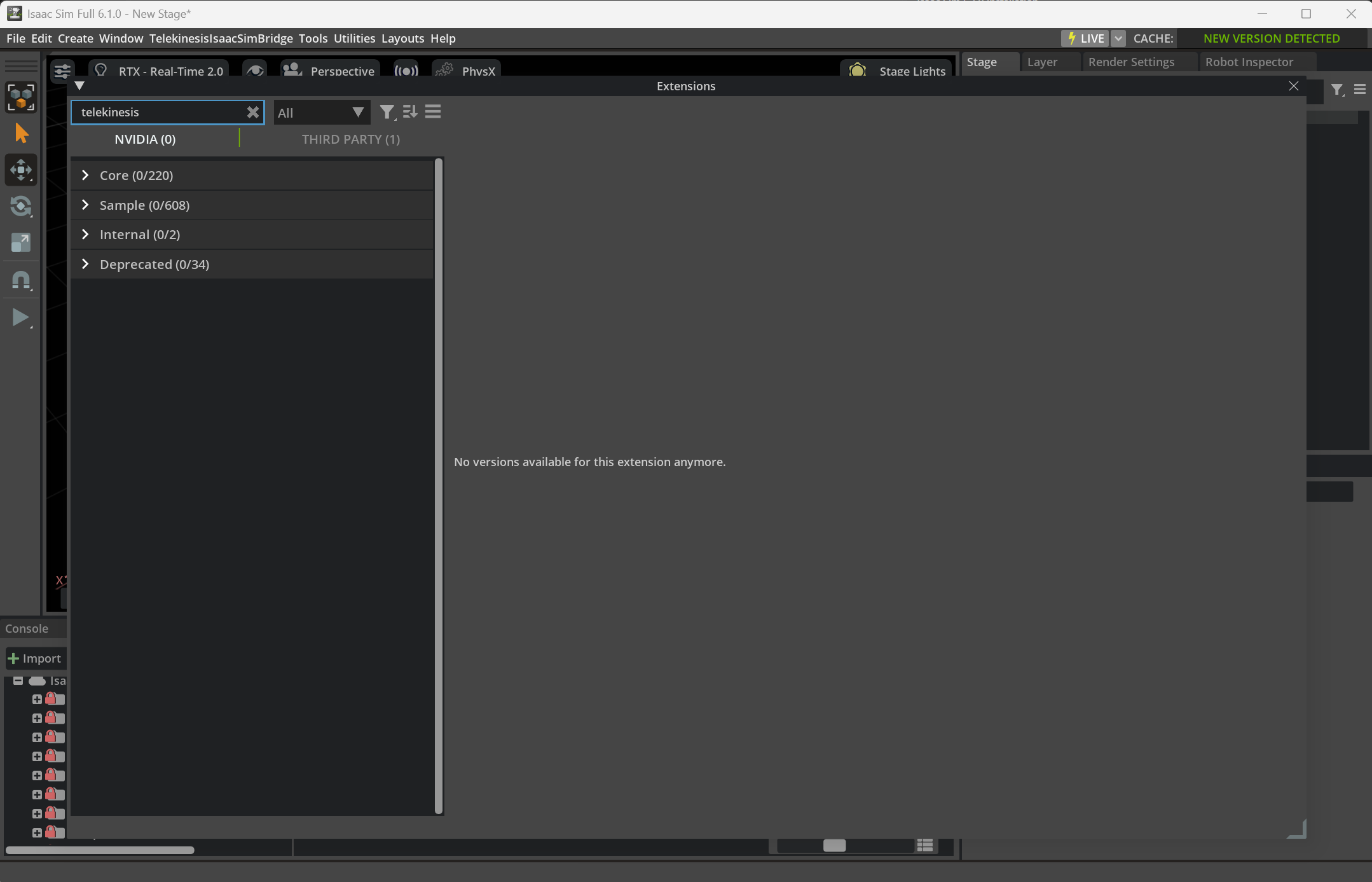
Click the Settings icon (three bars) in the top right corner. Under Extension Registries, enable the NVIDIA Community Registry. If it isn't listed, click Add and paste:
https://dw290v42wisod.cloudfront.net/exts/kit/communitySearch for
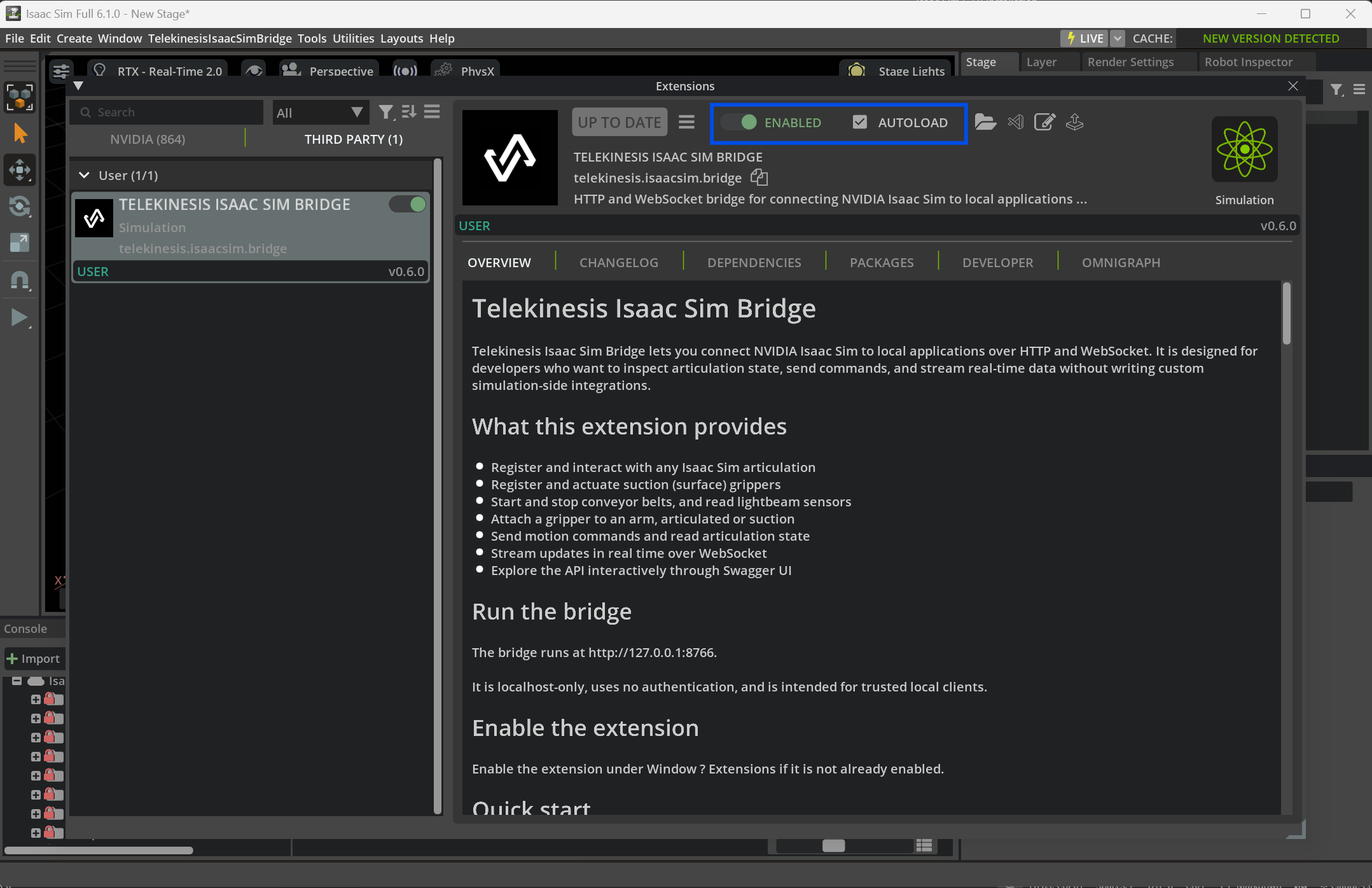
telekinesis.isaacsim.bridgein the search bar, and click on it.The extension should appear under the Third Party tab.
Click on the extension, toggle Enable and checkbox Autoload.
INFO
Use Option B if the extension isn't available in the registry or you need a specific version.
Option B: Install manually from GitHub
Use this method if the extension isn't available in the registry or you need a specific version.
Download the zip matching your Isaac Sim version from GitHub Releases (e.g.,
telekinesis-ai-telekinesis-isaacsim-extension-windows-x86_64-v0.8.1.zip). See Compatibility for the supported extension version.Extract the zip to a permanent location:
bashunzip telekinesis-ai-telekinesis-isaacsim-extension-*.zip -d ~/.cache/telekinesis/isaacsim-extensionNote the full path to the extracted folder. For example:
~/.cache/telekinesis/isaacsim-extension/telekinesis-ai-telekinesis-isaacsim-extension-windows-x86_64-v0.8.1In Isaac Sim, go to Window ▸ Extensions
Click the Settings icon (three bars) in the top right corner.
Click the Add button and paste the full path to the extracted folder from step 3:
~/.cache/telekinesis/isaacsim-extension/telekinesis-ai-telekinesis-isaacsim-extension-windows-x86_64-v0.8.1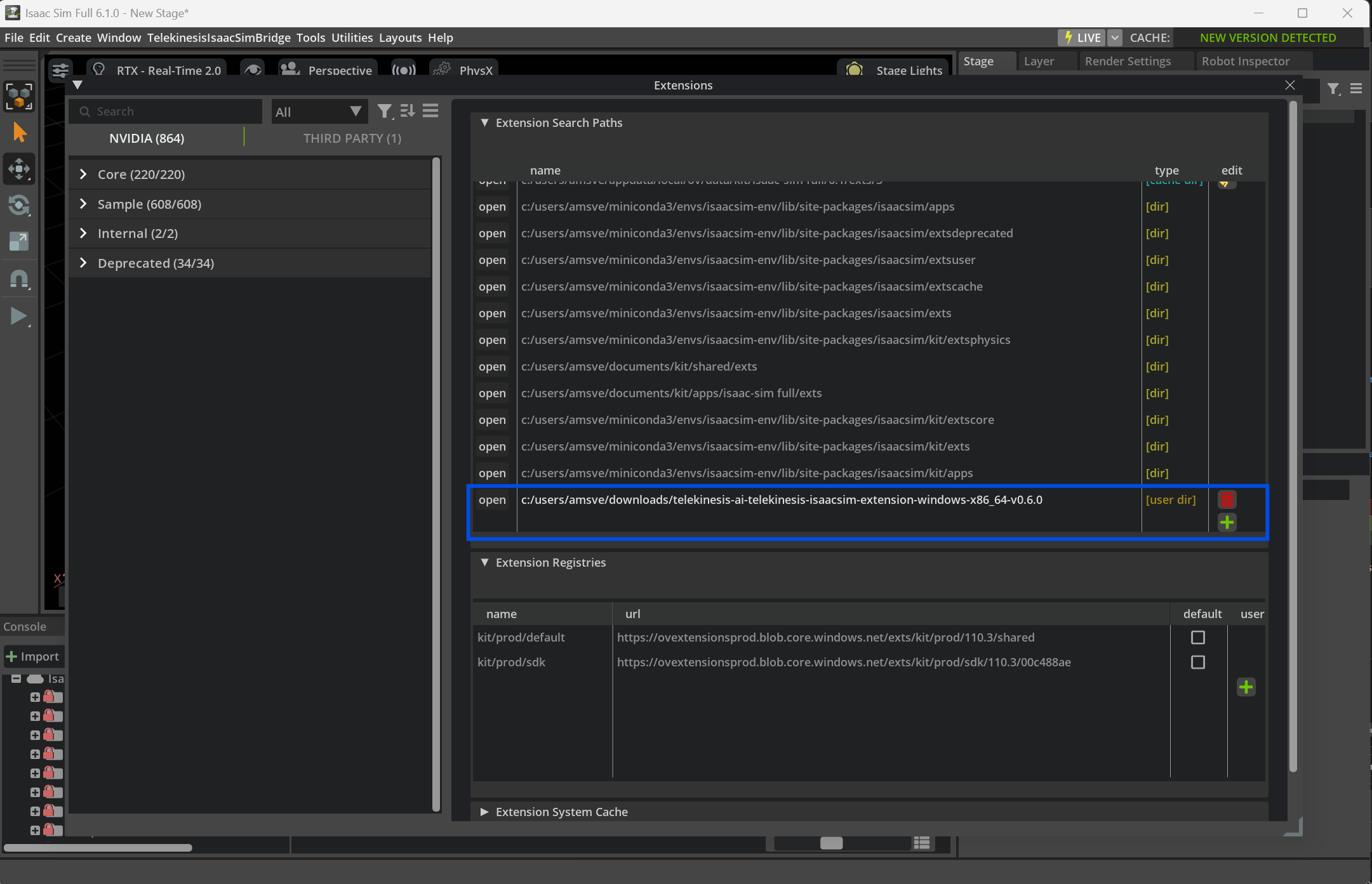
The extension should appear under the Third Party tab.
Click on the extension, toggle Enable and checkbox Autoload.
INFO
On first enable, Kit installs a few Python dependencies automatically (requires internet access).
Next Steps
Synapse Skills
Manipulator and gripper skills, each runnable against real hardware or Isaac Sim.
Explore →Install BabyROS
Set up lightweight pub/sub middleware for distributed robotics communication.
Next →